Learn Mode makes your learning journey interactive, helping you study better and master material rather than just get the answer.
This search mode is available for all users, including free and logged-out users.
How do I access Learn Mode?
At the moment, learn mode is only available via the toggle to verified students.
For verified students:
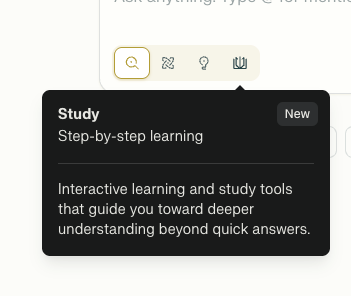
If you're a student who has verified your student status, you'll see a Learn icon in the search mode toggles. (This is only available on an account that has verified student status. Scroll to the end of this article to learn how to verify as a student.)
For Students on the web app
To activate Learn Mode for your Search, click on Learn icon on the toggle panel in your Search bar.
For Students in Comet
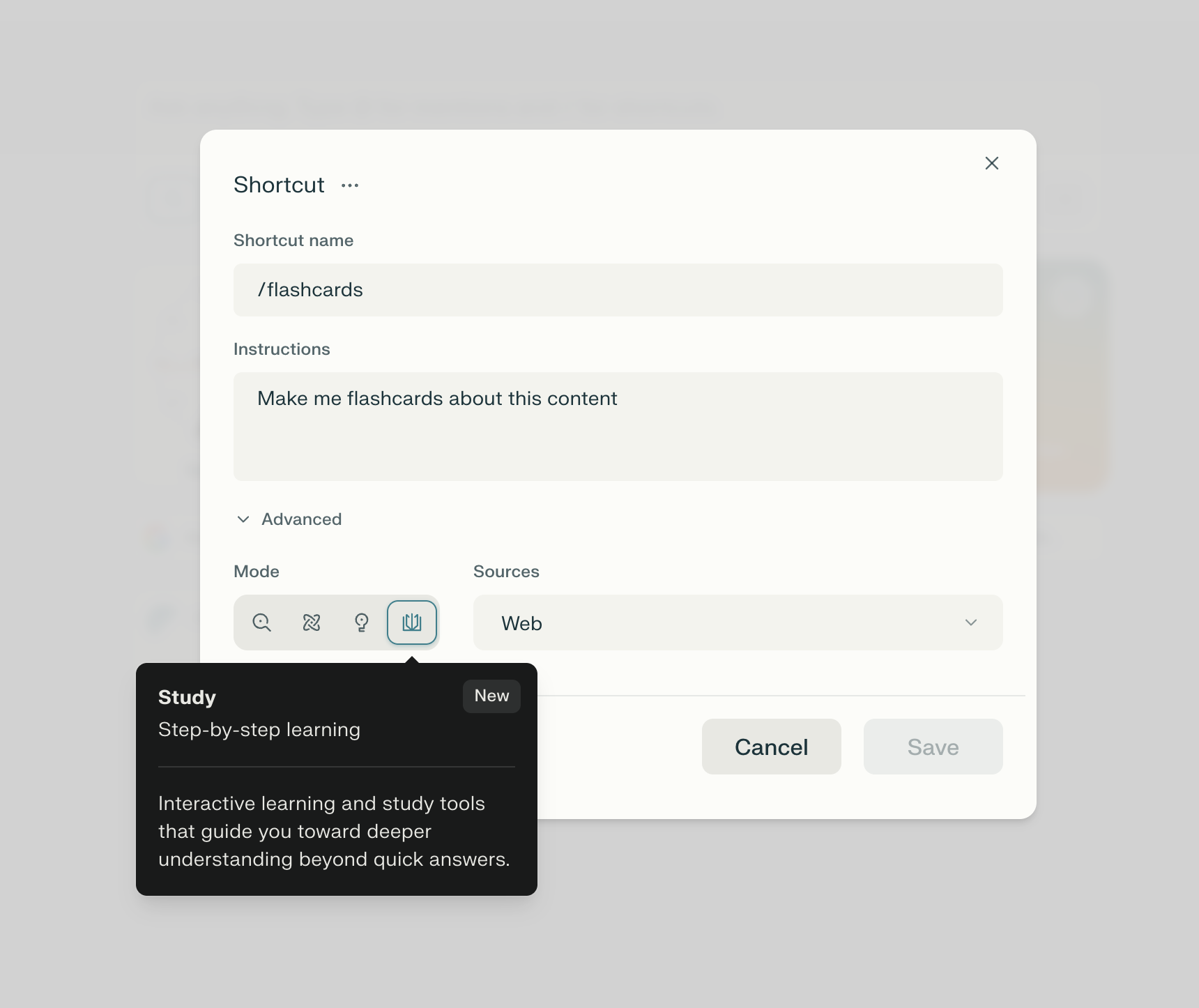
In a new tab on Comet, click "Edit widgets" and click "Shortcut". Edit or create a shortcut to use "Learn Mode" under the "Advanced" toggle.
What is Learn Mode?
Learn Mode is Perplexity’s Search, but optimized for active learning. Instead of giving just the answer to your question, Learn Mode explains the answer in detail, breaking it down step-by-step. With Learn Mode you can:
-
Learn through conversation rather than getting an instant answer
-
Break down your learning step-by-step
-
Generate custom study tailored to your courses and study notes inline in session, like interactive free-response exercises, flashcards, and multiple choice quizzes.
-
Interactive Flashcards
-
Interactive Multiple Choice Quizzes
-
Key features:
Guided Learning: Instead of just giving you the answers, Learn Mode will ask thoughtful questions and provide gentle hints to help you discover solutions on your own, turning the learning process into an experience both engaging and memorable.
Step-by-Step Explanations: Learn Mode breaks down complex topics into clear, manageable chunks that show how ideas connect to each other, so you won't feel overwhelmed by too much information at once.
Learning That Fits You: Learn Mode adjusts its teaching style to match your skill level by asking a few quick questions to understand what you already know and remember from your previous conversations.
Progress Tracking: Learn Mode will include mini-quizzes and thought-provoking questions with helpful feedback to help you see how you're improving and make sure you can use what you've learned in real situations.
Easy Control: You can turn Learn Mode on or off whenever you want during your chat, so you can switch between casual conversation and focused learning as your needs change.
Example Use Cases
-
(Example thread) Understanding a math problem from a problem set. In Learn Mode, take a screenshot of the problem and attach it in your query. Learn mode will help you solve the problem step-by-step.
-
(Example thread) Learning about a new topic. Use Learn Mode to dive deeper and ask questions about what you don’t understand, tailored to your baseline familiarity level.
-
(Example thread) Making flashcards about an upcoming psychology quiz. In Learn Mode, upload any course materials, readings, study guides, or lecture notes and ask Perplexity to create flashcards based on the attached materials.
-
(Example thread) Creating practice quizzes tailored to what you’re learning to study for an upcoming exam. In Learn Mode, upload any course materials, readings, study guides, or lecture notes and ask Perplexity to create flashcards based on the attached materials.
Verifying as a Student
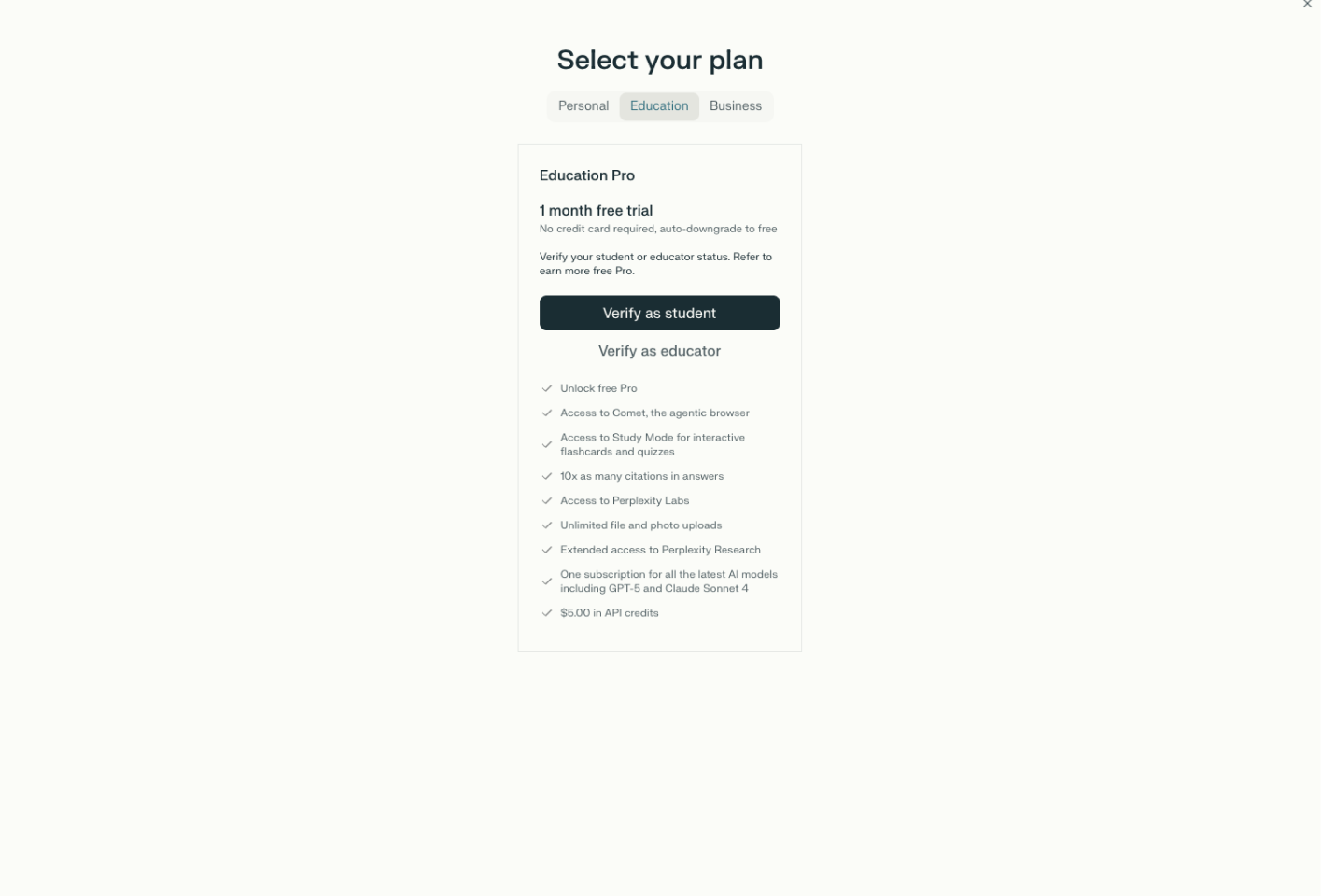
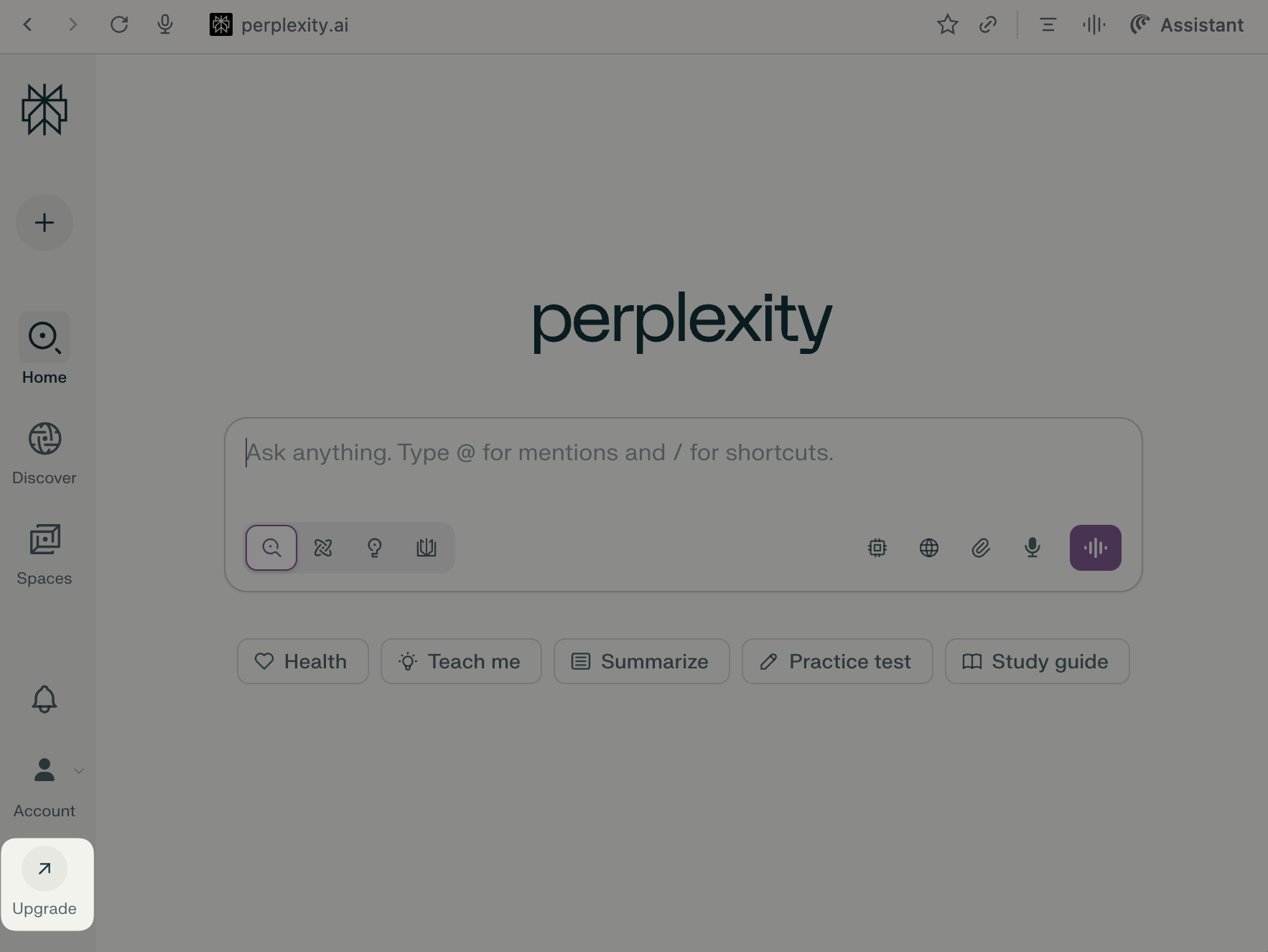
Learn Mode will be available for all verified student accounts. We verify student accounts through SheerID, our third-party verification partner. To access student verification, click “upgrade” in the bottom left corner and verify student status via the “Student” toggle on the paywall. You may use any email for Perplexity, not just a student email.
Click “upgrade” in the bottom left corner
Verify student status via the “Student” toggle on the paywall. (Available under the Education plan)