

About the Google Drive Connector
The Google Drive Connector enables you to query documents stored in your Google Drive directly from Perplexity.
It integrates Google Drive with Perplexity's productivity features, allowing you to instantly search and combine relevant information across your Drive files, email, calendar, other connected apps, and the web, without manual searches or context switching.
The Google Drive Connector is available for Perplexity Pro, Perplexity Max, Enterprise Pro, and Enterprise Max users.
Below you'll find an overview of this Connector and how to activate it.
What does the Google Drive Connector do?
Once enabled, the Google Drive Connector allows you to search across all your Google Drive files to provide answers based on that content. The connector works by securely syncing your selected files to Perplexity's platform, enabling comprehensive searches that combine information from your documents with other sources.
The connector performs two different types of search:
-
Standard Search: Search across your entire Drive with standard indexing
-
High-Precision Search: Deep analysis of selected files for comprehensive answers from your documents. Only available for Enterprise customers.
You can use the connector to quickly find information in spreadsheets, presentations, documents, and other supported file types without manually opening each file in Google Drive. This streamlines research, document review, and information retrieval across your entire Google Drive.
When you sync your Google Drive files with Perplexity using the connector, any updates to those files are automatically reflected in Perplexity without any action required on your part.
Key Differences by Plan
While all Perplexity users can search their entire Google Drive using Perplexity and sync Google Drive files to projects to query using standard search, Enterprise Pro and Enterprise Max users can also sync Google Drive files to their personal repository (My Files). Additionally, high-precision search is only available to Enterprise users (Enterprise Pro and Enterprise Max). Please note that limits apply for high-precision search.
For clarity, here’s a comparison:
|
Feature |
Pro / Max |
Enterprise Pro / Max |
|
Standard search entire Drive |
✓ |
✓ |
|
Sync files to projects |
✓ |
✓ |
|
Sync files to My Files |
✗ |
✓ |
|
High-precision search |
✗ |
✓ |
Note: Limits apply for high-precision search. You can learn more in this article.
Supported File Types
The Google Drive Connector supports a wide range of document formats:
-
Google Docs, Sheets, and Slides
-
Microsoft Office files (DOCX, XLSX, PPTX)
-
PDF documents
-
CSV files
-
Markdown (MD) files
-
JSON files
-
Text (TXT) files
At the moment, Images, audio files, and video files are not supported by the Google Drive Connector.
Privacy and Data Security
The Google Drive Connector requires the following permissions to function:
-
See and download all your Google Drive files
-
See information about your Google Drive files
-
See, edit, create, and delete only the specific Google Drive files you use with this app
Note: Perplexity uses these permissions to read and sync your files. The "edit, create, and delete" permissions enable the connector to maintain sync metadata, but Perplexity does not modify your Drive file content.
The Google Drive Connector respects user permissions, and will only serve a user content they’re authorized to see.
If you delete a file from Google Drive or remove access to it, that file is immediately removed from Perplexity.
Additionally, if you disconnect your Google account in Perplexity, you can choose whether you'd like to keep or delete your files. If you keep them, they will stay in your account, but they will no longer synchronize if you make changes to them in Google Drive.
Default vs High-Precision Search
The default search behavior of the Google Drive connector uses a direct API integration. This integration uses the OAuth provided by Google Drive, which means that it will always adhere to the file permissions as set in Google Drive. Perplexity does not index your entire drive, and it only gets access to the files returned by the API.
Using standard search, Perplexity queries your Drive through Google's API in real time and only accesses files returned by the API based on your search query.
However, if you choose to upload files for high-precision search, we use the API integration to index only the selected files. Default search will still be available for the files you choose not to upload for high-precision search. Please note that Perplexity still adheres to Google Drive’s file permissions. For example, if access for a file gets revoked and a user that had access to a file no longer has access to it, they will no longer be able to search the file and its contents using Perplexity.
For more details on how uploaded Google Drive files are protected, see Google Drive Connector file upload security.
Enterprise-grade Security and Control
For Enterprise organizations, Perplexity offers enterprise-grade protections and compliance including SOC 2 Type II certification, end-to-end encryption, strict data privacy measures, and granular user access controls. Your Google Drive data, just like any other Enterprise data, is never used for AI training, and robust safeguards ensure confidentiality and regulatory compliance.
Connecting Perplexity to your Google Drive account is done at a personal level. This means that no one else in your organization is able to query your Drive files. However, if you sync files to a shared project, anyone with access to that Project will be able to search those files.
To maintain control over how Perplexity interacts with Google Drive, organization admins can enable or disable the connector for all organization users from Organization settings.
How to activate it
To activate the Google Drive Connector:
-
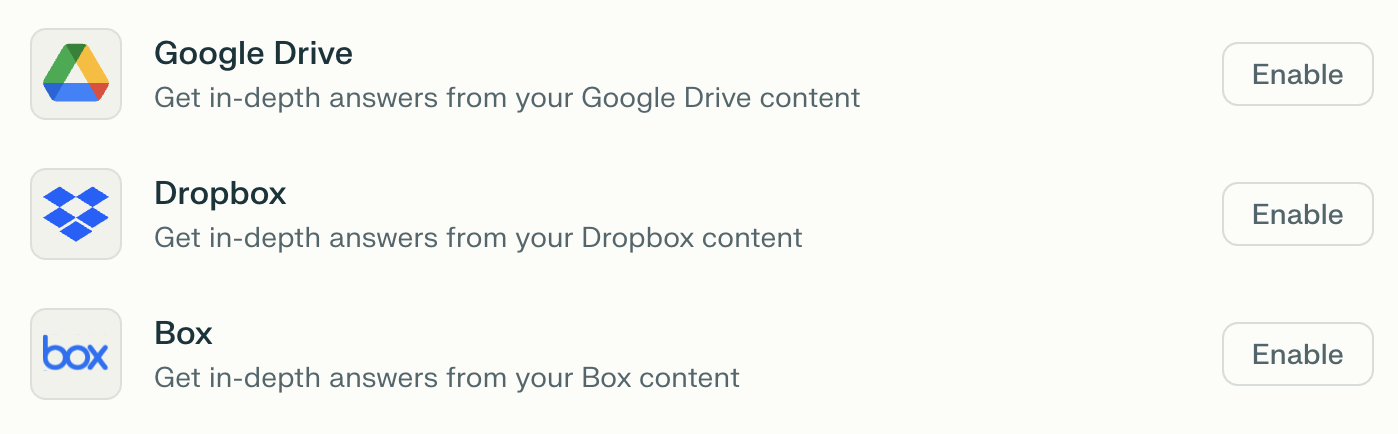
Go to Connectors in Settings and locate the Google Drive Connector on the list.
-
Click Enable and then Add Connector.
-
You will then be prompted to log in to Google and grant permissions to the connector. These permissions allow the connector to access your Drive files and metadata.
-
Click Allow to start using Perplexity with Google Drive.
-
Once the connector is enabled, you can select specific files or folders to sync with Perplexity by clicking the vertical ellipsis (⋮) and then Upload. These files will be synchronized with Perplexity for higher-precision search on your most important internal knowledge.
Using Connected Files
Once you have connected Perplexity to Google Drive, you can use your synced files in two ways:
As a Source for Search
Enable Google Drive as a source from Set sources for search when creating a new thread. Your synced Drive files will be searched alongside other selected sources (web, academic, other App Connectors, etc.) to provide comprehensive answers.
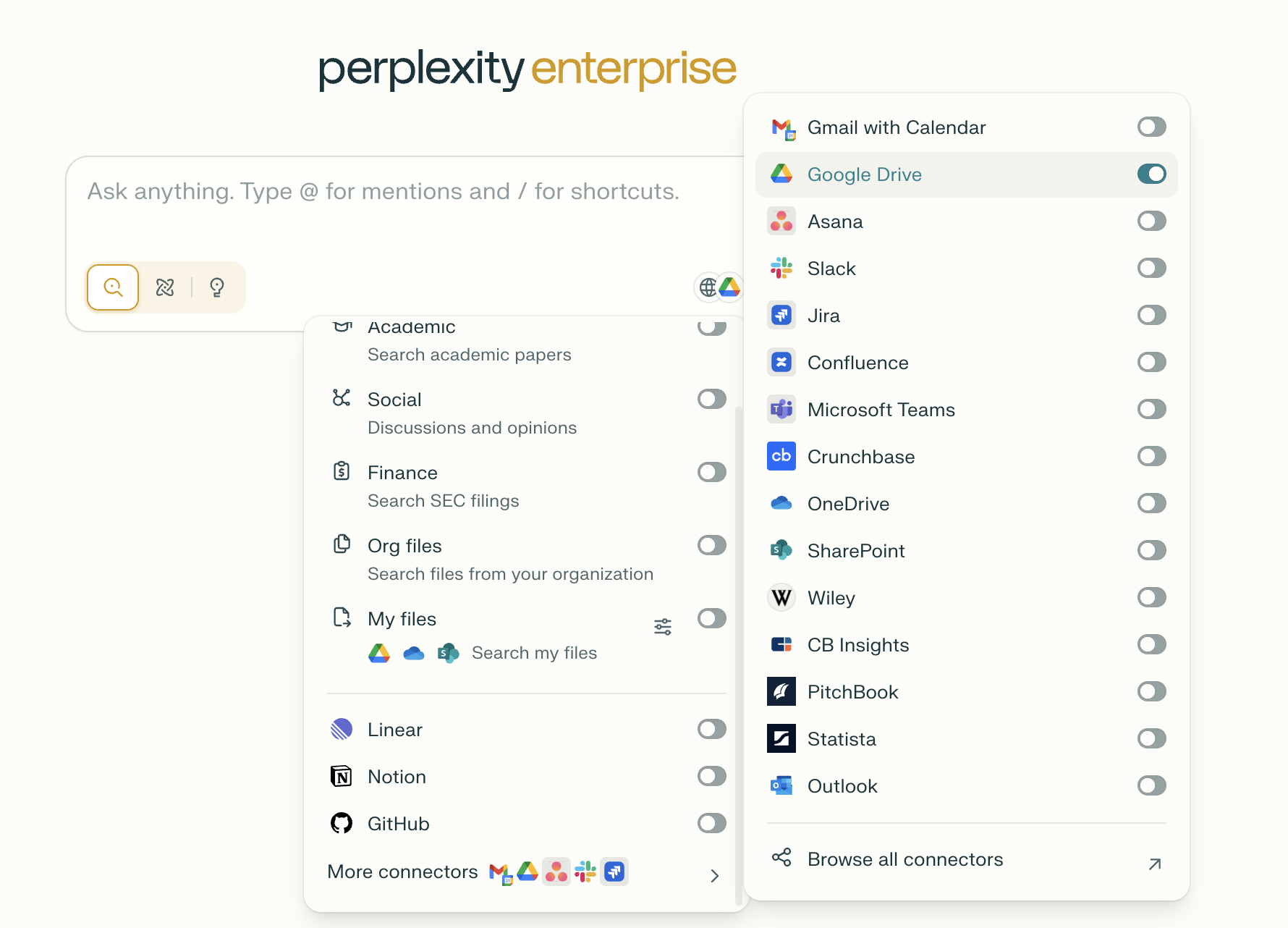
Alternatively, you can mention @Google Drive when starting a new thread, and write a search prompt.
As File Attachments in Projects:
To synchronize Google Drive files with a project, click Add from cloud in the right sidebar of the project you want to connect your files to. Then select the files and folders you want to sync with that Project.
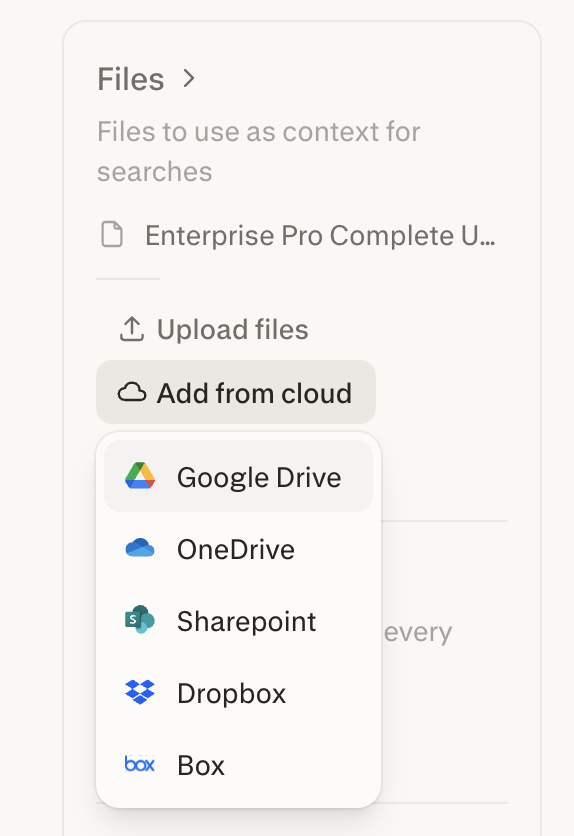
Files synced from Google Drive to a project can be searched by anyone who has access to that Project.
Trying it out
Once you have connected Perplexity to Google Drive, try running queries like these to leverage your Drive content:
-
"Summarize the Q4 financial report in my Drive and highlight key metrics"
-
"Find all meeting notes about the product launch from last month"
-
"What are the action items from the project planning documents?"
-
"Compare the data in the two budget spreadsheets"
The Google Drive Connector works seamlessly with other Perplexity features, including projects, Pro Search, and other App Connectors to create a unified knowledge experience.
Troubleshooting
Google Drive is not enabled for your organization
If you're a member of an Enterprise organization and can't enable the Google Drive Connector on your account, an admin may have disabled it for your organization. Get in touch with an organization admin who will be able to confirm this.
If it's enabled for your organization but you still experience issues, contact us.
OAuth Scope Settings
Google-specific settings may block the integration between Perplexity and Google Drive. As a Google Workspace administrator, you can usually fix this in the Admin console.
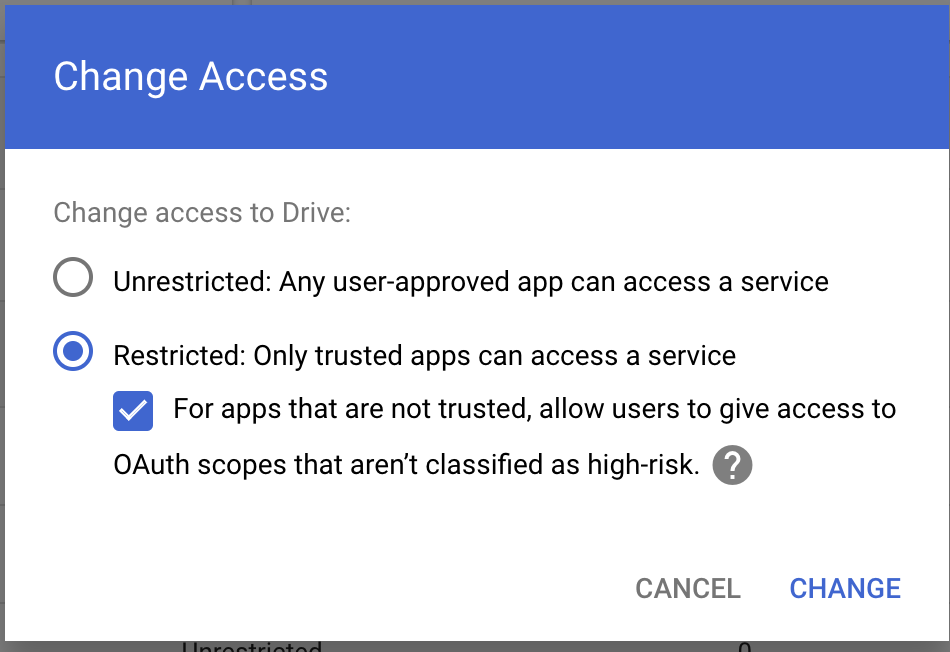
Perplexity should not have issues if Unrestricted access is granted in Google Workspace. However, if your organization cannot set access to "Unrestricted," try these alternatives:
-
Select Restricted: Only trusted apps can access a service.
-
Enable For apps that are not trusted, allow users to grant access to OAuth scopes that aren't classified as high-risk.
-
Save your changes and ask users to reconnect the Google Drive Connector in their Perplexity settings.
If issues persist after updating these settings, contact Perplexity support for assistance.