

File Connectors let Enterprise Pro and Enterprise Max members use supported cloud-storage content in Perplexity, including searching connected sources, attaching files to a query, and importing files into Projects.
File Connectors are available across supported platforms. Importing files into a Project is currently available on web only.
Why use File Connectors
-
Search work content alongside web sources without downloading and uploading each file.
-
Add shared reference files to a Project or attach a cloud file to one query.
-
Connect multiple accounts and choose which account a Project uses for imports.
How File Connectors use your content
File Connectors support different ways of using connected content. The option you choose determines what Perplexity can search, what it stores, and whether later changes to the source are reflected.
|
Method |
What Perplexity can use |
Storage and updates |
|
Standard Search |
Supported files the connected account is authorized to open |
Searches the source service when you submit a query. Files are not copied into a Perplexity file index. |
|
Query attachment |
A specific file you select for one query |
Adds a snapshot to the session. Attach the file again to use a newer version. |
|
Project Files import |
Files or folders you select for a Project |
Adds static copies to Project Files. Import the content again to use a newer version. |
Table 1 — How File Connectors use and update connected content.
Standard Search is available to Enterprise members across Google Drive, OneDrive, SharePoint, Dropbox, and Box.
Important: Searching a connected account, attaching a file to a query, and importing a copy into Project Files are separate actions. Using content in one place does not automatically add it to the others.
Privacy and data security
Standard Search queries the source service when you submit a query and applies the permissions of your connected account. Perplexity does not store a separate copy of the source file for Standard Search, although content used in the answer, including citation snippets, may be retained according to your organization's data-retention settings.
Files imported into Project Files are governed by the Project's file permissions. Before importing content, confirm that everyone with access to the Project should be able to use the imported copy.
Connector data is encrypted with AES-256 at rest and TLS in transit. Access is protected through role-based access controls, and Perplexity's controls are audited under SOC 2 Type II. Visit the Perplexity Trust Center for current security, privacy, and compliance documentation.
Enterprise data, including connector data, is never used to train Perplexity's models or any third-party model.
Important: Disconnecting a File Connector stops new searches through that account. It does not remove files already attached to sessions or imported into Project Files.
Before you start
-
You are on the Enterprise Pro or Enterprise Max plan.
-
Your organization administrator has enabled the cloud-storage service for your organization.
-
You can sign in to the storage account you want to connect.
-
You have permission to open the files or folders you plan to use.
-
To import content into Project Files, you can edit the Project.
-
To import content into Project Files, you are using Perplexity on the web.
Enterprise Pro and Enterprise Max members can connect Google Drive, Microsoft OneDrive, Microsoft SharePoint, Dropbox, and Box. Organization administrators control connector availability from Organization settings → Permissions.
How to connect your account
-
Open Settings, then select Connectors under Computer. In Computer, you can also open Customize and select the Connectors tab.
-
Find the cloud-storage service you want to use and select the add (+) button on its connector card.
-
Sign in to the service and review the requested permissions before granting access.
-
Return to Connectors, select the Connected filter, and confirm that the service appears.
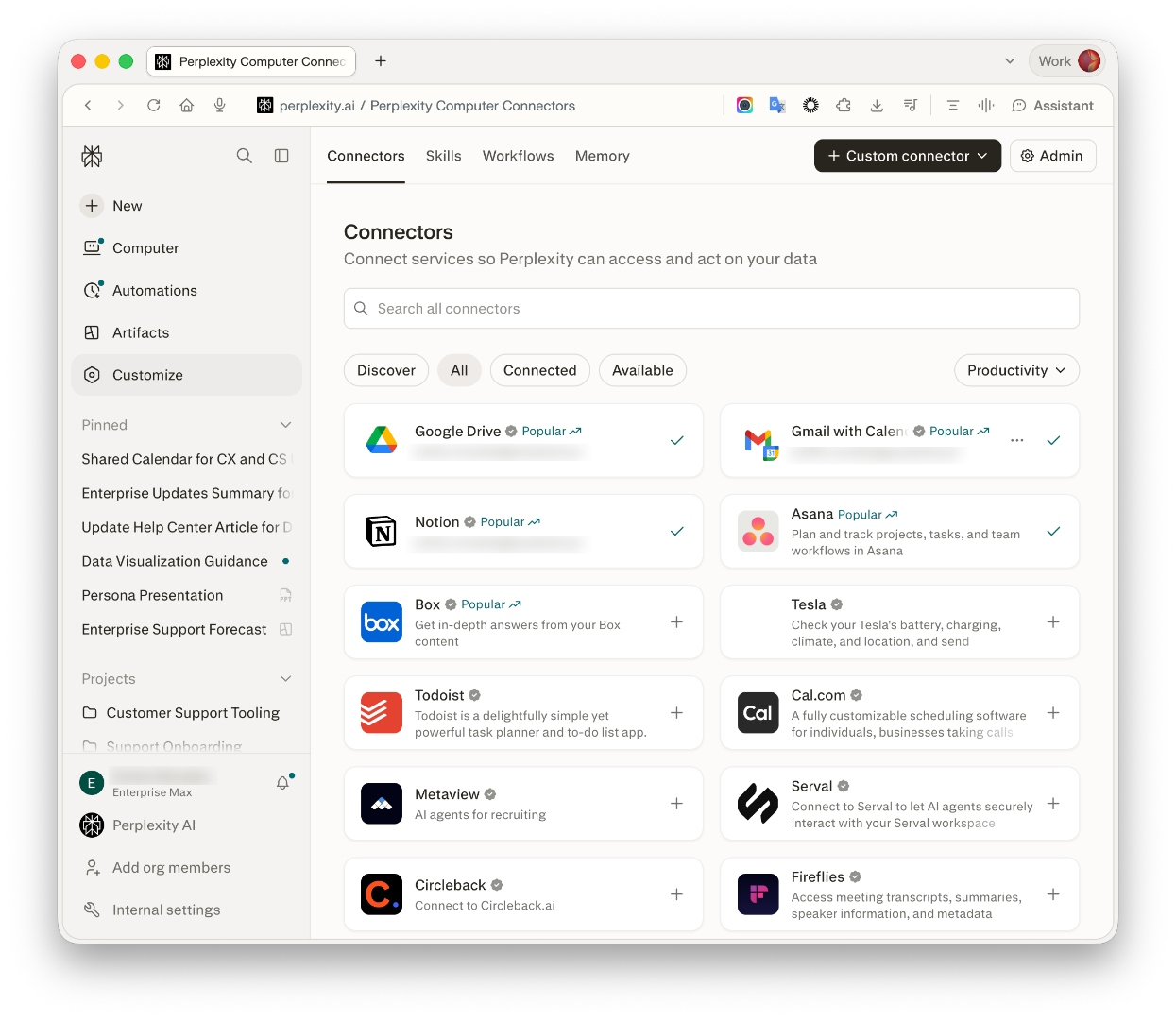
Figure 1 — Some cloud-storage connectors visible on the Connectors page (Productivity category).
How to verify it worked
Open Connectors and select the Connected filter. Confirm that the service appears, then start a new Thread, select the connected service as a source, and ask a question about a file the connected account can open. The answer should cite content from the selected service.
If the connector does not appear, your organization administrator may have disabled it. Contact your administrator before reconnecting the service.
Trying it out
After selecting the connected service as a source, try one of these queries:
-
Summarize the latest quarterly planning document. -
Compare the current product brief with the previous version. -
Find the document that describes our customer escalation process.
Check the citations before relying on the answer. You must be able to open a cited item with the connected source account to view its complete contents.
Permissions and access
File Connectors use the permissions of the account you connect. Standard Search can return only content that account is authorized to open.
The permissions requested during connection vary by provider. Review the authorization screen before approving access. Your organization may also require administrator consent in Google Workspace or Microsoft Entra.
Organization administrators can allow or block File Connectors from Organization settings → Permissions. Provider-side policies can separately restrict third-party applications, OAuth access, or the files and sites available to the connected account.
For provider-specific consent requirements, see the Enterprise Connector Troubleshooting Guide.
Using multiple connected accounts
You can authenticate multiple accounts for each File Connector. The account used for a Project import depends on the Project's connector settings:
-
If the Project has a bound connection, imports use the account bound to that Project.
-
If the Project does not have a bound connection, imports use the default account selected in the connector modal.
Important: Before importing files, confirm that the Project is using the intended connected account.
Important: These steps must be followed by each user. Sharing a Project with other members shares the connector selection and instructions, not your own sign-in. Each member who needs Standard Search results, query attachments, or imports from a File Connector must connect their own eligible account — see What are Projects? for how connector sharing works inside a Project.
How to add a connected file to a query
To use a specific file for one question:
-
Start a new Thread.
-
Select the add (+) button in the query composer.
-
Choose the connected cloud-storage service.
-
Select the file and submit your query.
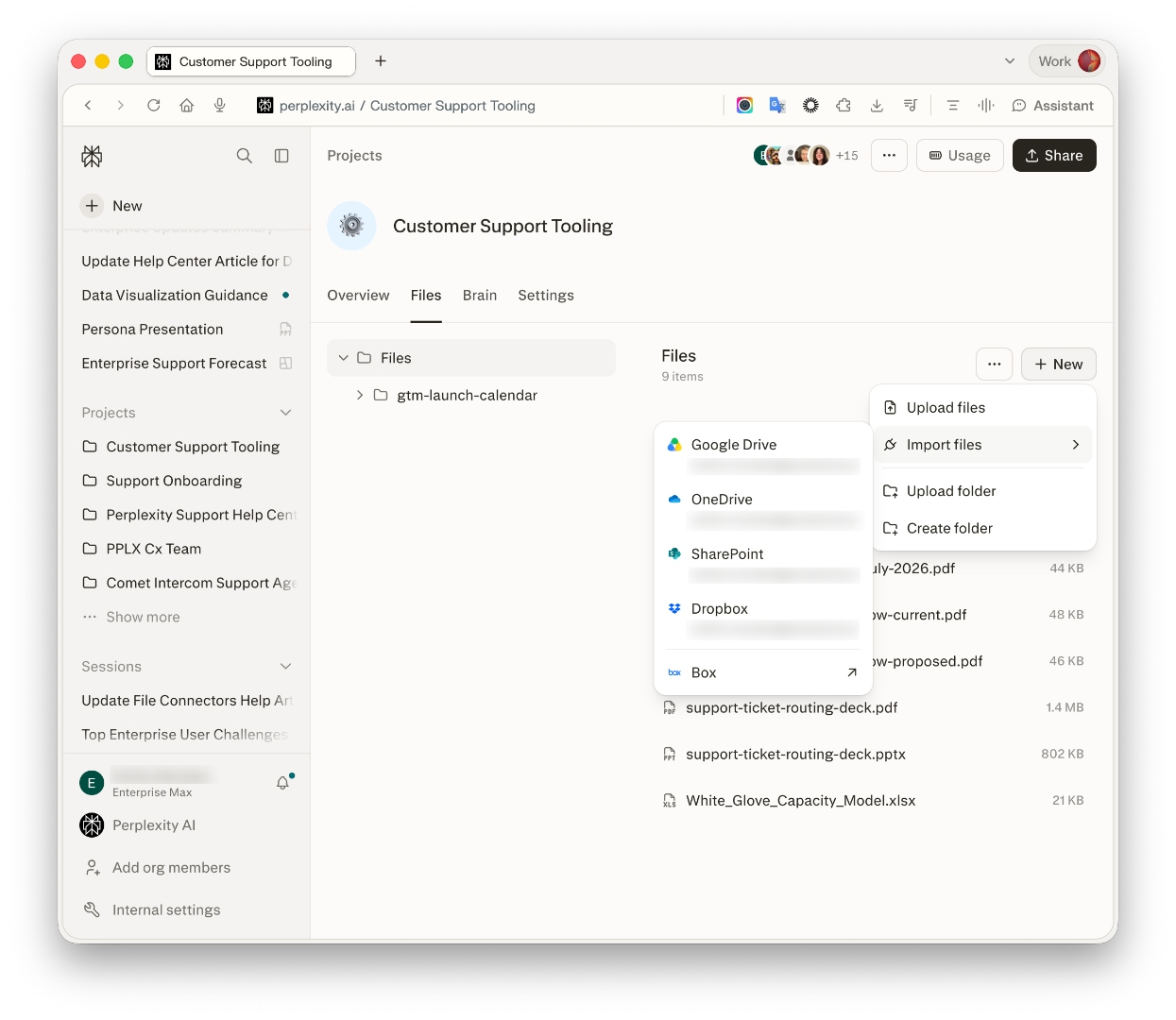
Figure 3 — Import connected content from the Project Files menu.
The file is attached to that session and is not automatically added to Project Files.
How to import connected content into Project Files
Project imports are available on web. To make selected content available to a Project:
-
Open the Project and select the Files tab.
-
Select + New.
-
Select Import files.
-
Choose Google Drive, OneDrive, SharePoint, Dropbox, or Box.
-
Select the files or folders to import, then confirm the import.
-
Check the import results for files that were skipped.
Important: An imported file becomes a copy in Project Files. Changes to the source file do not update that copy. Import the file again when you need the latest version.
Anyone who can access the Project Files area can use the imported copy according to the Project's permissions. Access to the original file remains governed by the source service.
-
Project viewers can read imported files.
-
Project editors can read, add, replace, and remove files.
Supported file types
Standard Search, query attachments, and File Connector imports support common work-document formats, including:
-
Google Docs, Sheets, and Slides
-
PDF, Word, Excel, PowerPoint, CSV, and plain-text files
-
Markdown and JSON files
The formats available in a provider's file picker may be a subset of the formats Perplexity can process.
File limits
The same Project limits apply on Enterprise Pro and Enterprise Max:
|
Limit type |
Limit |
|
Total storage per Project |
New uploads and imports cannot increase Project storage beyond 2.5 GB |
|
File size for direct uploads |
100 MB per file |
|
File size for File Connector imports |
25 MB per file |
Table 2 — File and storage limits for Enterprise Projects.
There is no total file-count cap in the current Project Files flow. Each Project is instead subject to the 2.5 GB aggregate storage limit. Standard Search does not count against Project storage because it searches the source service instead of importing files.
Troubleshooting
Use these checks before contacting support. The Enterprise Connector Troubleshooting Guide provides provider-specific steps for Google Workspace and Microsoft Entra.
|
Symptom you see |
Most likely cause |
How to fix it |
|
The connector does not appear. |
Your plan does not include it, or your organization administrator disabled it. |
Confirm your plan and ask your organization administrator to check Organization settings → Permissions. |
|
The connector shows Disconnected. |
The authorization grant expired or was revoked. |
Open Settings → Connectors, reconnect the service, and complete authentication again. |
|
A file cannot be imported into a Project. |
The file exceeds 25 MB, uses an unsupported format, or the selected account cannot open it. |
Check the file size and format, then confirm the Project is using the intended connected account. If the file picker does not open, try a private browsing window or disable extensions that block pop-ups. |
|
A file does not appear in Standard Search. |
The source was not selected, the wrong account is connected, or that account cannot open the file. |
Select the connector as a source, confirm the intended account is active, and search for the exact file name. Reconnect the service if the problem continues. |
|
Works for one Project member but not another. |
The Project shares the source selection, not sign-in — the other member hasn't connected their own account for that File Connector. |
Have that member connect their own account for the connector from Settings → Connectors, then confirm the connector is selected as a source in the Project. |
Table 3 — Common File Connector symptoms, causes, and fixes.
Frequently asked questions
Does Perplexity copy my entire cloud drive?
No. Standard Search queries the connected service when you submit a question. Perplexity stores a copy only when you attach a file to a query or import content into Project Files.
Can my organization administrator restrict File Connectors?
Yes. Organization administrators can allow or block supported services from Organization settings → Permissions. Your storage provider may apply additional application-access policies.
Is Enterprise connector data used to train AI models?
No. Enterprise data, including connector data, is never used to train Perplexity's models or any third-party model.
What happens if I disconnect a File Connector?
Disconnecting stops new searches through that account. Files already attached to sessions or imported into Project Files are static copies and are not removed automatically.
Who can use files added to a Project?
Files imported into Project Files follow that Project's permissions. Project viewers can read them, while Project editors can read, add, replace, and remove them. Standard Search results and citations continue to respect the permissions of the connected source account.
Are File Connectors available on both Enterprise plans?
Yes. File Connectors are available to all Enterprise Pro and Enterprise Max members, and an organization administrator can restrict individual services. File Connector imports into Projects are currently available on web only.
Does everyone in a shared Project need to connect a File Connector themselves?
Yes. A Project shares which connector is selected as a source, not any one member's sign-in. Each member who wants Standard Search results, query attachments, or imports from a File Connector needs their own connected account, unless your organization has separately provisioned an organization-wide connector. See What are Projects? for how connector sharing works inside a Project.
Related articles
Need more help?
Reach out to your account team or contact enterprise@perplexity.ai. You can also get live chat support from the ? icon at the bottom right of any Perplexity screen. Visit the Trust Center for security and compliance documentation.