

The following guide helps Enterprise users and organization administrators resolve common issues when connecting Perplexity to third-party apps and managing File Connectors.
General Troubleshooting
Users Cannot Connect to External Apps
If you're trying to connect Perplexity to an external storage app, verify your organization allows external access to its managed storage.
Enterprise admins can enable or disable connected apps in Organization settings under the Permissions section.
If you are uncertain about your access level, contact your Organization administrator for clarification.
If you’re an administrator and your organization members experience this issue on enabled apps, reach out to us including screenshots of any error messages your organization members are seeing.
Files From Connected Apps Aren’t Synchronizing With Perplexity
In order to use files from a connected app on your searches, you must select specific files or folders to sync with Perplexity.
If you have added new files to Perplexity from connected apps, but they do not appear immediately, or if changes to files aren’t synchronizing, try hard-refreshing Perplexity (press ctrl+F5 on Windows, or command+shift+R on Mac).
If the problem persists, get in touch. Please include as much information as possible, including screenshots or a screen recording of the issue.
Users Cannot Select Certain Files
If you’re getting an error when trying to upload certain files through connected third-party apps, please follow these steps:
-
Check that the file you want to upload is 50MB or smaller, and that the file type is supported. You can find a list of file types supported here.
-
Confirm that you have adequate permissions for the targeted folder or file. For example, when uploading files from Google Drive, you need at least "Reader" access to these.
-
If you’re uploading private folders, check that explicit access has been granted.
-
Disable any browser extensions that may block file selection, or use an Incognito window.
-
Disconnect the File Connector and Enable it again. You can find the instructions here.
If you still experience issues after following these steps, please get in touch with support. Please include as much information as you can and screenshots of error messages, as these will help us investigate the issues.
Microsoft Entra Troubleshooting (Outlook.com, SharePoint, OneDrive)
Admin Consent is Missing
When you try to connect Perplexity to Microsoft apps (Outlook.com, SharePoint, OneDrive) from your organization, and you get a “Needs admin approval” message, an Entra (formerly Azure AD) admin must provide consent so that Perplexity can access your organization’s data.
If you're having trouble connecting Perplexity to Microsoft applications, you may need admin consent. This can be granted by a Microsoft Entra administrator or designated reviewer in your organization.
If you trigger the block, you can request admin approval by filling in a “justification for access” and submitting your request. Your admin is then notified and must review and approve or deny the request in Microsoft Entra.
Before you begin, make sure that you have completed Perplexity’s managed OAuth flow and that you have submitted the admin consent request.
To grant you admin consent approval, your Microsoft Entra administrator should:
-
Sign in to Microsoft Entra admin center. Their role should have privileges of Cloud Application Administrator as a minimum
-
Go to Entra ID > Enterprise applications > All applications
-
Locate and select the Perplexity application
-
Click on Permissions under the Security settings
-
Select Grant admin consent for the tenant
-
Confirm the operation, and sign in again if prompted
-
Users will be notified once access is granted
If the approval request is missing from My Pending, a Global Administrator must set up the admin consent flow or give direct consent through Perplexity’s managed OAuth flow.
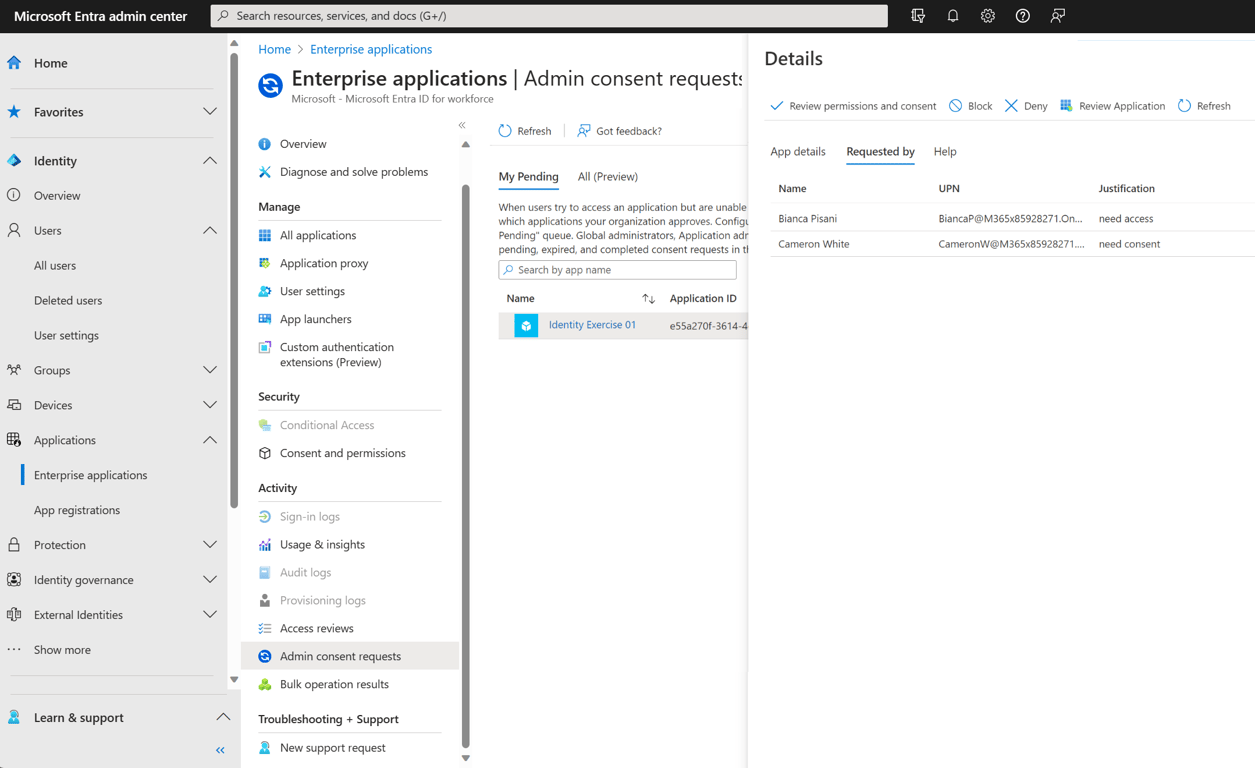
Alternatively, admins can:
-
Go to Enterprise Applications > Admin consent requests to see pending requests
-
Review the Perplexity app details, including the requested permissions and the user’s justification for access
-
Approve or deny the request. If approved, the connector will be available for all users in the tenant, unless user assignment restrictions are configured. If denied or blocked, the request can’t proceed. However, users can request approval again in the future
-
Users will be notified once access is granted
If the problem persists after following these steps, contact us. Please provide as much context as possible, including screenshots of any error messages you or your team are seeing.
Consent Workflow is Disabled
If the consent workflow is disabled, users won’t be able to request consent for the Perplexity app.
To enable the consent workflow, admins must:
-
Click Entra ID > Applications > Enterprise applications > Admin consent settings
-
Under Admin consent requests, select Yes for Users can request admin consent to apps they are unable to consent to
After an admin enables the consent workflow, changes may take a few minutes to take effect.
Google Drive Troubleshooting
Google-specific settings may block the integration between Perplexity and Google Drive. As a Google Workspace administrator, here's how you can fix these in the Admin console:
OAuth Scope Settings
Perplexity should not have issues if Unrestricted access is granted in Google Workspace. However, if your organization cannot set access to "Unrestricted," try these alternatives:
-
Select Restricted: Only trusted apps can access a service
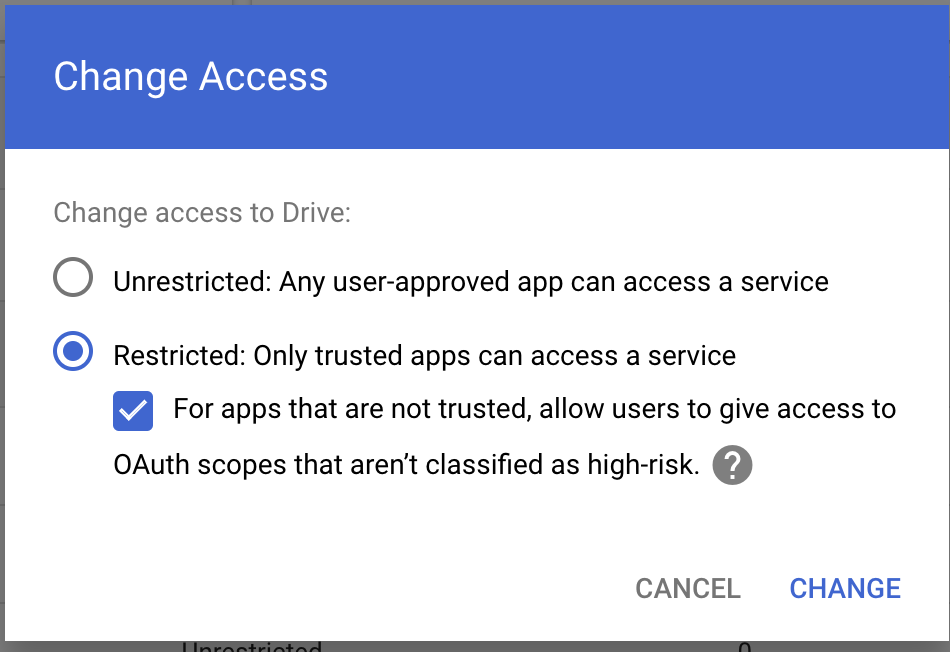
-
Enable For apps that are not trusted, allow users to grant access to OAuth scopes that aren't classified as high-risk
Drive SDK Configuration
Perplexity needs permission to access Google Drive with the DDrive SDK API in Google Workspace refers to enabling and managing third-party access to Google Drive files via the Drive API. This is crucial as it allows Perplexity to work with your Google Drive files.
To check that this is enabled:
-
Go to Google Workspace > Drive and Docs > Features and Applications > Drive SDK
-
Make sure that the Allow users to access Google Drive with the Drive SDK API option is selected
If the problem persists after following these steps, contact us. Please provide as much context as possible, including screenshots of any error messages you or your team are seeing.