

Overview of SSO
Our SSO platform (WorkOS) helps organizations manage user access effectively. By enforcing domain-controlled logins via the Identity Provider (IdP), organizations control who can access Perplexity from their side.
How User Provisioning Works
-
Default: Organization admins must invite users inside Perplexity.
-
Just-in-time provisioning: Users are created in Perplexity when they first log in via SSO/IdP, not when they are added in the IdP. You will find the instructions to activate JIT provisioning here.
-
Optional engineering features:
-
Enable automatic login for users with your organization’s email domain.
-
Automatically capture all users with the owned email domain into your Perplexity account.
-
-
SCIM (System for Cross-domain Identity Management): automates user provisioning and deprovisioning. Perplexity supports SCIM for organizations with 50 or more users or if there is at least one Enterprise Max user.
How User Deprovisioning Works
-
Users removed from the IdP are not automatically deleted from Perplexity.
-
If SSO is enforced, deprovisioned users cannot log in but still appear in Perplexity until an admin removes them.
-
Recommendation: Admins should regularly review and manually remove deprovisioned users to keep records accurate.
Key Troubleshooting Steps
General Troubleshooting
If your organization is experiencing issues with SSO, first confirm Require SSO is active. When this option is on, domain-controlled logins through your IdP are enforced for your organization.
You can do so by going to the Identity screen in your organization settings, and toggling on Require SSO.
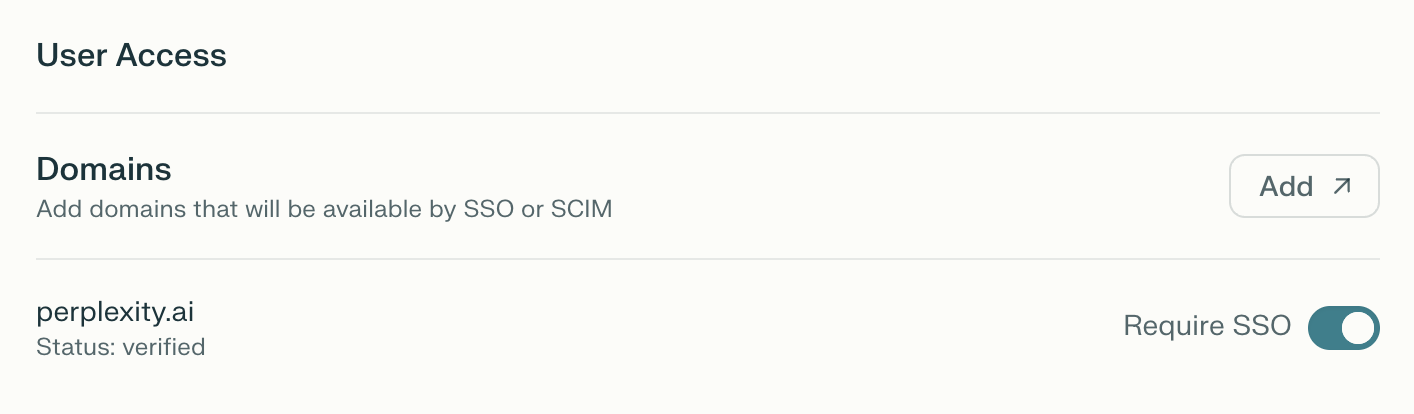
If SSO is required for your organization, but they’re not seeing the SSO flow for your organization, check that the domain or subdomain they’re using is verified (see below).
You can also ask them to hard-refresh their browser (pressing ctrl+F5 on Windows, or command+shift+R on Mac), in case this is caused by a cache issue.
Issues with Domain Verification
All domains and subdomains used by your organization for SSO login must be verified independently.
If your domain verification shows as 'pending' or 'failed', it's likely that the DNS TXT record hasn't been added to your domain's DNS configuration yet.
To verify your domain(s):
-
Go to the Identity screen in your organization settings.
-
Click "Add" next to the Domain section.
-
Enter your organization’s domain (e.g., yourdomain.com).
-
Copy the DNS TXT record provided.
-
Add this record to your domain’s DNS configuration with the full
"verification_token=string"included with surrounding double quotes. Set TTL to 60 seconds. -
Wait at least one minute, then use
nslookup -q=text yourdomain.comto confirm that the new DNS TXT record has been propagated to the internet. -
Click "Verify" once the DNS TEXT record is added.
-
Repeat for all domains your organization uses.
-
Once a domain has been successfully verified, you can increase the TTL setting to 12 or 24 hours (43200 or 86400 seconds).
Just-in-time Provisioning
If you want to activate automatic login or auto-capture features, you will need to enable just-in-time provisioning for your organization.
You can do so in the Identity screen in organization settings, by switching the ‘Just-in-time account provisioning’ toggle to ‘Enabled’:
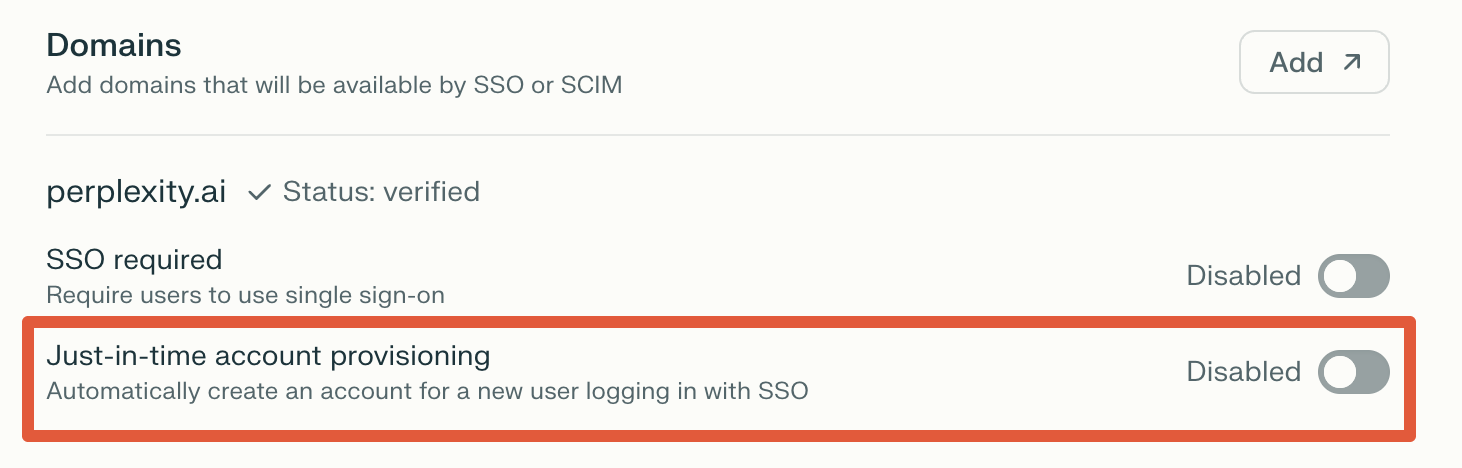
If JIT is active for your organization, but you’re having issues with just-in-time provisioning a specific user, try testing logging in with a new user.
-
If this works with a new user but not with specific users, it is very likely that any ongoing user onboarding issues are not due to SSO or provisioning misconfiguration on the organization's side. Instead, problems may relate to individual user assignments, permissions, group memberships in the IdP, or issues specific to those accounts.
-
If it doesn’t work, there might be a problem with the SSO/JIT setup between your IdP and Perplexity. Common causes include misconfigured attributes, missing permissions, or incorrect SAML/OIDC parameters.
Deprovisioning issues:
If SCIM is not active for your organization, when a user is removed from the Identity Provider (IdP), that user will lose the ability to log in to Perplexity if SSO is enforced and the IdP rejects their login. However, the user’s account and data will remain in the Perplexity system until an admin manually deletes or removes it. Standard SSO only controls authentication at login, not user lifecycle management or deletion.
SCIM adds automated lifecycle management. When a user is deprovisioned from the IdP, SCIM sends a request to Perplexity to disable or remove the user account automatically. This means organizations using SCIM can automate both user creation and removal, minimizing manual cleanup work and improving security posture.
SCIM is available to organizations with 50 seats or more, or with at least one Enterprise Max seat.
Common Error Messages and Fixes
|
Error Message |
Meaning |
Solution |
|
AADSTS50105 (Microsoft Entra ID) |
User is not a direct member of an authorized group or lacks direct access. |
Contact your IT or Enterprise Pro admin to be added directly or to a group with access. Try logging in again after sync. |
|
User is not assigned to this application (Okta) |
Account is not assigned to the Perplexity application in Okta. |
Ask your IT or Enterprise Pro admin to assign your account to the Perplexity Enterprise app in Okta. |
|
Error 408: App_not_enabled_for_user (Google SSO) |
App access is not enabled for your account or group in Google Admin Console. |
Admin must enable user access for you or your group in Google Workspace Admin console under Apps > Web and mobile apps. Then retry login. |
Domain Migration
When an organization migrates to a new domain, Single Sign-On (SSO) may stop working if user accounts or domain settings are not updated in Perplexity.
To prevent SSO failures during a domain migration, the best practice is to proactively add and verify the new domain within Perplexity before making any changes to the identity provider or users’ email addresses.
It’s also important to update the identity provider’s configuration to include the new domain and adjust any group or user assignments accordingly, so users retain the necessary SSO permissions after the switch.
If you have migrated domains before verifying the new domain and you still have access to your previous email with admin rights, login with that email. This will allow you to verify the new domain. However, if you no longer have access to your old email, contact us – we can disable SSO temporarily, so that you can verify the new domain.
Need more help?
If you have any other issues or if these troubleshooting steps don’t fix the issue you’re having, contact us and our Support Engineers will be happy to help.