

The Comet Assistant is Perplexity’s service that runs alongside the main Comet window in a side panel, giving users quick access to asking questions and executing tasks without interrupting their web flow.
Perplexity Enterprise organization admins have control over the actions that the Comet Assistant can take on behalf of their organization members, as well as the level of access that the Comet Assistant can have to specific domains for the entire organization.
This article explains how organization admins can control what the Comet Assistant can do and which sites it can access for their organization.
Managing Assistant Permissions
Organization admins can enable Comet Assistant to control Comet and perform actions on the user’s behalf, or disable this for their entire organization.
Admins can also allow the Comet Assistant to click, navigate, and fill forms on behalf of organization members, but on a case-by-case basis, preventing the Assistant from taking action without the user’s consent.
To manage these permissions:
-
Go to the Comet Setup screen in Organization settings
-
Scroll down to Assistant Permissions
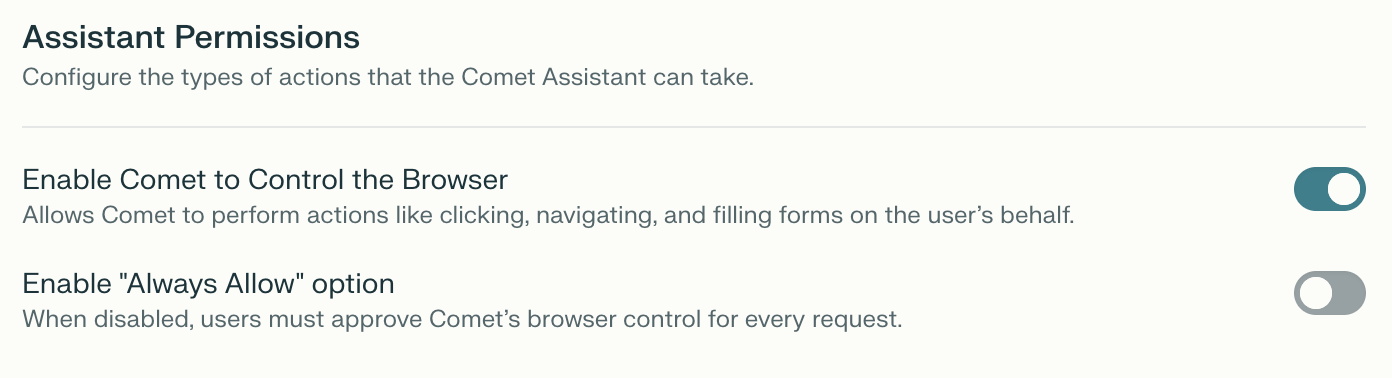
There you will be able to:
-
Enable Comet to Control the Browser: Allows Comet to perform actions on the user’s behalf.
-
Enable "Always Allow" option: Allows Comet to perform actions on behalf of the user without having to confirm.
-
Disable any of these options.
Setting Domain-Specific Permissions
As an organization admin, you can enable the use of Comet Assistant, but disable it for specific domains. You can also set specific domains to Read Only, allowing Comet only to retrieve information from specific domains, without the ability to take any action on behalf of your organization’s members.
To set or manage domain-specific permissions:
-
Go to the Comet Setup screen in Organization settings
-
Scroll down to Domain-Specific Assistant Permissions
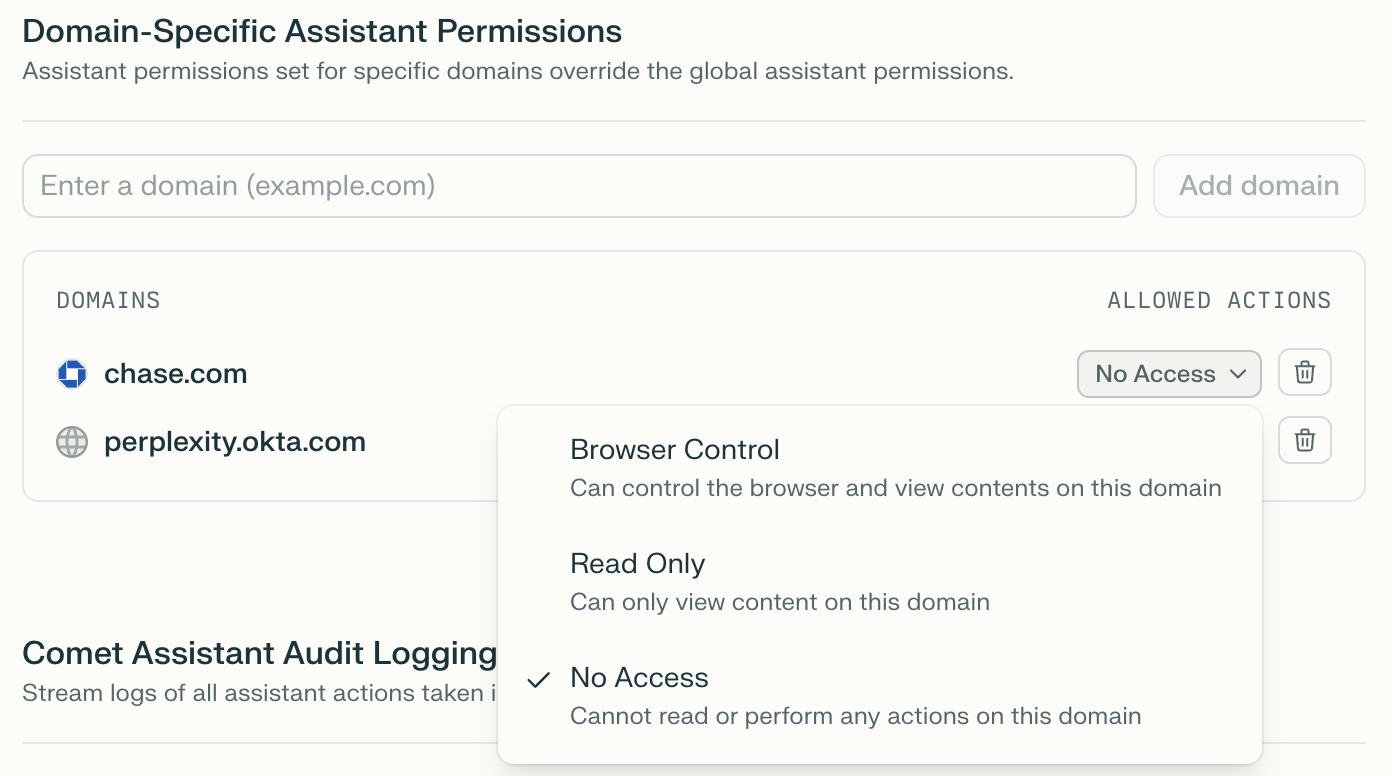
There you will be able to add or remove domains, and set between the following permissions:
-
Browser Control: Can control the browser and view contents on the specified domain.
-
Read Only: Can only view content on the specified domain – cannot perform any actions.
-
No Access: Cannot read or perform any actions on the specified domain.
Please note that these settings override the global assistant permissions. If you disable the Comet Assistant, but set Browser Control or Read Only for specific domains, Comet Assistant will be able to control the browser and/or view the contents of those domains, depending on the specific settings, and regardless of the global permissions.
Enterprise-grade Security
Comet is designed for enterprise environments, with additional security features available to Perplexity Enterprise users.
Thanks to our learnings from years of experience building and securing AI assistants, we have implemented a defense-in-depth design to mitigating prompt injection, to ensure Comet remains both safe and intuitive to use. You can learn more here.
When paired with a Perplexity Enterprise account, Comet operates under SOC 2 Type II and GDPR-aligned practices, ensuring compliant handling of company data from day one. Enterprise traffic is never logged or used to train AI models, and contractual safeguards with third‑party AI providers prevent retention of any data Comet sends for processing.
You can learn more about how Perplexity protects your Enterprise data in the Perplexity Trust Center, and find out more about Comet for Enterprise in in the Comet for Enterprise overview article.