

This guide walks Enterprise administrators and delegated role managers through the controls available on the Settings → Organization → Roles & Permissions page, including base roles, custom roles, groups, product access, and permission assignments.
Overview
Perplexity Enterprise uses role-based access control to manage what members of your organization can do. Administrators can:
-
Manage base and custom roles — review and edit the permissions granted to each role.
-
Assign members and groups — give the same permissions to individuals or entire teams.
-
Delegate administration — grant access to specific administrative tasks without giving full admin access.
-
Control product access — decide who can use features or products such as Computer or Comet.
Permissions are additive. If a member holds multiple roles, they receive every permission granted by any of those roles.
The new Roles & Permissions page replaces the previous Permissions page. Organizations are being upgraded gradually. If you still see the previous Permissions page, your existing settings continue to work unchanged. When your organization is upgraded, existing access settings carry over automatically.
Availability: These features are available only on sales-assisted Enterprise plans. Custom roles, group management, and SCIM directory group sync also depend on your organization's plan.
If you're interested, book a demo with our sales team.
Requirements
-
You are an administrator or have a role that grants organization management access.
-
You have access to Organization Settings → Roles & Permissions on the web.
-
Your organization is on an eligible managed Enterprise plan if you want to create custom roles or manage groups.
Note: Data retention, Enforce Incognito Mode, AI model and provider settings, and audit log settings are managed under Organization Settings → Data and privacy. See Data Retention for Enterprise and Audit Logs.
How the controls work
Base roles
Every organization includes these built-in roles:
-
Admin — provides full administrative control of the organization.
-
Member — the default role applied to everyone in the organization and marked with an Everyone badge.
Built-in roles cannot be deleted or renamed. Administrators can edit their permissions and manage who holds the Admin and Billing Admin roles.
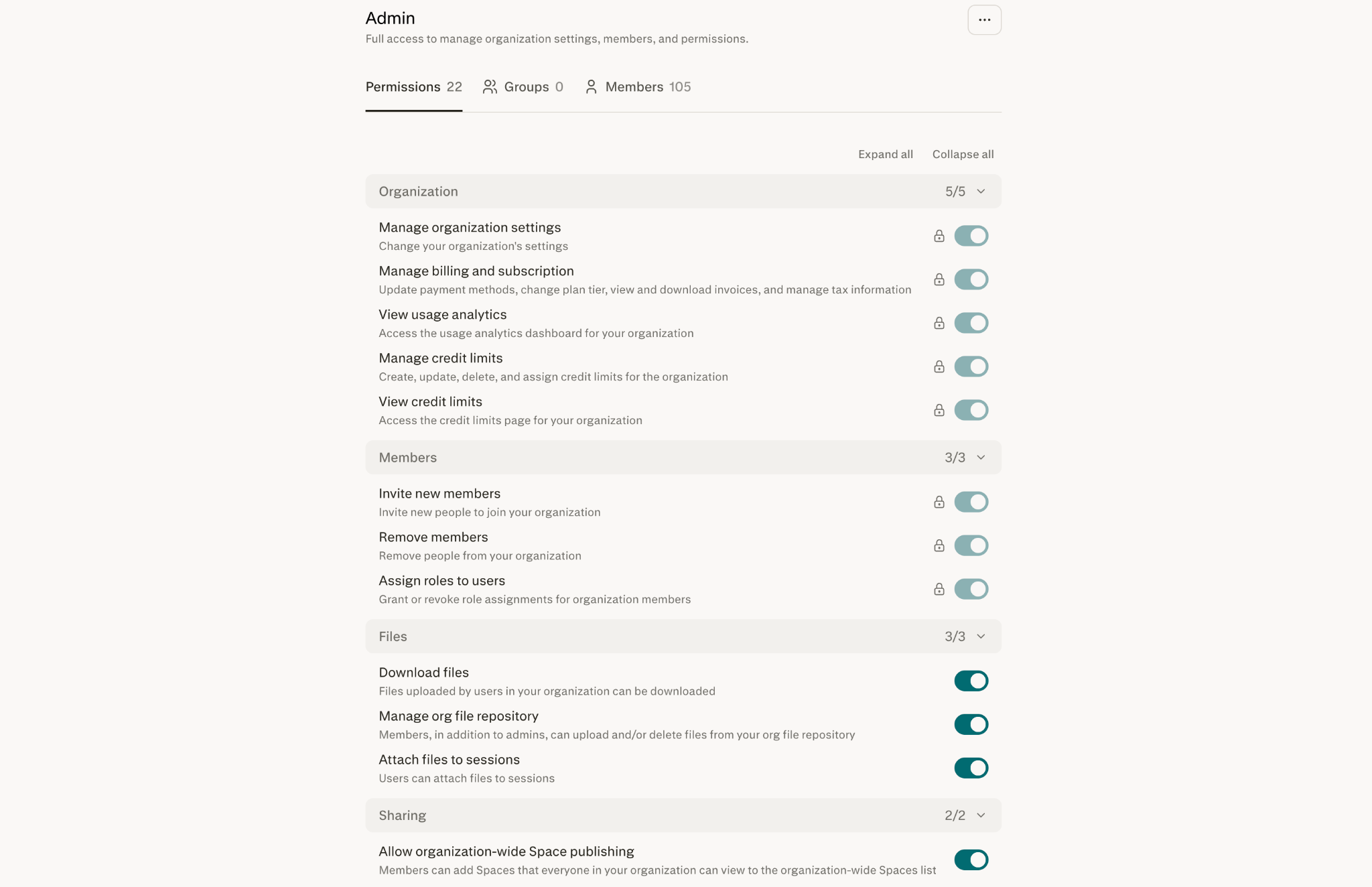
Important: The Admin role's core Organization and Members permissions are always enabled and cannot be turned off. These permissions display a lock icon so administrators cannot lose access to essential controls.
Custom roles
On eligible Enterprise plans, administrators can create custom roles for specific responsibilities. For example, a custom role can allow someone to attach files to sessions or view usage analytics without granting full administrative access.
If custom roles are not available on your plan, you can still edit the permissions assigned to built-in roles. Contact Perplexity to learn more about availability.
Groups
Groups let administrators assign roles to teams instead of updating members one at a time. Permissions belong to roles, not directly to groups. When a group is assigned to a role, every member of that group receives the role's permissions.
Groups can be managed in two ways:
-
Perplexity-managed groups — administrators create the group and add or remove members in Perplexity.
-
SCIM-synced groups — groups from your identity provider appear automatically and display a SCIM badge. These groups are read-only in Perplexity, and membership changes must be made in your identity provider.
Users deactivated through your identity provider are removed from your organization automatically.
Organization-wide controls
Some controls determine whether a feature is available to the entire organization. Role permissions determine who can use the feature when it is available.
For example, the organization-level Computer setting is a master switch. If Computer is disabled for the organization, no role can grant access. If Computer is enabled, administrators can use the Computer role permission to decide who can use it.
Public session and page sharing controls also remain organization-wide. They are managed under Organization Settings → Data and privacy.
How access is determined
Two things must both be true for a member to get a feature:
-
The feature is enabled for your organization. Org-level settings are the master switch. If a feature is off here, no role can turn it on.
-
At least one of the member's roles grants it. Perplexity looks at every role the member has — assigned directly or inherited through a group — and combines them.
Summary: if any of those roles grants a permission, the member has it. Roles only add access. A role can never take away a permission that another role grants.
Step-by-step
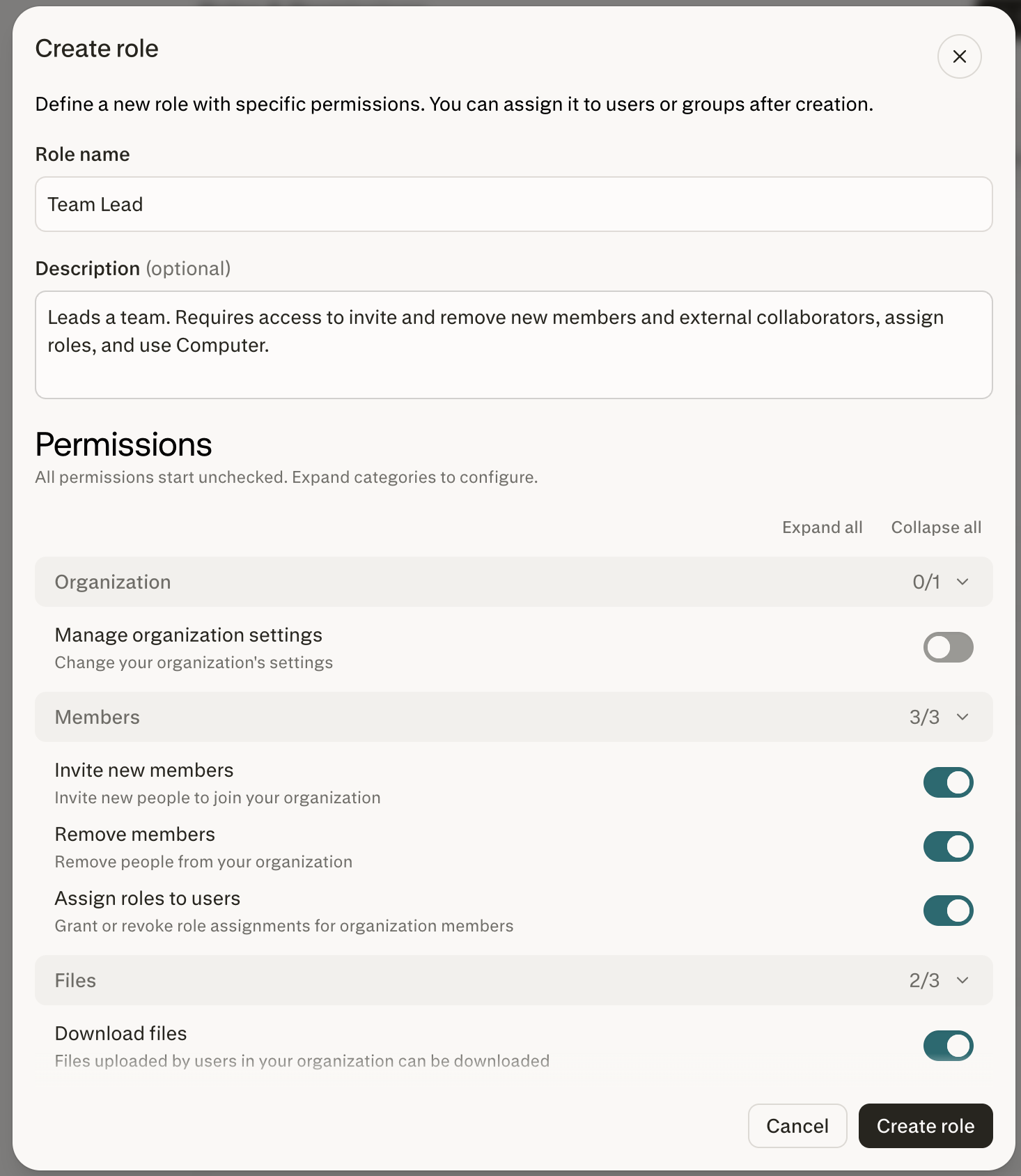
Create a custom role
-
Go to Settings → Organization → Roles & Permissions.
-
Select Create role.
-
Enter a name and description for the role.
-
Open the role's Permissions tab.
-
Turn on the permissions you want to grant.
-
Assign members or groups from the role's Members or Groups tab.
Changes to role permissions save automatically.
Edit a role's permissions
-
Go to Settings → Organization → Roles & Permissions.
-
Select the role you want to update.
-
Open the Permissions tab.
-
Turn permissions on or off as needed.
The updated permissions apply to members assigned directly to the role and members who receive the role through a group.
Assign a member to a role
-
Open the role from the Roles & Permissions page.
-
Select the Members tab.
-
Add the organization member you want to assign.
To remove access, remove the member from the role. Check the member's other roles and group assignments first because another role may grant the same permission.
Assign a group to a role
-
Open the role from the Roles & Permissions page.
-
Select the Groups tab.
-
Add the group you want to assign.
Every member of the group receives the role's permissions. You can also assign a role from the group's page under Settings → Organization → Members → Groups.
Delete a custom role
-
Open the custom role from the Roles & Permissions page.
-
Remove every assigned member and group.
-
Select the option to delete the role.
-
Confirm the change.
Built-in roles cannot be deleted.
How to verify it worked
-
The role's Permissions tab shows the expected permissions.
-
The role's Members and Groups tabs show the expected assignments.
-
Members can access the granted features after the change takes effect.
-
Members do not lose access if another assigned role grants the same permission.
-
Role, group, and assignment changes appear in the organization's Audit Logs.
Common configurations
The following examples show how organizations can delegate access without granting full administrative control.
| Policy | Suggested permissions | Assignment |
|---|---|---|
| Usage analyst | View usage analytics, View credit limits | Assign to finance or operations members |
| Organization file migration coordinator (temporary) | Download files | Assign during migration, then remove after October 1, 2026 |
| Billing administrator | Manage billing and subscription | Use the Billing Admin role |
| Computer-enabled team | Computer | Assign the team's group to a dedicated role |
| Connector administrator | Manage connector defaults | Assign to security or IT administrators |
Permissions reference
Organization
| Permission | What it controls |
|---|---|
| Manage organization settings | General organization settings, including data retention, memory, model, and audit log configuration |
| Manage billing and subscription | Payment methods, plan tier, invoices, and tax information |
| View usage analytics | Access to the organization's usage analytics dashboard |
| View credit limits | Access to the organization's credit limits page |
| Manage credit limits | Create, update, delete, and assign credit limits |
Members
| Permission | What it controls |
|---|---|
| Invite new members | Who can invite users to the organization |
| Remove members | Who can remove members from the organization |
| Assign roles to users | Who can grant or revoke role assignments |
Files
Important for organization administrators: The organization file repository is being retired. Download all organization files your team needs by October 1, 2026. Files remaining after that date will be deleted. Manage org file repository is a temporary migration-period permission and will be removed. Download files and Attach files to sessions remain separate permissions. See Download and move your organization files.
| Permission | What it controls |
|---|---|
| Download files | Who can download files uploaded within the organization |
| Manage org file repository | Being retired October 1, 2026. During migration, controls who can help download existing organization files. New uploads are no longer supported. |
| Attach files to sessions | Who can upload or attach files to sessions |
| Manage Project files | Who can upload, organize, and delete files in Projects, when this permission is available for the organization |
Use Project sharing permissions to govern who can access shared Project files. Use Manage connector defaults and source-service permissions to govern connector availability and access.
Sharing
| Permission | What it controls |
|---|---|
| Invite external contributors | Who can invite people outside the organization to Projects, sessions, and assets |
| Share threads and artifacts with groups | Members can share individual threads and their artifacts with one or more groups in the organization. Every member of the selected group receives access. |
| Allow organization-wide Project sharing | Who can publish a Project for the entire organization |
API
| Permission | What it controls |
|---|---|
| Perplexity API access | Who can use the Perplexity API, including the API Platform and API Console |
Subscription
| Permission | What it controls |
|---|---|
| Allow members to request Max upgrade | Who can request an upgrade to Enterprise Max |
Connectors
| Permission | What it controls |
|---|---|
| Manage connector defaults | Who can change which connectors are enabled and the defaults for new connectors |
Security
| Permission | What it controls |
|---|---|
| View audit logs | Who can view the organization's audit logs |
Products
| Permission | What it controls |
|---|---|
| Computer | Who can use the Computer agent |
| Manage organization skills | Who can create, modify, and review organization skills |
Controls that remain organization-wide
Public sharing
Administrators manage these settings under Organization Settings → Data and privacy:
-
Allow public session sharing — lets users share sessions with people outside the organization through a public link.
-
Allow public page sharing — lets users create public Pages.
When a public sharing setting is off, the corresponding content can only be shared with other organization members.
These public sharing controls apply to sessions and Pages only. Projects cannot be shared publicly: they are private by default, and access is granted by inviting members, by sharing with the organization (for eligible organizations), or by approving a member's request to join.
Connector availability
Administrators manage third-party apps and data services under Organization Settings → Connectors:
-
Enable or disable individual connectors for the entire organization.
-
Set whether newly launched connectors are enabled or disabled by default.
The Manage connector defaults role permission determines who can change these organization-wide settings. See Connectors & Integrations for more information.
Caveats to be aware of
-
Permissions are additive. Removing a permission from one role does not remove access if another role grants it.
-
Some features remain organization-wide. A role cannot override an organization-wide setting that disables a feature.
-
Custom roles and groups are plan dependent. Built-in role permissions remain editable when custom roles are unavailable.
-
SCIM groups are read-only in Perplexity. Manage their membership in your identity provider.
-
Built-in roles cannot be renamed or deleted. Core Admin permissions also cannot be disabled.
Troubleshooting
| Symptom you see | Most likely cause | How to fix it |
|---|---|---|
| A member still has access after you remove a permission. | Another role or group assignment grants the same permission. | Review every role and group assigned to the member, then remove the additional grant if appropriate. |
| A member has the Computer permission but cannot use Computer. | Computer is disabled at the organization level. | Enable Computer for the organization, then use role permissions to control access. |
| You cannot turn off a permission on the Admin role. | The permission is a protected core Organization or Members permission. | No action is needed. Locked permissions prevent administrators from losing access to essential controls. |
| You cannot delete a custom role. | The role still has members or groups assigned. | Remove all assignments, then delete the role. |
| You cannot edit a SCIM-synced group's membership. | Synced groups are managed by your identity provider. | Add or remove members in your identity provider and allow the change to sync. |
| You do not see the Roles & Permissions page. | Your organization has not been upgraded yet. | Continue using the previous Permissions page. Existing settings remain in effect until the upgrade. |
Frequently asked questions
Who can manage roles and permissions?
Administrators and members whose role grants organization management access can view or edit the Roles & Permissions page.
Can a member hold more than one role?
Yes. Permissions are additive, so a member receives every permission granted by their assigned roles and groups.
Are custom roles and groups available on every plan?
No. Custom roles, group management, and SCIM directory group sync are available on sales-assisted Enterprise plans. If these features are not available, administrators can still edit permissions on built-in roles.
If you're interested in these features, book a demo with our sales team.
Can I edit the built-in Admin and Member roles?
Yes. Built-in roles cannot be deleted or renamed, but administrators can edit their permissions. The Admin role's protected core permissions remain enabled.
Can I manage SCIM-synced groups in Perplexity?
No. SCIM-synced groups are read-only in Perplexity. Manage their membership in your identity provider.
Can a role grant Computer access when Computer is disabled for the organization?
No. The organization-level setting is the master switch. Enable Computer for the organization before granting access through roles.
What happens to existing settings when my organization is upgraded?
Existing settings carry over automatically. If your organization previously managed product access member by member, that access is preserved in a clearly labeled custom role that administrators can rename, edit, or delete.
Are role and group changes recorded in the audit log?
Yes. Audit logs record role creation, updates, deletion, assignment changes, and group membership changes. See Audit Logs.
Need more help? Reach out to your account team or contact enterprise@perplexity.ai.