

You can set up SCIM in your organization to simplify SSO user provisioning and management.
Please note, SCIM is exclusive to Enterprise Organization’s with 50 seats or more, or with at least one Enterprise Max user.
Set-up
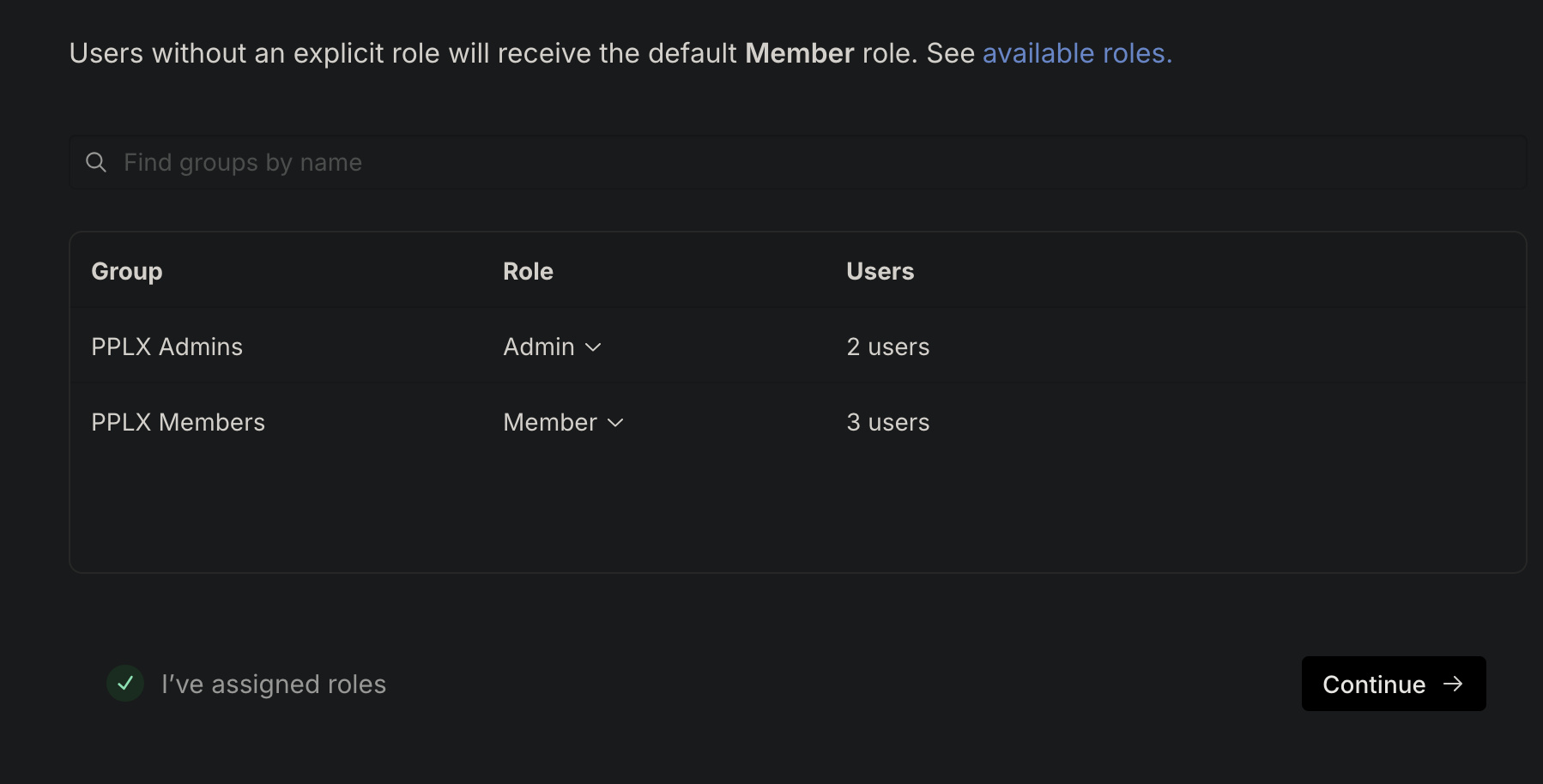
It’s a good idea to create two groups (e.g., PPLX_Admin and PPLX_Members) in your IdP before this step, and add users to these groups. You can then assign access to those groups in the Perplexity app.
-
Go to Settings > My Organization
-
Ensure you verify your domains before enabling SCIM
-
Once you verified your domains, press “Connect” for SCIM
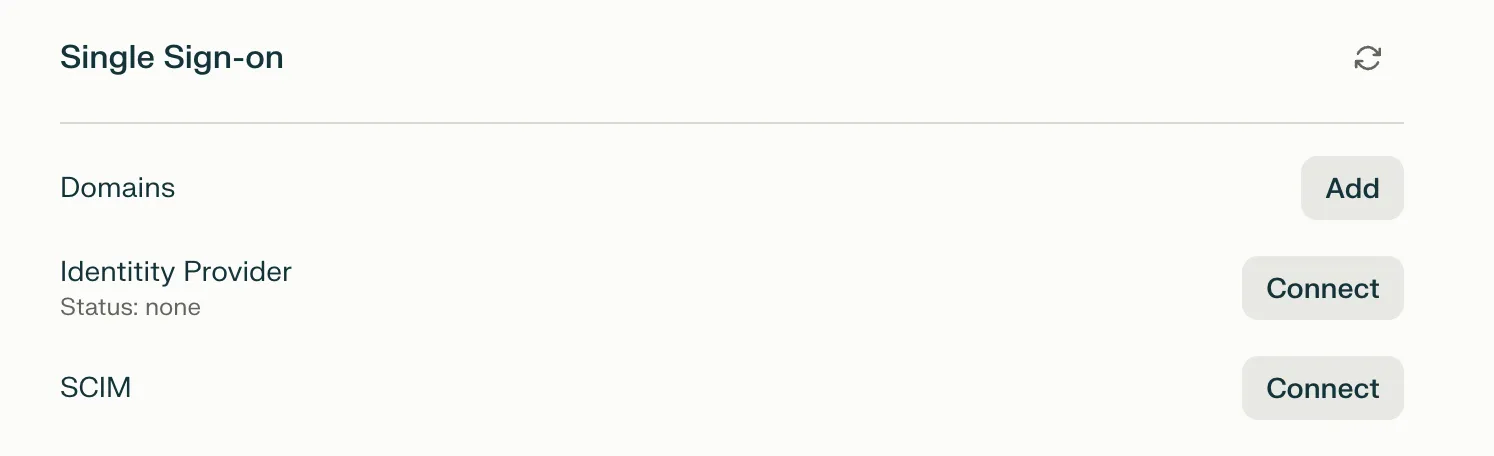
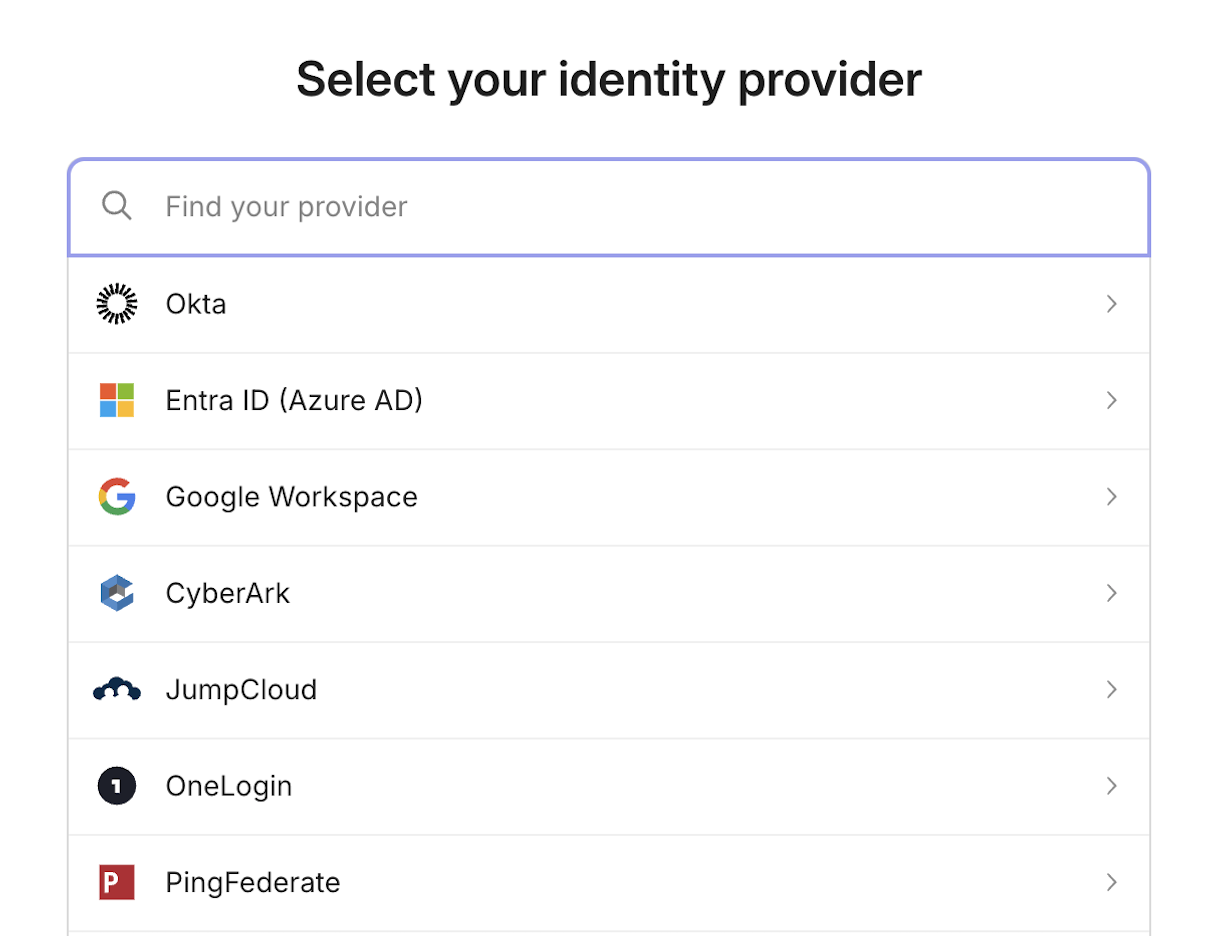
4. Select your identity provider (Okta, Entra ID, Google Workspace and more)
We also offer Custom SCIM which you will find at the bottom of the list.
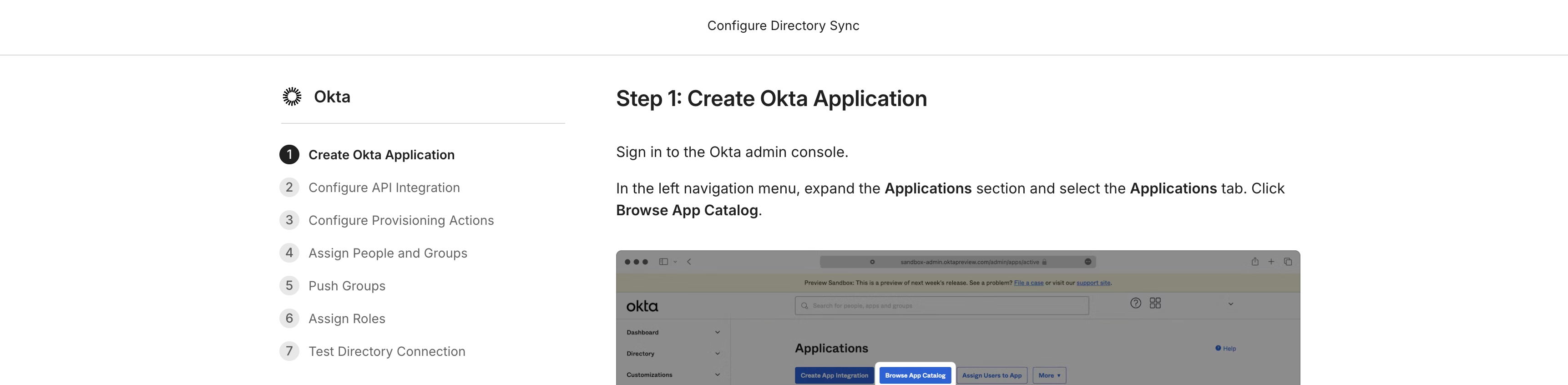
5. Follow the listed steps
6. User Groups: To assign member and admin roles to user groups, create two separate Perplexity user groups within your IdP, one group that is assigned the “member” role, and another that is assigned the “admin” role.
7. Once you completed the setup, user records will start syncing from your identity provider into Perplexity. See below for the indicator in the UI that clarifies when a user record in the user table is managed through SCIM. User records managed through SCIM can’t be edited through the Perplexity UI (e.g. removing the user).

Please note:
-
No welcome e-mails are sent out to users when added via SCIM. Communication needs to be managed via the organization.
-
If users are part of two or more user groups, you can define prioritization of group assignment as part of the syncing process.
-
User groups within Perplexity are currently not supported (e.g. users within the “engineering” user group) outside of distinguishing “Admin” users and “Member” users.
-
Users that are members of other organizations will be excluded from the SCIM sync.
-
To edit your SCIM setup, press “Connect” and you’ll see a screen similar to the one below to edit your configuration.
FAQ
Can I use this feature if I have less than 50 seats in my organization?
If your organization has fewer than 50 seats, you can upgrade at least one seat to Enterprise Max to access SCIM-based user management.
I have activated the feature by mistake and I've been charged for additional seats. What should I do?
If you have activated SCIM provisioning by mistake and you're not ready to upgrade to 50+ seats, we can adjust billing for your account and undo any additional billing or payments. Please make sure that you've deactivated this feature and get in touch.
I’ve lost admin access after syncing my directory with Perplexity via SCIM. How can I fix this?
When this happens, it typically means that your role or group-to-role mapping in your identity provider (IdP) is not correctly assigning admin privileges to any synced users. SCIM replaces application-side user and role management with IdP control, so all permissions—including admin or owner roles—must be defined upstream in your IdP and mapped properly to the SCIM app.
Please review the groups in your IdP to ensure that any user you’d like to have as admin has the correct role assigned to them, or this may happen again upon provisioning new users.
To do so:
-
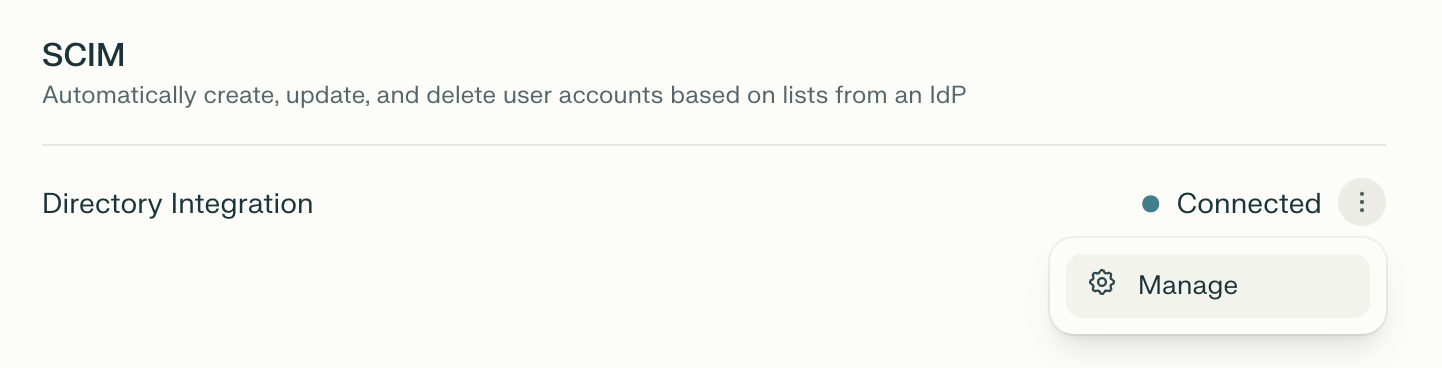
Go to Identity in Organization settings, and scroll down to SCIM
-
Click the vertical ellipsis (⋮) and then Manage
-
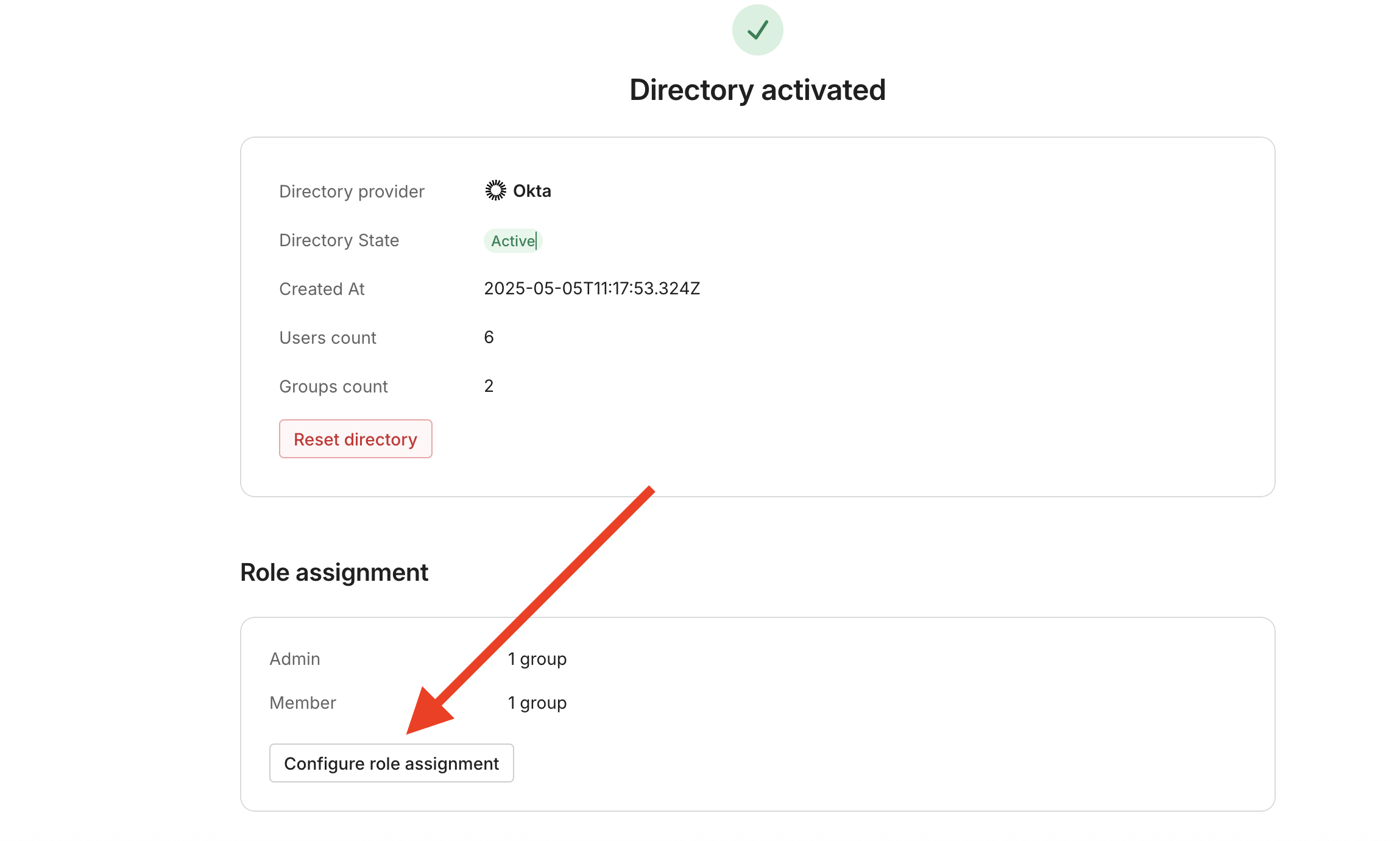
In Role assignment, click Configure role assignment
-
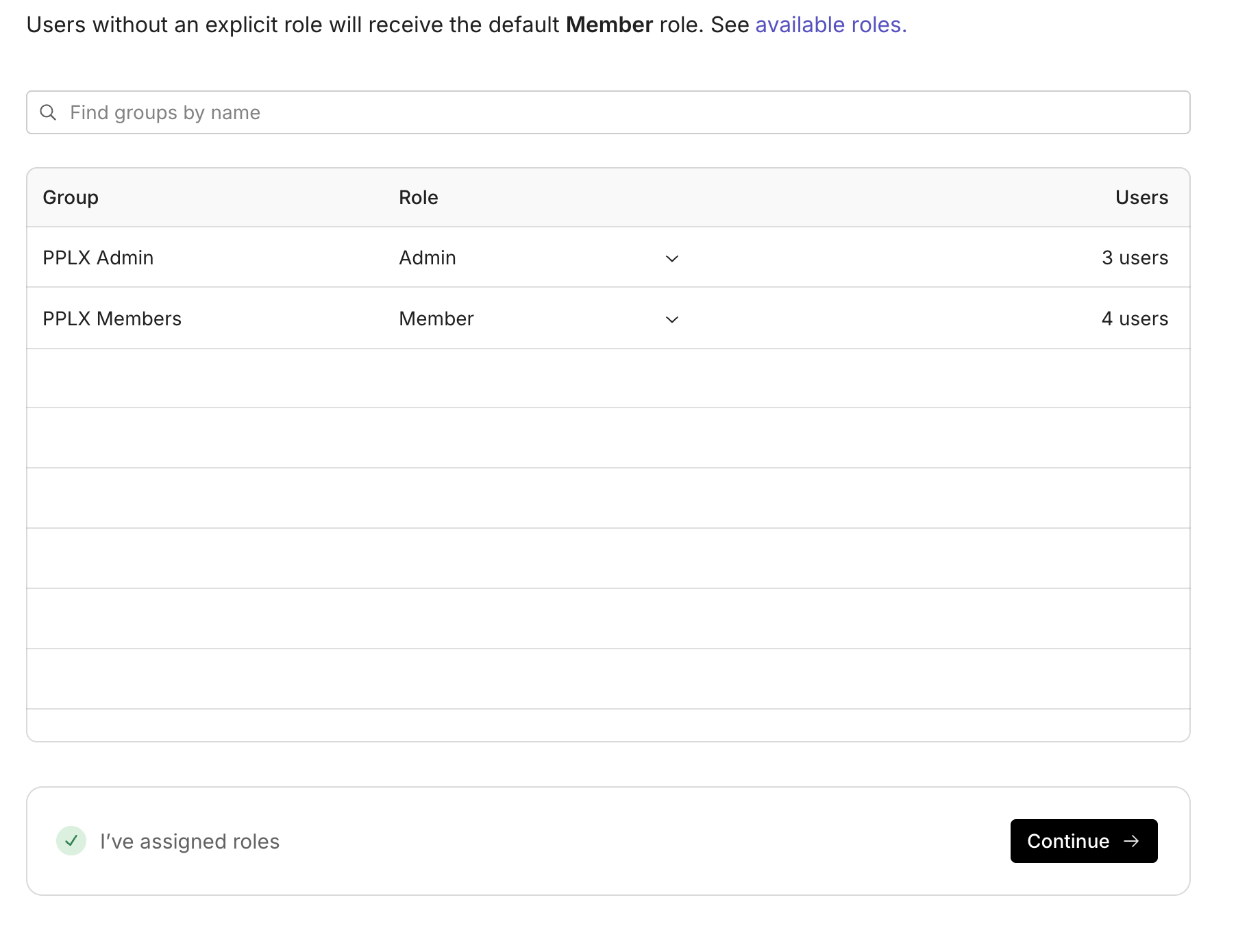
Assign the appropriate role to the two groups that you created in your IdP at the beginning of setting up SCIM (PPLX_Admin and PPLX_Members). For example, PPLX_Admin would have the role Admin, and and PPLX_Members would have the role Member.
-
Click Continue
If you need any help regaining admin access, please get in touch.