

The Connector for Slack is a new feature for Perplexity users that integrates Slack with your team’s workflows by searching and synthesizing insights from conversations, internal files and external sources in one place.
It integrates Slack directly with Perplexity’s enterprise productivity features, enables streamlined collaboration, and supports advanced workflow automation, allowing you to instantly discover relevant information across your organization’s documents, connected apps, and the web, without exhaustive manual searches or context switching.
Below you’ll find an overview of this Connector and how to activate it.
What does the Connector for Slack do?
The Connector for Slack for Perplexity enables seamless data flow between Slack and Perplexity, supporting a wide range of use cases and adapting to your organization’s workflows. It supports multiple channels, allowing your organization to integrate Perplexity with several Slack channels simultaneously.
Users can trigger automated actions, receive real-time notifications, and process contextual data from Slack conversations they have access to, significantly reducing the time they spend analyzing and cross-referencing data.
The Connector for Slack allows to summarize and extract insights from Slack messages. Users can then combine these insights with web data for contextually richer responses, and then post back their findings to any connected Slack channel directly from Perplexity.
Please note that Information in answers comes from online sources and may not always be accurate. We summarize this information to provide our responses.
To maintain control over how Perplexity interacts with Slack, organization admins can enable or disable the connector for all organization users.
Who can use the Connector for Slack?
The Connector for Slack is available to Perplexity Pro, Perplexity Max, Enterprise Pro and Enterprise Max users.
Our plans start at:
-
Perplexity Pro: $20/month or $200/year
-
Perplexity Max: $200/month or $2,000/year
Or, for organizations:
-
Enterprise Pro: $40/month or $400/year per seat
-
Enterprise Max: $325/month or $3,250/year per seat
This article explains what subscription is best for you based on your needs.
Additionally, if you want to use Perplexity within Slack, you’ll need a paid Slack plan to install the Perplexity integration.
Privacy and Data Security
The Slack Connector requires the following permissions to function:
Information Perplexity Can View
-
Content and Info About You
-
View information about your identity
-
-
Content and Info About Channels & Conversations
-
View messages and other content in your public channels, private channels, direct messages, and group direct messages
-
Search your workspace’s content in public channels
-
Search your workspace’s content in private channels
-
Search your workspace’s content in group direct messages
-
Search your workspace’s content in direct messages
-
Search your workspace’s files
-
-
Content and Info About Your Workspace
-
Search your workspace’s users
-
Access your workspace’s canvases, comments, and associated information
-
View people in your workspace
-
View email addresses of people in your workspace
-
Actions Perplexity Can Take
-
Perform Actions as You
-
Send messages on your behalf
-
-
Perform Actions in Channels & Conversations
-
Create, edit, and remove canvases
-
The Slack Connector respects Slack’s user permissions, so only channels and messages that a user can access in Slack can be accessed by that user through Perplexity.
We offer enterprise-grade protections and compliance including SOC 2 Type II certification, end-to-end encryption, strict data privacy measures, and granular user access controls. Your emails and calendar data, just like any other Enterprise data, are never used for AI training, and robust safeguards ensure confidentiality and regulatory compliance. You can learn more in our Trust Center.
Additionally, admins in eligible organizations can view all submitted queries that use the Slack Connector, and see every source used to generate answers, within Audit Logs. However, answers themselves and the specific Slack documents accessed are not currently tracked in Audit Logs.
How to activate it
To activate the Connector for Slack:
-
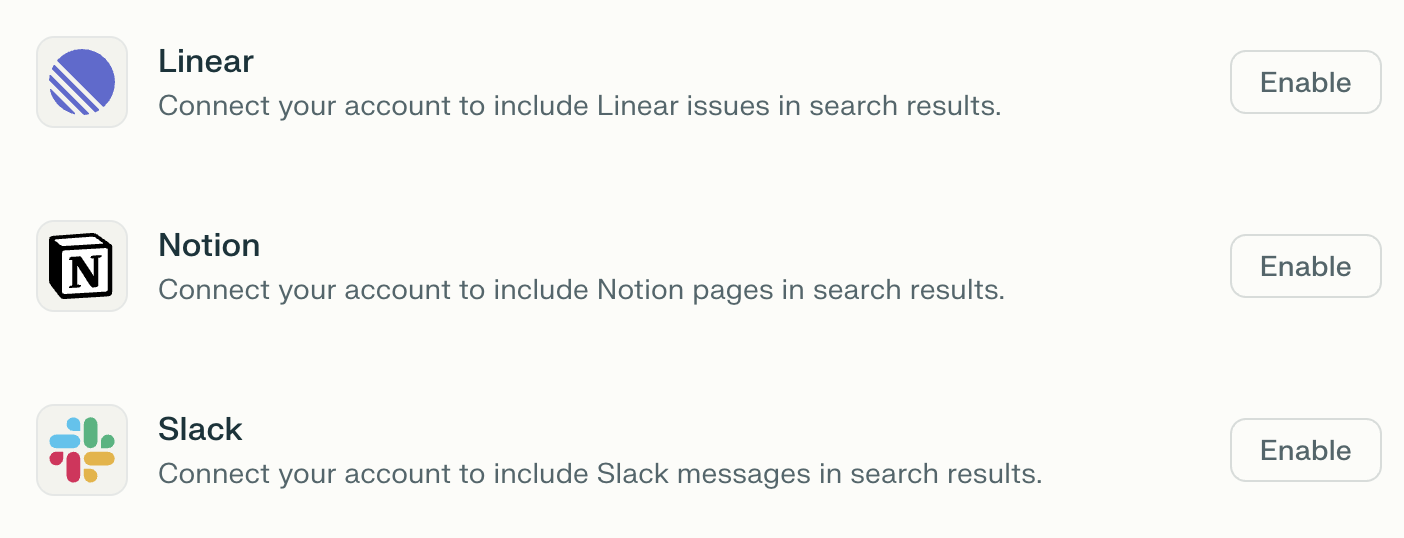
Go to Connectors in Settings and locate the Slack Connector on the list.
-
Click Enable.
-
You will then be prompted to log in to Slack and to grant some permissions to the connector. These will allow the connector to read information and perform actions on your behalf in the Slack workspace. Click Allow to continue.
-
Click Finish setup.
If you can’t enable the Connector for Slack on your account, an admin may have disabled it for your organization. Get in touch with an organization admin who will be able to confirm this.
If it’s enabled for your organization but you still experience issues, contact us.
Trying it out
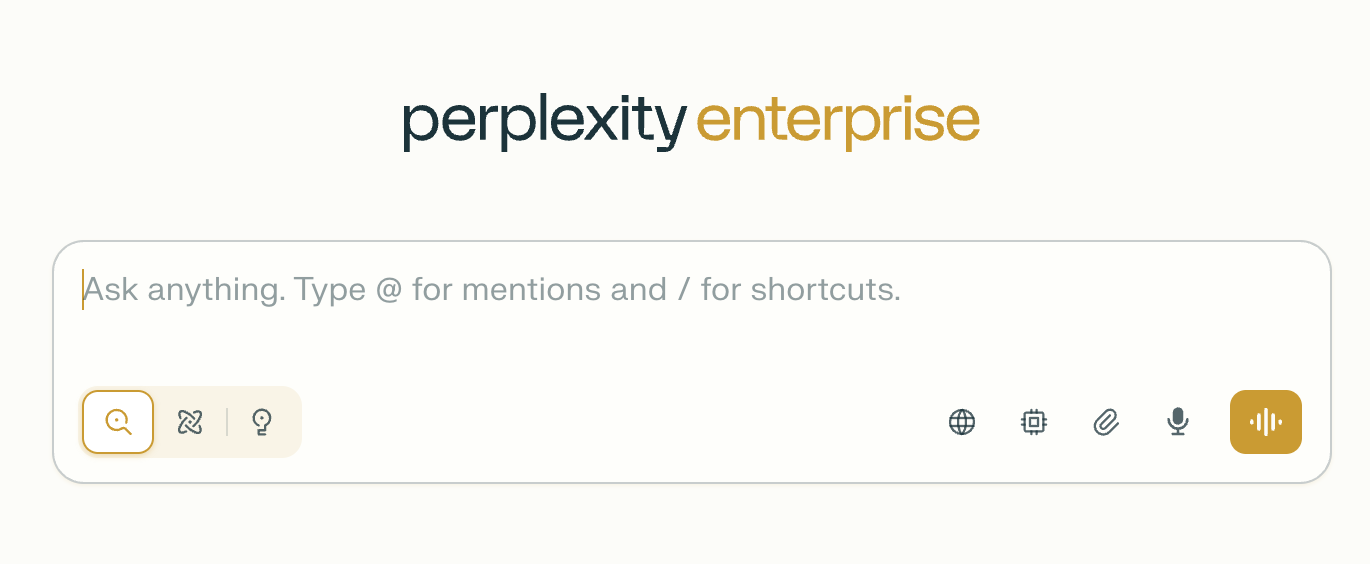
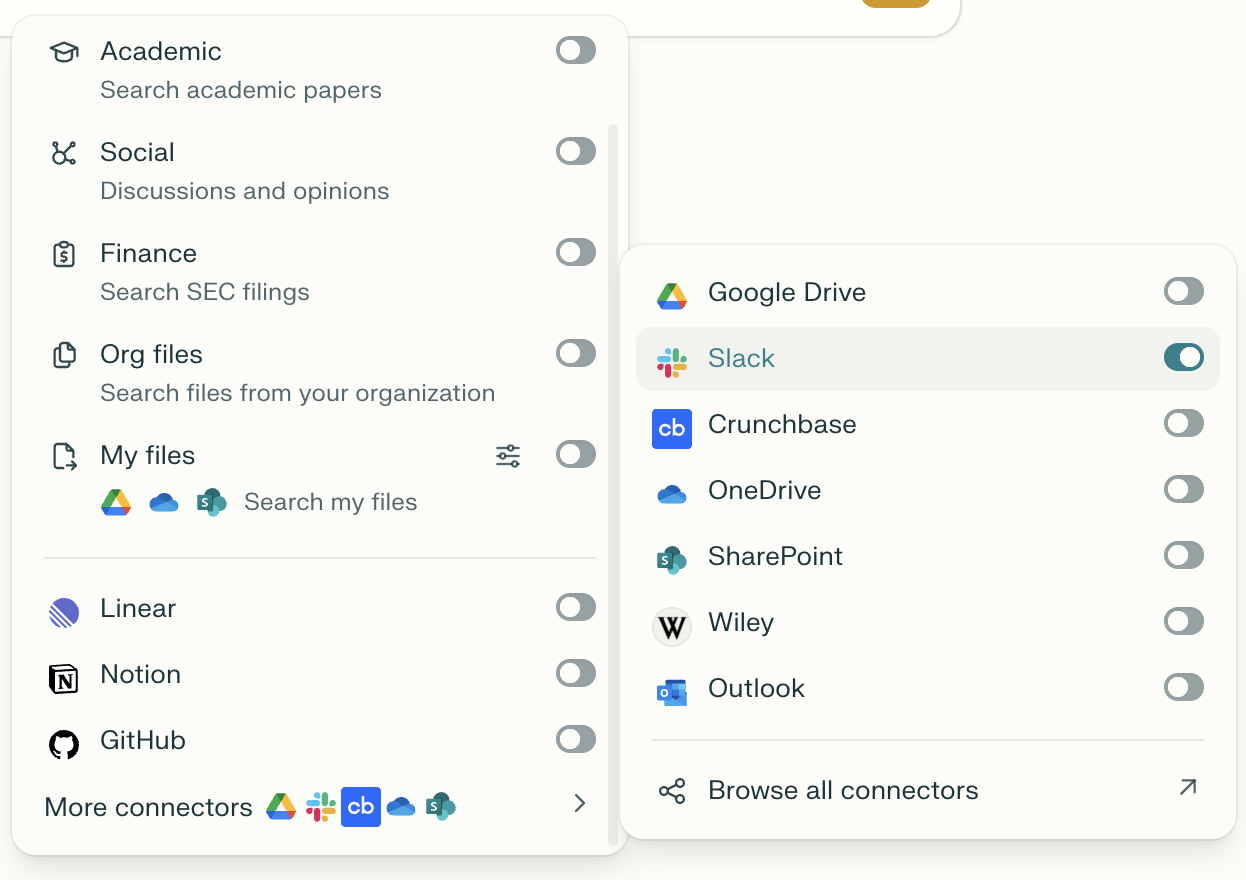
Once you have connected Perplexity to Slack, ensure that you select it as a source when running a query from a session:
-
Click Set sources for search.
-
Select Slack and any other source you’d like to use.
Try running some of these queries to leverage your Slack information directly in your answers:
-
What Slack messages did I write on August 26
-
How many people did I message today?
-
Find messages with customer feedback
-
List the 10 most recent messages that mention <topic>
-
What's the latest status of the operational excellence project?
-
Summarize my conversations with <user>
-
Summarize all relevant Slack messages for me from yesterday
-
Create a Slack post in <channel 1> with a summary of all the actions taken by the team yesterday in <channel 2>
-
What is our CSAT score? How does it compare with best practices in the Enterprise SaaS project?
Using Perplexity within Slack
You can also get personalized, actionable, and reliable answers from your Slack conversations and the web without leaving Slack.
To set up your Slack integration:
-
Install Perplexity Computer from Slack's Apps directory. You can add apps at the bottom of Slack's left panel. Please note that you’ll need a paid Slack plan to install this app.
-
Click Add to Slack
-
Review the permissions the app requires and click Allow
-
You'll be redirected to a Perplexity confirmation page once installation is complete
You can read more about the Perplexity Slack app in this article.
Slack Connector vs. Perplexity Slack App
Perplexity offers two distinct Slack integrations that serve different purposes and work best when used together.
The Connector for Slack brings your Slack data into Perplexity. Once enabled, you can select Slack as a source when running queries in Perplexity sessions, allowing you to search and synthesize insights from Slack conversations alongside web sources — all from within the Perplexity web app. It is available to Pro, Max, Enterprise Pro, and Enterprise Max users, and can be enabled or disabled by organization admins.
The Perplexity Slack App works in the opposite direction — it brings Perplexity's AI capabilities into Slack. Powered by Computer, it lets you ask questions, run agentic tasks, and automate workflows without leaving your Slack workspace. It is currently available to users with access to Perplexity Computer, and requires a paid Slack plan to install.
|
|
Slack Connector |
Perplexity Slack App |
|
Where you work |
Perplexity web app |
Slack |
|
What it does |
Searches Slack content as a source in Perplexity |
Brings AI answers & Computer agents into Slack |
|
Who can use it |
Pro, Max, Enterprise Pro, Enterprise Max |
Users with Computer access |
|
Requires paid Slack plan? |
No |
Yes |
|
Admin controls |
Org admins can enable/disable |
Standard Slack app management |
The two integrations are fully compatible — you can use both simultaneously for a seamless bidirectional workflow.
If you have any questions about how we handle your data, you can find Perplexity’s Privacy Policy here.