

Welcome to Perplexity! We are excited for you to start your AI journey and explore the ways Perplexity can help you optimize your workflows and save you time as your AI research assistant.
Perplexity Enterprise offers two tiers designed for organizations: Enterprise Pro and Enterprise Max.
The onboarding process below allows organizations to create an Enterprise organization, invite team members, select subscription plans, and configure payment options.
Creating an Organization
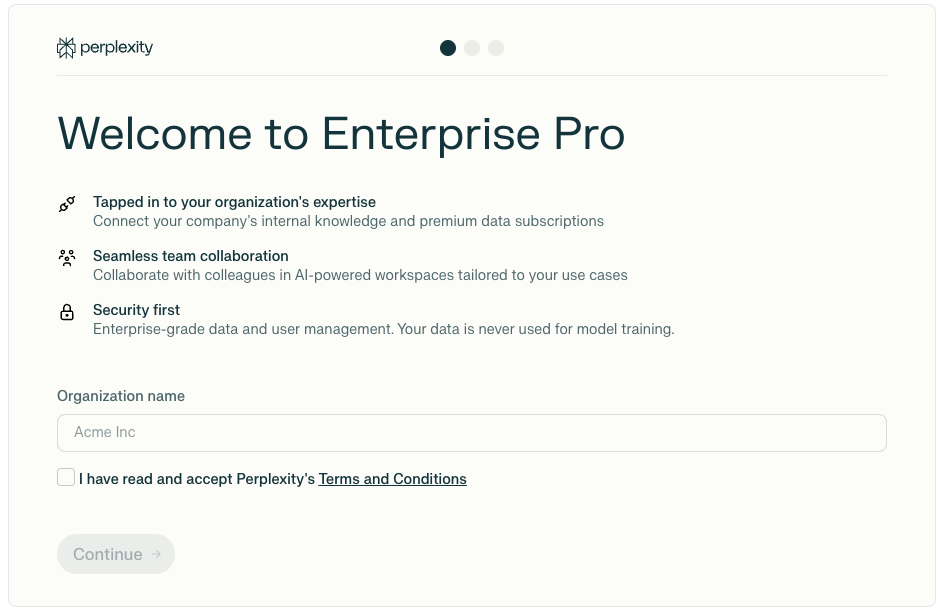
To use Enterprise features, you will need to create an Enterprise organization:
-
Log in to Perplexity on a web browser
-
Go to Account Settings where you will see the Enterprise option, or visit directly: perplexity.ai/enterprise
-
Enter your organization’s name. You will be able to change this later.
-
The organization will be created with you as the initial owner/admin
Invite Team Members
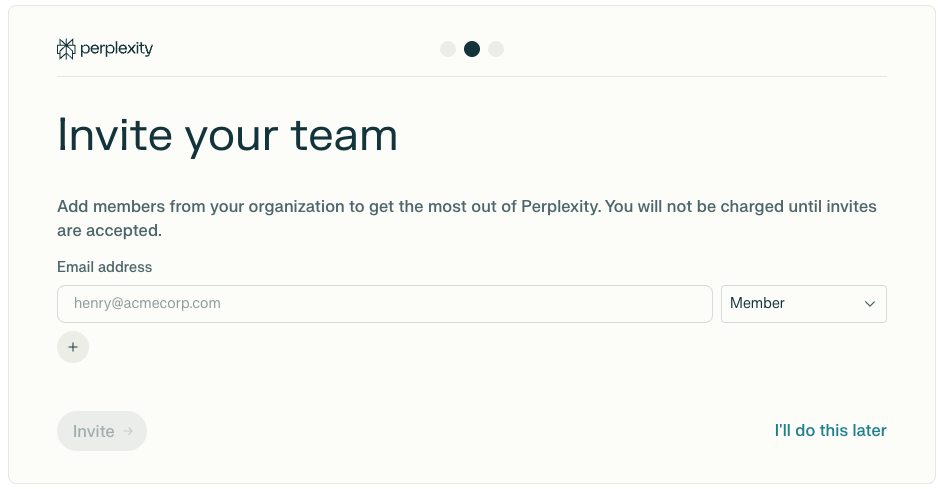
To unlock Perplexity’s collaboration capabilities, you will need to add team members to your organization. You can do this during onboarding, or at any time once your organization is up and running:
-
Entering the email addresses of the members you want to add.
-
Set roles for each member you add (Admin or Member)
-
Click Invite, or I’ll do this later if you want to skip this step and invite members later
You will only be charged for members who accept the invitation and join.
Additionally, you will be able to invite new members via email, or you can create a shareable invite link (requires Admin access) that you can distribute within your organization.
Subscription Plan Selection
You can choose between two Enterprise tiers:
Enterprise Pro:
-
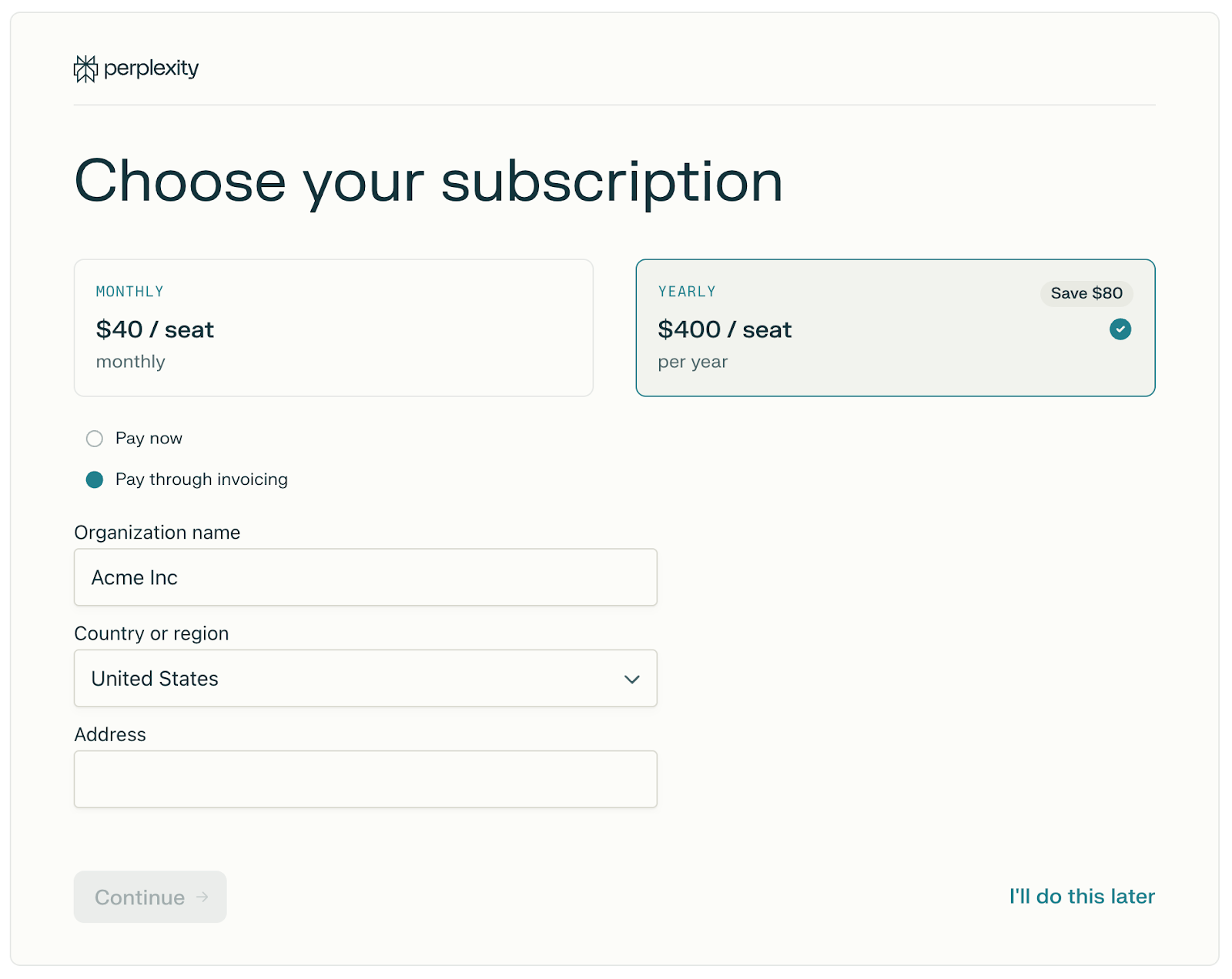
Monthly: $40 per seat
-
Yearly: $400 per seat (20% discount)
Enterprise Max:
-
Monthly: $325 per seat
-
Yearly: $3,250 per seat
Organizations can mix both Pro and Max seats, and the tier and number of seats can be changed at by an admin, for additional flexibility based on individual user needs. You can learn more about managing users here.
During your first month of subscription, you’ll be charged for the number of seats you selected during onboarding.
Because there’s a 30‑day seat commitment period, any seat removals will only show up in your billing after the first month.
Payment Options
The following payment methods are available for Enterprise plans:
-
Credit/debit card: Visa, MasterCard, AMEX
-
Invoice: contact us for invoice billing with 7-day payment terms (annual subscriptions only)
-
Bank/wire transfer: available when choosing invoice payment
We offer a 25% discount on Enterprise Pro seats for Educational institutions, non-profits, and government agencies.
Please note that the subscription must be paid for all added members before Enterprise features activate. Otherwise, functionality will be limited for all organization members.
Additionally, custom terms and invoicing are available for organizations requiring 250+ seats. These organizations (White Glove) receive dedicated customer success manager (CSM) services, and are provided the option to negotiate contract terms and conditions with Perplexity AI.
Applying Promotional Codes
If you have a coupon or discount code that applies to Enterprise plans:
-
Go to perplexity.ai/enterprise while signed in to the account you wish to upgrade
-
Follow the onboarding process
-
Enter the promo code during checkout (in Add promotion code)
The discounted total will display, and you will be able to complete the purchase.
Transitioning from Personal Pro/Max
If you have an existing Pro or Max subscription, you can seamlessly transition to Enterprise.
Your previous subscription will be automatically canceled when choosing an Enterprise plan, and any unused time will be credited toward the next Enterprise invoice (on renewal).
You will keep access to existing sessions/projects, which will remain private unless you explicitly share them with your organization.
Managing your Organization
Organization admins can perform the following tasks from Organization settings:
-
Manage organization name, logo, and other details
-
Add or remove members through the Members screen
-
Configure billing through Manage billing portal
-
Enable security features and permissions as needed
-
Connect the organization’s identity provider for users in the organization to sign in from (SSO)
You can find more information in this article.
Questions?
Get in touch if you have any questions.
We look forward to supporting your successful journey with Perplexity!