

Overview
Credits power premium features like Computer and other frontier capabilities that expand your team's potential. As an administrator with the right permissions, you control how credits are funded, allocated, and consumed across your organization.
Enterprise Pro users receive a monthly allocation of 500 credits, and Enterprise Max users receive 15,000 credits. These credits expire at the end of each monthly cycle and do not roll over.
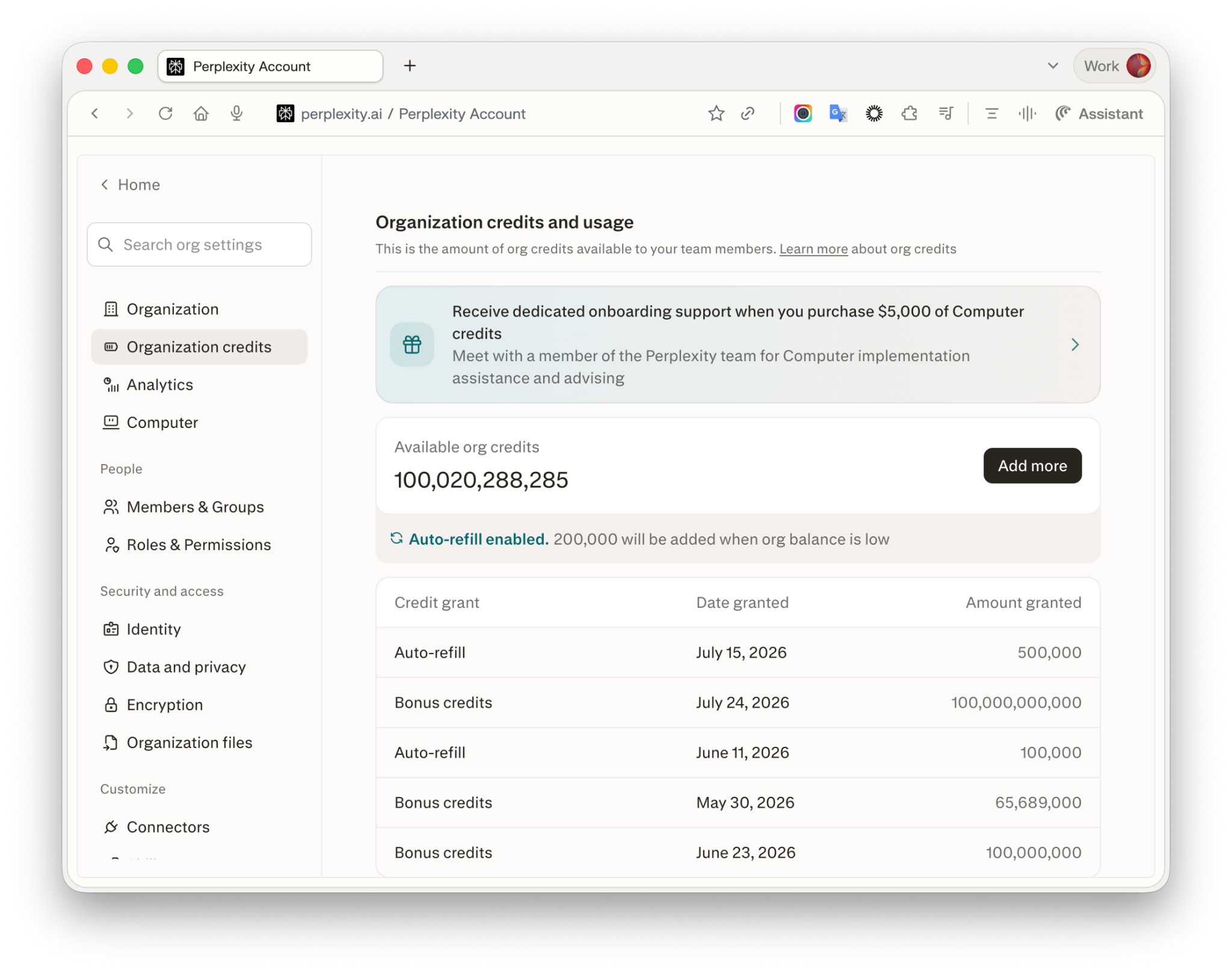
Figure 1 — The Organization credits page shows your organization's pool balance, auto-refill status, and recent credit grants.
Note: Credit pricing, task credit ranges, and included monthly allowances are subject to change and may vary by region or plan.
How Enterprise credits work
Enterprise credits flow through two pools:
1. Individual allocation
Each seat in your organization receives a monthly credit allocation as part of their subscription.
Credits refresh monthly based on your organization's billing cycle date. For example, if your plan starts on the 15th, credits refresh on the 15th of each month. Unused individual credits expire at the end of each monthly cycle and do not roll over.
Members who join mid-cycle receive the full monthly allocation for that cycle — mid-cycle seat additions are not prorated.
2. Organization pool (shared credits)
The organization pool is a shared credit reserve funded and managed by administrators.
Credits in the organization pool are:
-
Drawn on behalf of a member after they exhaust their individual allocation, up to that member's applicable usage limit.
-
Subject to organization-level controls — you set usage limits and assign user groups (or individual members) to them.
The shared pool is always drawn last, and only up to the member's usage-limit headroom.
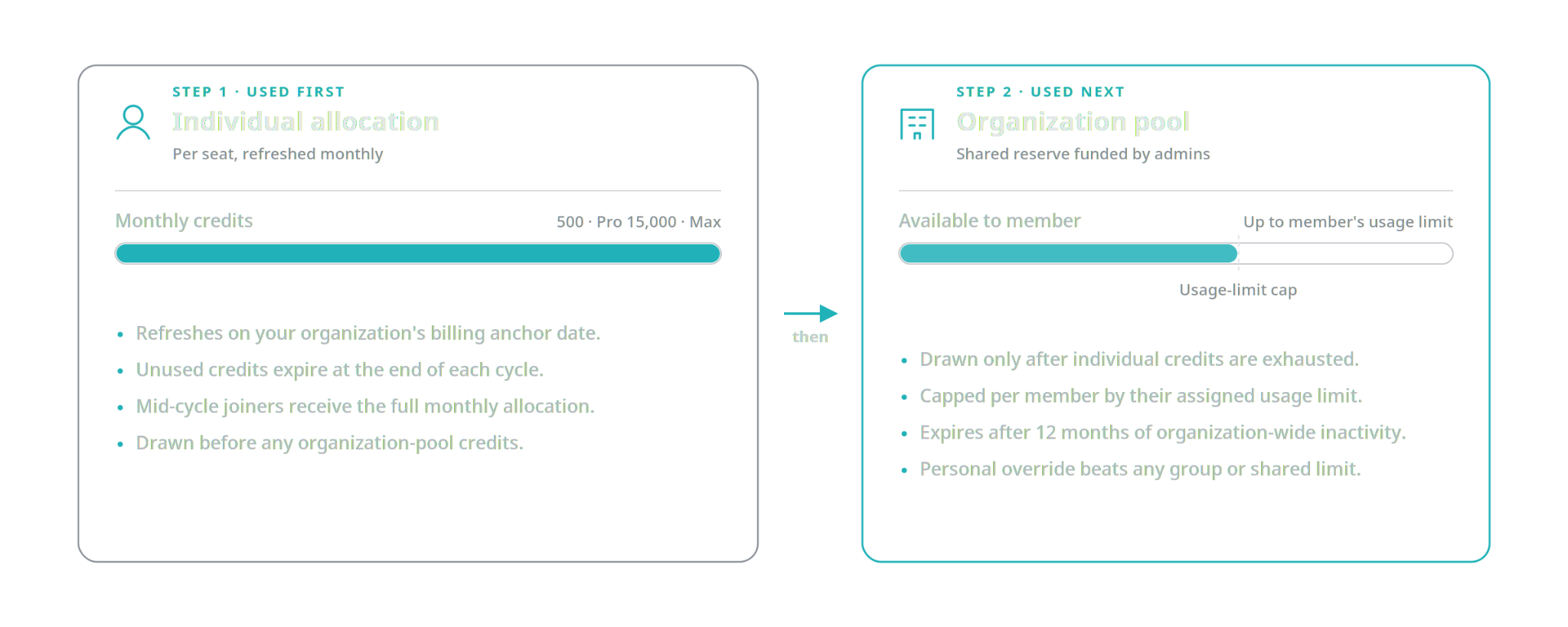
Figure 2 — Individual allocation is drawn first; the organization pool is drawn next, up to the member's usage limit.
Note: Purchased credits in the organization pool expire after 12 months of organization-wide inactivity. Individual monthly grants still expire at cycle end as described above.
Usage limits replace seat-tier caps
Seat-tier usage caps have been replaced by named usage limits. Instead of a single cap tied to Enterprise Pro or Enterprise Max, administrators now:
-
Create one or more named usage limits (for example, "Standard," "Power user," "Contractor — capped").
-
Assign user groups and/or individual members to each limit.
Every member covered by a limit can draw up to that amount from the organization pool after their individual allocation is used. A member's assignment — not their seat tier — determines their limit.
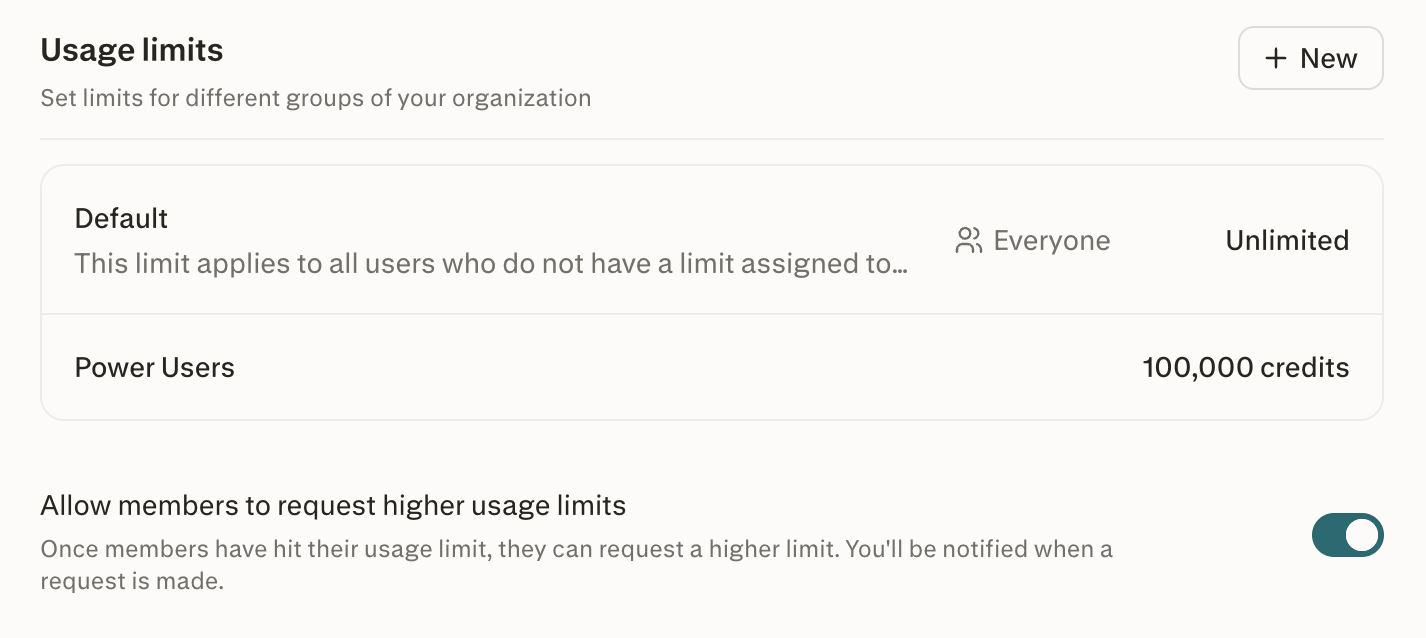
Figure 3 — The Usage limits section shows every named limit and its current cap; use "+ New" to create additional limits.
For organizations that existed before this change, legacy seat-tier caps remain in effect as a fallback while you transition. Your Organization credits page will prompt you to set a default usage limit for the organization; once you do, the new system takes over.
Admin controls
First-time setup
To set up credits for the first time:
-
Navigate to Organization settings → Organization credits in the Perplexity Enterprise admin panel.
-
Click Get started.
-
Review and accept the usage-based billing terms and conditions (required for first-time setup).
-
Configure Add credits and auto-refill. If your organization already has a saved payment method, it's pre-filled and can be edited; otherwise you'll be prompted to add one. Invoice-billed organizations see a read-only Invoice billing indicator instead.
-
Set your organization's default usage limit and create any additional named limits (see Managing usage limits below).
Viewing balances and usage
Navigate to Organization settings → Organization credits to view:
-
Per-user allocations — credits granted, used, and remaining for each member.
-
Per-group allocations — usage limits for each user group.
-
Organization pool balance — current balance, usage this period, and reset date.
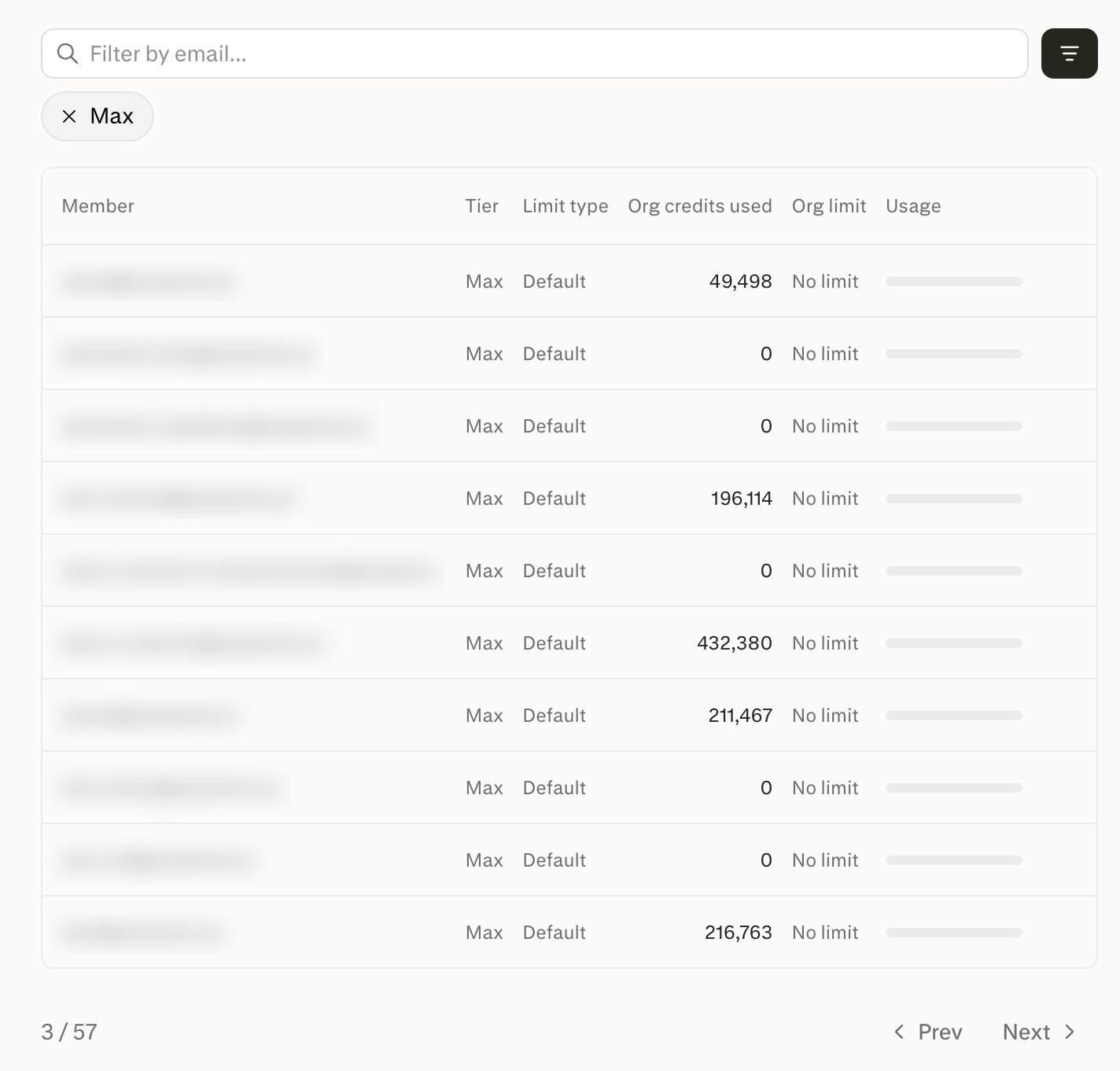
Figure 4 — The per-member table shows each member's tier, applied usage limit, and organization-pool consumption.
Funding the organization pool
-
Set up credit auto-refill (subject to a configurable monthly reload limit), or purchase additional credits for the organization pool at any time.
-
Control how much each group can draw from the organization pool by adjusting its usage limit.
-
If enabled for your organization, members who reach their limit can request additional credits from an admin. This is controlled by the Allow members to request more credits setting on the Organization credits page.
-
Pool credits are transferred to a member automatically when they need them, in configurable amounts bounded by the pool balance and the member's remaining cap. Admins set the caps; the system handles the transfers.
-
Adjust usage limits per user or group at any time.
Managing usage limits
Usage limits control how much extra a member can draw from the organization pool once they've used their monthly allocation.
Create a usage limit
-
Go to Organization settings → Organization credits.
-
In the Usage limits section, click New.
-
Enter a name (for example, "Power user") and, optionally, a short description.
-
Choose between No limit and Has limit, then set the maximum additional credits every member assigned to this limit can draw from the pool after depleting their monthly allocation.
-
Click Save.
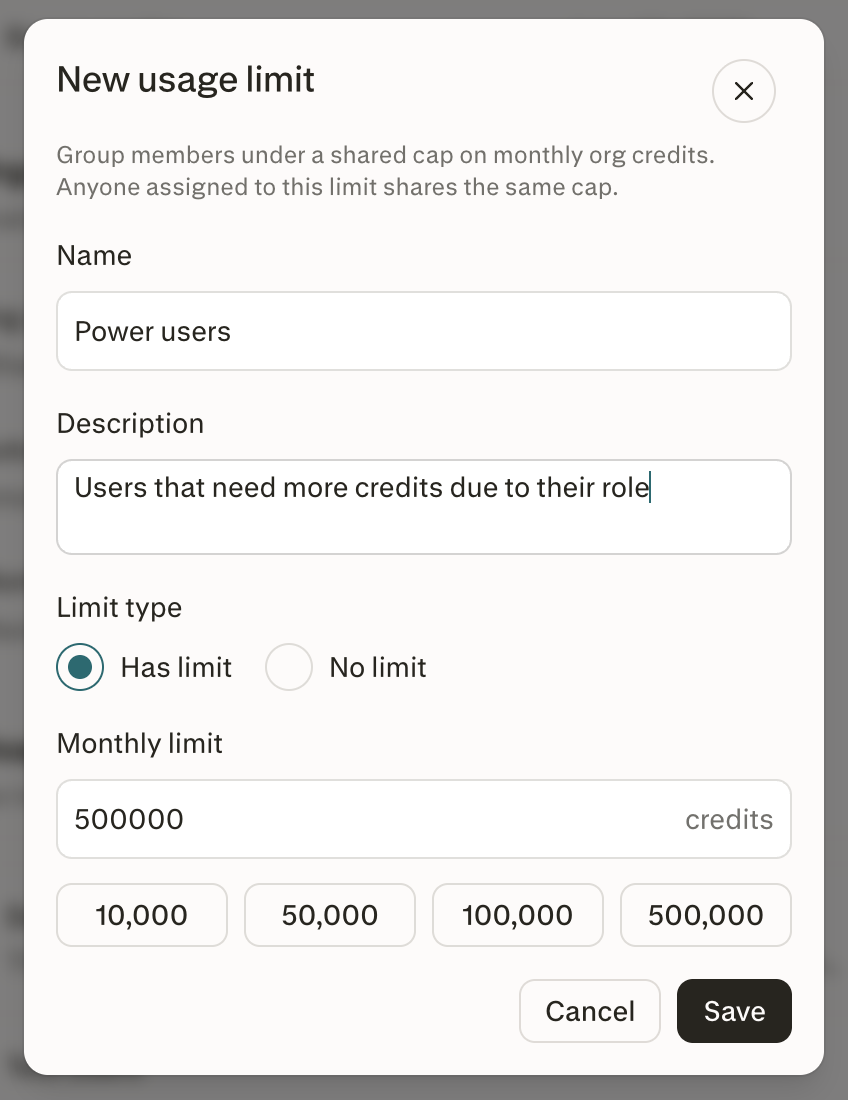
Figure 5 — The New usage limit modal lets you name a limit, add a description, and set the monthly cap.
Assign a user group to a usage limit
-
Open the usage limit you want to assign a group to.
-
Select the Groups tab.
-
Click Add groups and choose one or more groups.
-
Click Save.
Every member of the assigned group is now subject to that usage limit.
Note: If a member belongs to more than one group with different limits, the highest limit applies (an unlimited assignment beats any finite one).
You can use Perplexity-managed groups or SCIM-synced groups from your identity provider. See Enterprise roles and permissions for how groups are managed.
Assign an individual member directly
You can also assign a usage limit directly to a specific member, without going through a group:
-
Open the usage limit you want to assign.
-
Select the Members tab.
-
Click Add members and choose one or more members.
-
Click Save.
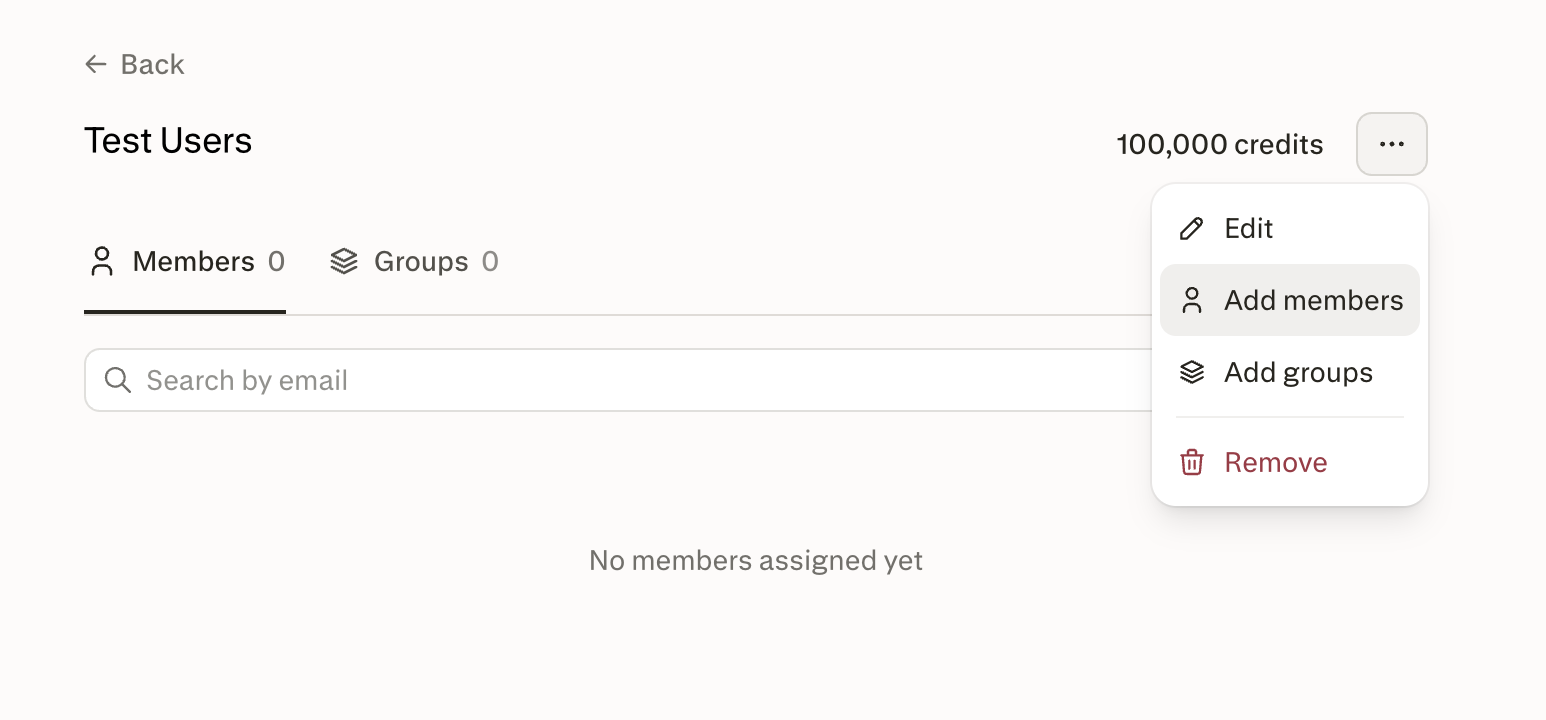
Figure 6 — Use the ellipsis menu on a usage limit's detail page to add members or groups.
Set a limit override for a single member
Use a limit override when one person needs a different cap than their group or shared assignment.
-
Go to Organization settings → Organization credits.
-
In the members list, click the ellipsis (…) next to the member you want.
-
Click Set limit override.
-
Choose between No limit and Has limit, then set the maximum additional credits this member can draw from the pool after depleting their monthly allocation.
-
Click Save.
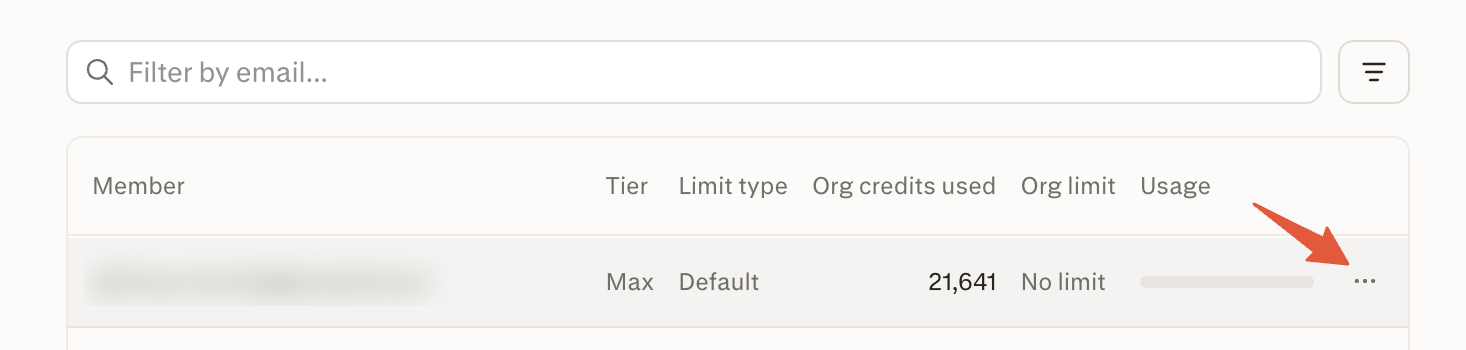
Figure 7 — Open the ellipsis menu next to a specific member to set a personal limit override.
A personal override takes precedence over any group or shared limit that member would otherwise inherit.
Edit or delete a usage limit
-
To change the amount, open the usage limit, update the value, then click Save. New caps apply once permission changes and authorization caches refresh; no billing-cycle wait.
-
To remove a usage limit, open it and click Remove. Deletion automatically removes all of its group and member assignments — you don't need to unassign them first. Members previously covered by that limit fall back through the resolver order (personal override → other shared/group limit → organization default → legacy tier cap).
Roles and permissions
Two permissions govern the usage-limits surface:
-
View credit limits — access the Organization credits page and its usage-limits section.
-
Manage credit limits — create, update, delete, and assign usage limits.
Both permissions are managed under Organization settings → Roles & Permissions. See Enterprise roles and permissions for how to grant them.
Organization transfers
If a member leaves an organization, they lose access to their individual credit pool. Credits do not transfer if a member moves between organizations.
Frequently asked questions
What happened to seat usage limits?
Seat-tier caps have been replaced by named usage limits. Instead of a single cap per seat tier, you can create as many usage limits as you need and assign user groups or individual members to them. Legacy tier caps continue to act as a fallback until you set an organization default limit.
When do monthly credits refresh?
Monthly credits refresh based on your organization's billing cycle date. For example, if your organization's Perplexity Enterprise plan starts on the 15th of the month, credits refresh on the 15th of each month.
Do organization pool credits expire?
Purchased pool credits and auto-refill top-ups do not currently expire. Individual monthly allocations still expire at the end of each billing cycle.
What happens if a member is in more than one group?
If a member belongs to multiple groups assigned to different usage limits, the highest limit applies. A personal limit override, if set, takes precedence over any group or shared limit.
Can I re-allocate credits from one member to another?
No. Credits cannot be transferred directly from one member to another. To give a member more headroom, raise the limit on their assigned group, assign them to a higher shared limit, or set a personal override.
How do I restore access for a member whose usage is blocked?
If a member is blocked because the pool is empty, funding the pool restores access. If they're blocked because they hit their cap, raising the applicable cap — via the group limit or a personal override — restores access. These actions restore spendability but don't inherently erase a member's displayed raw balance.
Do group changes take effect immediately?
There's no billing-cycle wait, but changes apply once permission updates and the authorization cache refresh. For SCIM-synced groups, ingestion from your identity provider also runs asynchronously.
Need more help?
Reach out to your account team or contact enterprise@perplexity.ai. Visit the Trust Center for security and compliance documentation.