

About the Databricks Connector
The Databricks Connector enables you to query data stored in your Databricks Lakehouse directly from Perplexity. It integrates Databricks with Perplexity's productivity features, allowing you to instantly search and combine relevant information across your Databricks catalogs, schemas, and tables — without manual queries or context switching.
The Databricks Connector is available for Perplexity Pro, Perplexity Max, Enterprise Pro, and Enterprise Max users.
What Does the Databricks Connector Do?
Once enabled, the Databricks Connector allows you to search across your authorized Databricks catalogs, schemas, and tables to provide answers based on that data. The connector authenticates using your individual Databricks identity via OAuth, meaning queries run under your native Databricks permissions — no shared service account required.
You can use the connector to quickly find information across Unity Catalog tables, Delta Lake data, and views without manually writing SQL or switching to the Databricks console. When your Databricks data is updated, the connector reflects those changes automatically during subsequent queries.
Supported Data Objects
The Databricks Connector supports:
-
Unity Catalog tables and views
-
Delta Lake tables
-
Schemas and catalogs
-
External tables registered in Unity Catalog
-
Structured data (CSV, JSON, Parquet-backed tables)
At the moment, unstructured data (images, audio, video, and files stored in Databricks Volumes) is not supported.
Authentication
The Databricks Connector uses OAuth (individual user) authentication. Each Perplexity user connects using their own Databricks credentials, and queries run under that user's native Unity Catalog permissions — no shared service account, PAT, or service principal is involved.
This means:
-
Data access is governed by each user's existing Databricks permissions
-
Every query carries a clear per-user audit trail in Databricks
-
An org admin configures the OAuth app once; individual users then authenticate with their own accounts
Note: Because OAuth tokens are bound to each user's Databricks identity, users will only be able to query catalogs, schemas, and tables they already have access to in Databricks. Ensure the appropriate Unity Catalog grants are in place before connecting.
Controlling What Perplexity Can Do in Databricks
The Databricks Connector executes SQL through a tool surface (sourced from the Merge Databricks connector) that includes a general execute_sql_statement tool. Because execute_sql_statement accepts arbitrary SQL — including DDL and DML — the only reliable way to enforce read-only or otherwise restrict what Perplexity can do is at the Unity Catalog level, not in the Perplexity UI.
Recommended pattern: enforce read-only via Unity Catalog grants.
Because the connector authenticates per-user via OAuth, every action Perplexity attempts runs under that user's Databricks identity and is subject to their existing Unity Catalog permissions. To keep usage read-only, ensure each user (or the group they belong to) has only:
-
USE CATALOGon the catalogs you want them to query -
USE SCHEMAon the schemas you want them to query -
SELECTon the tables and views you want them to query
And explicitly does not hold MODIFY, CREATE, or OWN on those objects, nor CAN MANAGE on the SQL warehouse. With Unity Catalog configured this way, Databricks will reject any write Perplexity attempts on objects where the user lacks write privileges, regardless of which tool is called.
Note: Perplexity surfaces a Tool permissions panel in the Databricks connector settings that lists the available tools. Today, this panel does not provide reliable read/write/edit enforcement — governing access at the Unity Catalog level (above) is the correct way to control what Perplexity can do.
Privacy and Data Security
When connected to Perplexity, the Databricks Connector can perform the following actions on your behalf:
-
Execute SQL queries on Databricks data via SQL Warehouses
-
Query Unity Catalog tables, views, and schemas
-
Read Delta Lake table metadata and data
If you revoke access or remove permissions in Databricks, that data is immediately inaccessible from Perplexity. If you disconnect your Databricks account in Perplexity, you can choose whether to keep or delete any cached data.
Enterprise-Grade Security and Control
For Enterprise organizations, Perplexity offers SOC 2 Type II certification, end-to-end encryption, strict data privacy measures, and granular user access controls. Your Databricks data is never used for AI training.
Connecting Perplexity to Databricks is done at a personal level — no one else in your organization can query your Databricks data. However, if you sync data to a shared project, anyone with access to that Project will be able to search it.
Organization admins can enable or disable the Databricks Connector for all users from the Permissions screen in Organization Settings. Read/write enforcement is handled at the Unity Catalog level (see Controlling What Perplexity Can Do in Databricks above).
Network Prerequisites
This section only applies if your Databricks workspace uses IP access lists or an equivalent inbound restriction (for example, an Azure Databricks ingress policy or a firewall in front of the workspace). If your workspace accepts inbound traffic from any address, no network changes are needed and you can skip ahead to How to Activate It.
The Databricks Connector is powered by Merge Agent Handler, Perplexity's authentication and integration partner for Databricks. When a user clicks Authenticate with Databricks, the Databricks login page is loaded by the user's browser, but the OAuth code exchange against your workspace's token endpoint (/oidc/v1/token) is performed server-to-server by Merge. After linking, Merge also relays Perplexity's SQL Warehouse and Unity Catalog API calls to your workspace. These requests originate from Merge's infrastructure, not from the user's network or from Perplexity's published IP ranges.
If your workspace restricts inbound traffic, add the following to your IP access list (or equivalent allowlist) before running the admin setup:
-
Merge Agent Handler (US tenant):
3.216.101.38and52.20.242.81. These addresses are static and are used for the OAuth token exchange during authentication and for ongoing Databricks API traffic (SQL Warehouse and Unity Catalog calls) after linking. -
Perplexity: the published egress ranges in perplexity-user.json. Keep these allowlisted alongside the Merge addresses.
Note: If the Merge addresses are not allowlisted, users will typically see the Databricks login page and consent screen load normally, and then fail with a token_exchange_failed error when Perplexity attempts to complete the connection.
How to Activate It
Setting up the Databricks Connector is a two-part process: an admin configures the OAuth app once for the organization, and then each user authenticates with their own Databricks account.
Part 1: Admin Setup — Configure Databricks for Your Organization
A Databricks workspace admin needs to complete this step once. Individual users do not need to repeat it.
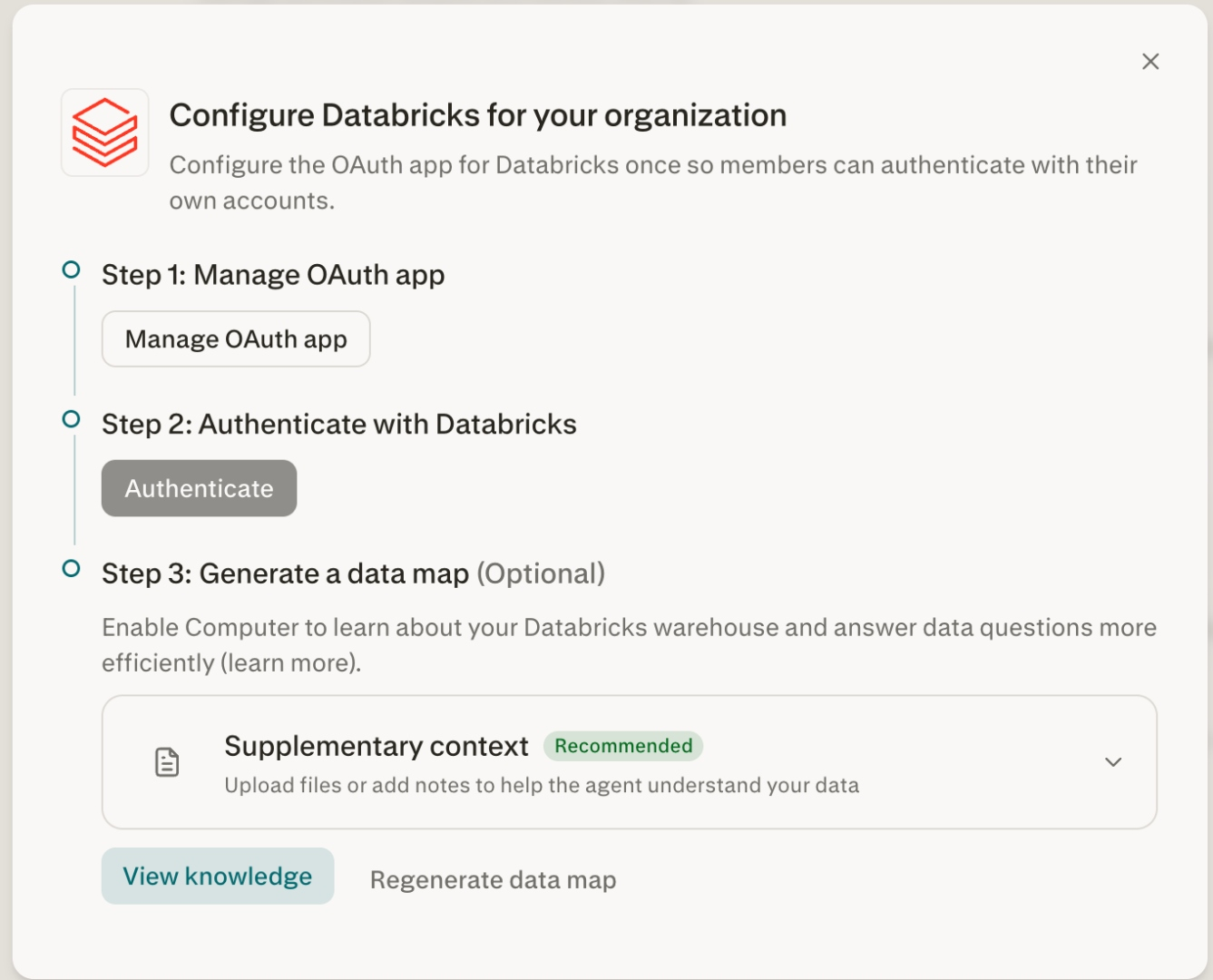
In Organization Settings → Connectors → Databricks, you'll see a three-step setup pane titled "Configure Databricks for your organization":
-
Step 1: Manage OAuth app — Click Manage OAuth app to register Perplexity as an OAuth client in your Databricks workspace. This grants Perplexity permission to authenticate users via OAuth against your workspace.
-
Step 2: Authenticate with Databricks — The admin authenticates once to verify the integration works end-to-end.
-
Step 3: Generate a data map (Optional) — Optionally generate a data map for the organization (see Part 3 below and Understanding the Data Map) and add Supplementary context to improve query accuracy.
Note: You will need Databricks workspace admin privileges to complete this step. If you are unsure how to register an OAuth app in Databricks, refer to the Databricks OAuth documentation.
Part 2: User Setup — Authenticate and Connect
Each user completes the following steps independently:
-
Go to Connectors in Settings and locate the Databricks Connector.
-
Click Enable → Add Connector.
-
Click Authenticate with Databricks. You will be redirected to Databricks to log in with your own credentials.
-
Authorize Perplexity to access your Databricks data.
-
Click Allow to complete setup.
Part 3: Generate a Data Map (Optional but Recommended)
After authenticating, Perplexity can generate a data map of your Databricks environment. This helps Computer understand your catalog structure and answer data questions more accurately.
-
Click Regenerate data map to build or refresh the map at any time.
-
For best results, also add Supplementary context — upload files or add notes describing your data (e.g., what key tables represent, business definitions, common query patterns). This additional context helps the agent interpret your data correctly.
-
Click View knowledge to review what Perplexity has learned about your Databricks environment.
Skipping the data map will result in decreased accuracy on complex data questions. We recommend generating it as part of initial setup. Learn more in Understanding the Data Map.
Using Connected Data
Once connected, you can reference your Databricks data in Computer tasks. Mention catalogs, schemas, or tables and Perplexity will query them as part of multi-step workflows — all asynchronously in a secure cloud sandbox.
Trying It Out
Once connected, try running queries like these:
-
"Summarize the revenue trends from the Q4 sales table and highlight key metrics"
-
"Find all customer records updated in the last 30 days"
-
"What are the top-performing products based on the analytics schema?"
-
"Compare this quarter's pipeline data against the previous quarter's figures"
Troubleshooting
Databricks is not enabled for your organization
An org admin may have disabled the connector, or the OAuth app may not yet be configured. Contact your organization admin to confirm, or reach out to Perplexity support.
OAuth app not configured
If users see an error when attempting to authenticate, the admin OAuth app setup (Part 1) may not be complete. A workspace admin should return to Organization Settings → Connectors → Databricks and complete the Manage OAuth app step.
User cannot access certain tables after connecting
The Databricks Connector respects each user's existing Unity Catalog permissions. If a user cannot query a table they expect to access, verify that the appropriate GRANT has been applied in Unity Catalog:
-- Grant access to a catalog
GRANT USE CATALOG ON CATALOG my_catalog TO `user@example.com`;

-- Grant access to a schema
GRANT USE SCHEMA ON SCHEMA my_catalog.my_schema TO `user@example.com`;

-- Grant read access to tables
GRANT SELECT ON TABLE my_catalog.my_schema.my_table TO `user@example.com`;
Authentication fails with a token exchange error
If a user completes the Databricks login and consent screens but the connection then fails with a token_exchange_failed error, the OAuth code exchange between Merge and your workspace did not succeed. Work through the following with your Databricks workspace admin and network team:
-
Confirm the Merge egress addresses in Network Prerequisites are allowlisted in any IP access list, ingress policy, or firewall protecting the workspace. Databricks admins can check for denied requests to
/oidc/v1/tokenin thesystem.access.inbound_networksystem table. -
Verify the OAuth app registered in Part 1 is still enabled and that its redirect URIs match the values shown in Organization Settings → Connectors → Databricks.
-
Have the user retry the connection after any network or OAuth app change.
If the error persists, contact Perplexity support and include the approximate time of the failed attempt and the workspace URL so we can investigate the exchange with our integration partner.
Data map is stale or inaccurate
If Perplexity is generating incorrect or outdated answers about your Databricks data, try clicking Regenerate data map in the connector settings. You can also add or update Supplementary context to give the agent better guidance on your data structure.
Connection and Authentication Issues
-
Verify that the OAuth app is correctly configured in your Databricks workspace
-
Confirm that Perplexity's redirect URIs are allowlisted in your Databricks OAuth app settings
-
If your workspace uses IP access lists, an ingress policy, or a firewall, ensure the Merge and Perplexity addresses listed in Network Prerequisites are allowlisted
-
Ask users to reconnect the Databricks Connector after any workspace policy changes
If issues persist after updating these settings, contact Perplexity support for assistance.