

Please note that Email Assistant will soon be deprecated.
The Email Assistant for Perplexity Max and Enterprise Max is a powerful new feature that transforms the way your email inboxes are managed, blending advanced AI organization with actionable productivity. It organizes your inbox, drafts replies automatically, and schedules meetings on your behalf, so you can focus on the work that matters.
Email Assistant works with Gmail and Outlook, delivering fast, focused, and secure communication with advanced data protection for both personal and enterprise needs.
The Email Assistant requires a Perplexity Max or Enterprise Max subscription.
You will need to upgrade to one of these plans to use the Email Assistant if you’re on any other subscription plan.
How it works
The Email Assistant uses AI to analyze and understand the content, context, and urgency of incoming emails. Messages are automatically sorted into categories, urgent emails are highlighted for immediate attention, while spam and low-priority items are filtered out of view.
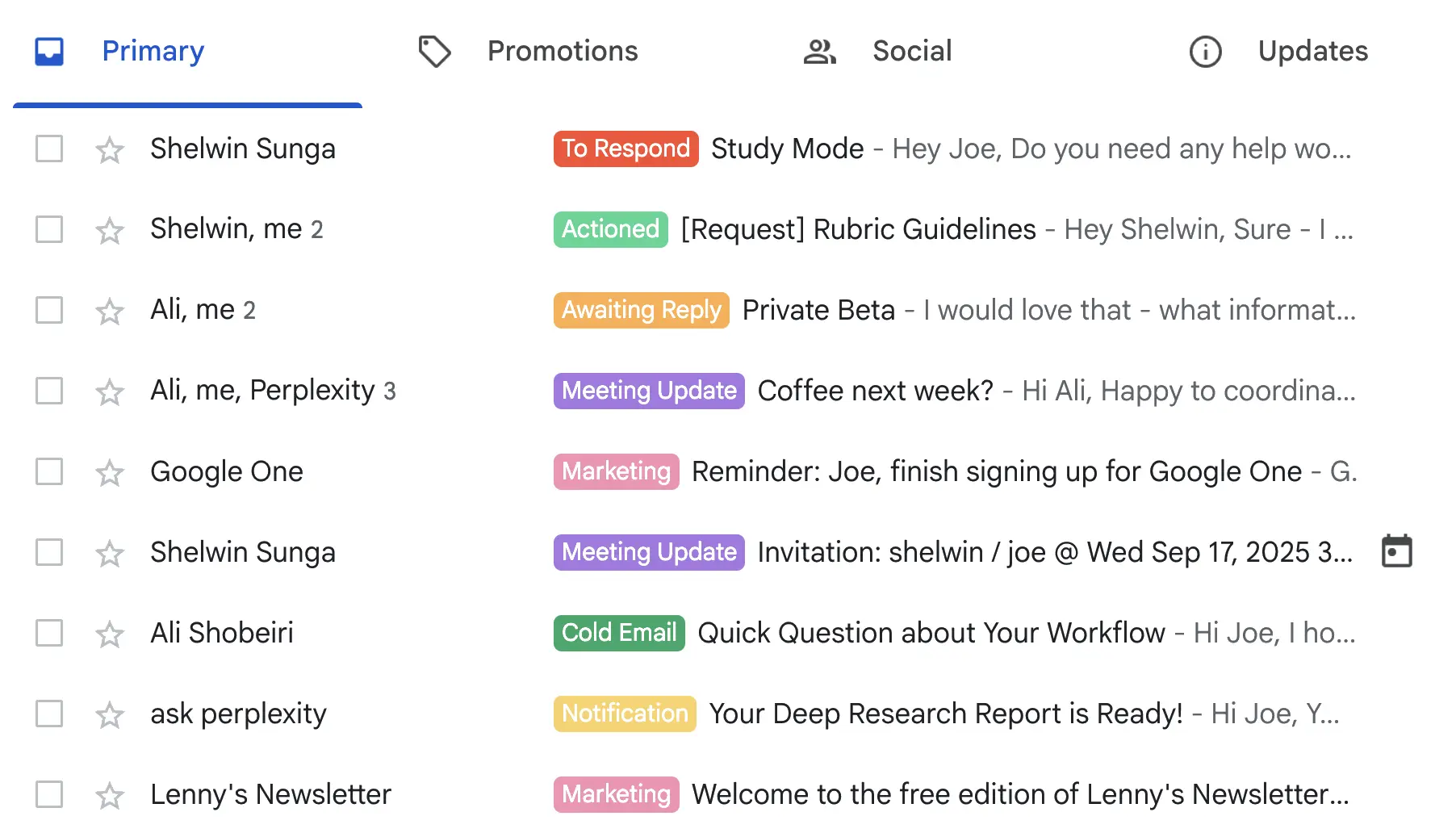
The system continuously adapts by learning from user behaviors, improving organization as more emails are processed.
The Email Assistant can draft contextual replies tailored to your writing style and specific conversations. You can review and edit these draft responses before sending—or you can enable automated replies for routine queries. Every edit you make helps refine future suggestions, ensuring the Assistant’s responses remain aligned with your individual preferences.
The Email Assistant can also manage your scheduling. When a someone requests a meeting with you via email, the Email Assistant checks your connected calendars, suggests available times, and sends invitations automatically. It manages time zones, and can reschedule if a conflict arises. This approach reduces scheduling friction and back-and-forth, and require minimal input on your part.
Is it secure?
Always-on drafting and labeling never logs your email content, and all email chains sent or received by the Assistant are deleted in 14 days.
Enterprise Max
In addition to enterprise-grade protection of your email data in transit and at rest, Enterprise users’ data, including your email and calendar data, is never used to train AI models—you retain absolute control over your data at all times.
Enterprise Max complies with GDPR, SOC 2, and other critical privacy regulations, with robust safeguards that meet the highest standards for confidentiality and compliance. Enterprise organizations can learn more in our Trust Center.
How to activate it
Currently, the Email Assistant only works with one email address. If you have your Google and Outlook, the Email Assistant will prioritize Google.
We’re working to enable the Email Assistant to work with multiple email addresses.
To activate the Email Assistant:
-
Go to perplexity.ai/assistant
-
Click Get Started
-
Choose between connecting with Google or Outlook
-
Once you connected Perplexity to your email account, click Continue
-
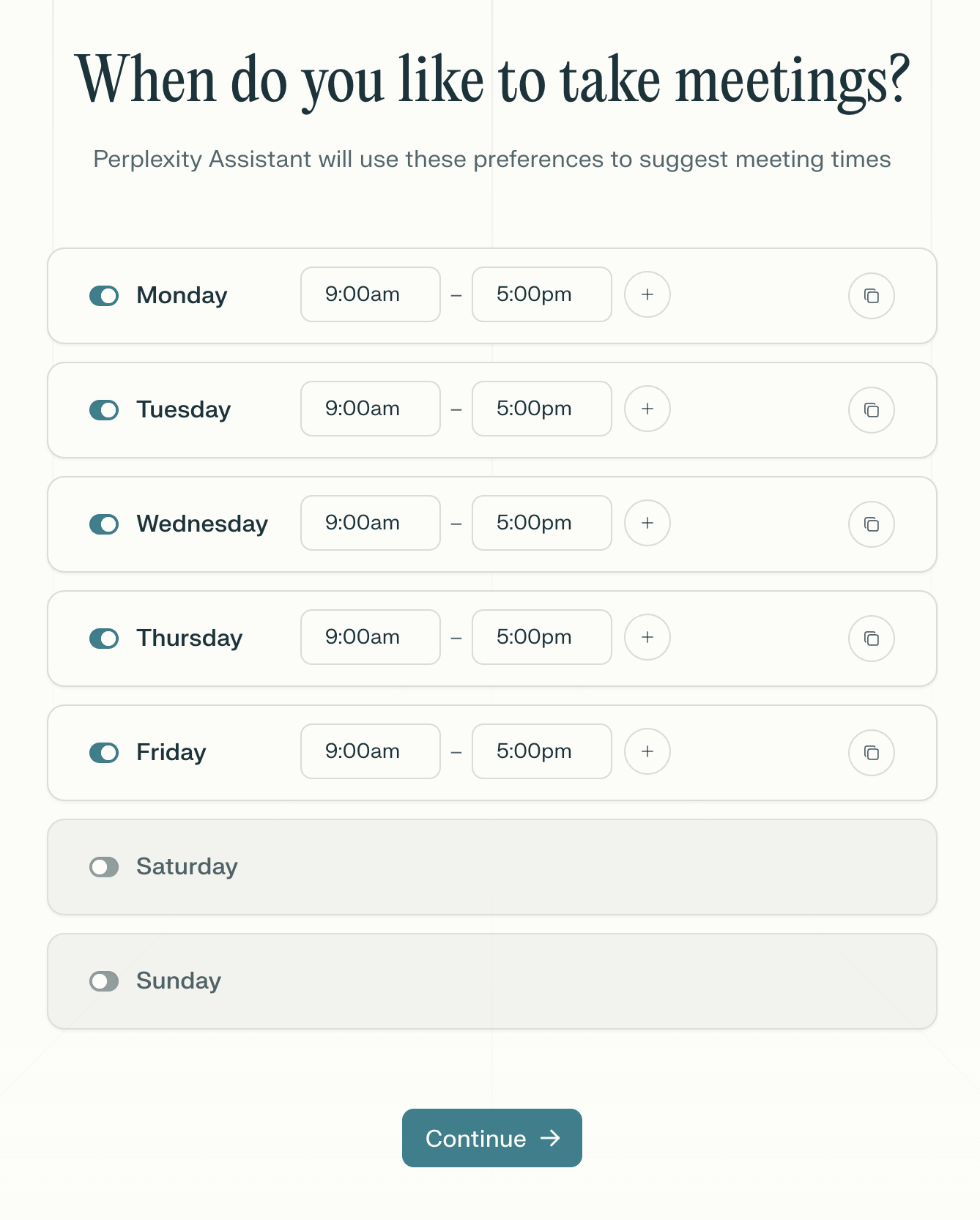
You will then be able to enter your meeting availability, which the Email Assistant will use to schedule meetings on your behalf – you will be able to change this later
-
Next, you will be able to enable Smart Labels – a feature of the Email Assistant that organizes and labels your emails automatically
-
Then, you will be able to enable Smart Drafts, which allow the Email Assistant to draft responses to your emails using your voice and tone
-
Lastly, you’ll need to send an email to the assistant (assistant@perplexity.com) – you can do this from the onboarding screen
How to manage it
Once you have activated the Email Assistant, you will be able to manage it from your account Settings.
Here, you will be able to set your:
-
Full name: the name used in email signatures and calendar invites
-
Organization: your company or organization name
-
Meeting availability
-
Meeting length: you can customize the default meeting duration using different preset lengths and buffer duration, or choose your preferred meeting length
-
Timezone
-
Meeting locations: your preferred locations for meetings, and their addresses – this is useful to provide directions
-
Autonomy level: you can have the Email Assistant confirm with you before proposing times, before scheduling meetings, or schedule meetings for you without your input
-
Auto-draft: you can enable or disable the automatic generation of draft responses
-
Auto-label: you can enable or disable the automatic categorization and labelling of incoming emails
-
Label categories: you can choose which email labels the assistant can apply to your incoming emails
From this screen, you can also Personalize your assistant, by providing your specific preferences for email and schedule management.
You can also Disable the Email Assistant if you do not wish to use it anymore. You can reactivate later if you change your mind, by following the activation steps again.