

The Asana Connector enables you to use Perplexity to search across Asana tasks, project and teams. This connector is available to users in all our paid plans – Perplexity Pro, Perplexity Max, Enterprise Pro and Enterprise Max.
We're currently rolling out the Asana Connector to our users. If it's not yet available to you, it will become available in the coming weeks.
Below you’ll find an overview of this Connector and how to activate it.
What does the Asana Connector do?
The Asana Connector allows you to seamlessly access relevant information from Asana directly in Perplexity, and integrate it with information from other apps and services using our App Connectors, without having to shift between platforms.
With the Asana Connector, you can also create and update tasks and projects in Asana, as well as track their progress, plan cycles, and manage workflows.
Privacy and Data Security
The Asana Connector requires the following permissions to function:
-
Access to your name and email address
-
Access to your tasks, projects, and workspaces
-
Create and modify tasks, projects, and comments on your behalf
We do not store your Asana data. Every time you run a query using the Asana Connector, we retrieve only the information that is relevant to answer your query.
Enterprise-grade Security and Control
For Enterprise organizations, we offer enterprise-grade protections and compliance including SOC 2 Type II certification, end-to-end encryption, strict data privacy measures, and granular user access controls. Your Asana data, just like any other Enterprise data, is never used for AI training, and robust safeguards ensure confidentiality and regulatory compliance. You can learn more in our Trust Center.
Connecting Perplexity to your Asana account is done at a personal level. This means that no one else in your organization is able to query your data. If you query Asana on a shared session, however, anyone with access to the session will be able to see the responses.
To maintain control over how Perplexity interacts with Asana, organization admins can enable or disable the connector for all organization users.
How to activate it
To activate the Asana Connector:
-
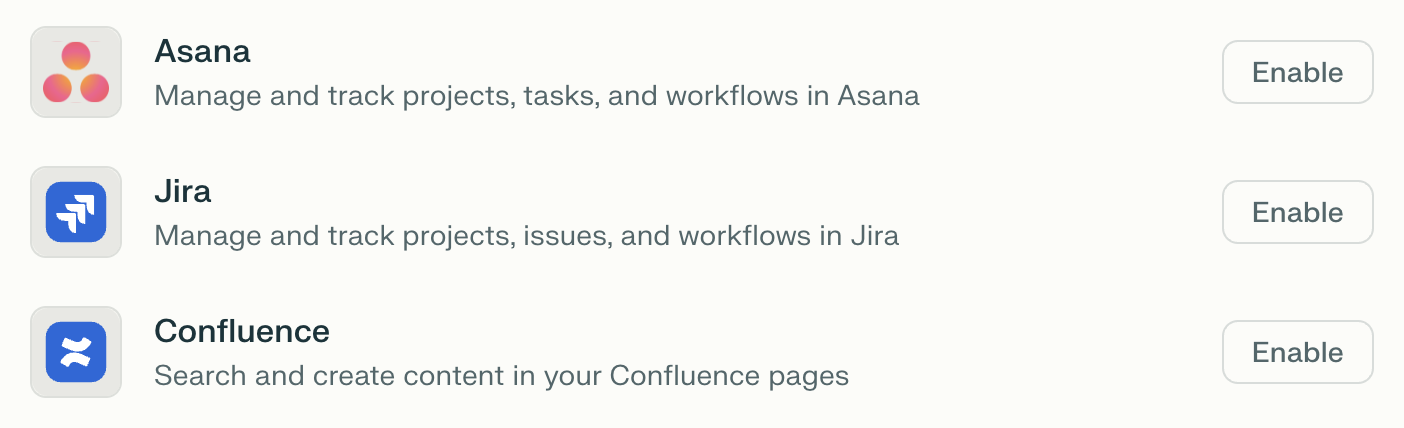
Go to Connectors in Settings and locate the Asana Connector on the list.
-
Click Enable.
-
You will then be prompted to log in to your Asana account and to grant some permissions to the connector. Click Allow to continue.
-
Click Finish setup to start using Perplexity with Asana.
Trying it out
Once you have connected Perplexity to Asana, try running some of these queries to leverage your inbox and calendar information and perform actions in directly from Perplexity:
-
List all my overdue tasks in Asana along with recommendations for next steps
-
Create a new task for the marketing campaign with due date next Friday
-
Find all high-priority tasks in our development workspace
-
Summarize the progress on Project X