

The Jira Connector enables you to use Perplexity to search, create, update and track information in Jira. The Jira Connector is available to users in all our paid plans – Perplexity Pro, Perplexity Max, Enterprise Pro and Enterprise Max.
Below you’ll find an overview of this Connector and how to activate it.
What does the Jira Connector do?
The Jira Connector enables Perplexity to search across Jira tasks, projects, and teams, create and update tasks and projects, and track progress, plan cycles, and manage workflows.
The Jira Connector can help save time avoid context-switching. For example, you can get summarized insights from Jira to get visibility of the progress of a specific project, or create quick updates for existing issues, all within Perplexity.
The Jira Connector also allows you to integrate Jira data with information from other apps and services using our App Connectors, without having to shift between platforms.
Privacy and Data Security
The Jira Connector requires the following permissions to function:
-
Take Jira administration actions (e.g. create projects and custom fields, view workflows, manage issue link types).
-
Create and edit project settings and create new project-level objects (e.g. versions and components).
-
View user information in Jira that the user has access to, including usernames, email addresses, and avatars.
-
Read Jira project and issue data, search for issues, and objects associated with issues like attachments and worklogs.
-
Create and edit issues in Jira, post comments as the user, create worklogs, and delete issues.
We do not store your Jira data. Every time you run a query using the Jira Connector, we retrieve only the information that is relevant to answer your query.
Additionally, when you connect Perplexity to Jira, you can only see and modify data that you are authorized to access.
Enterprise-grade Security and Control
For Enterprise organizations, we offer enterprise-grade protections and compliance including SOC 2 Type II certification, end-to-end encryption, strict data privacy measures, and granular user access controls. Your Jira data, just like any other Enterprise data, is never used for AI training, and robust safeguards ensure confidentiality and regulatory compliance. You can learn more in our Trust Center.
Connecting Perplexity to your Jira account is done at a personal level. This means that no one else in your organization is able to query your data. If you query Jira on a shared session, however, anyone with access to the session will be able to see the responses.
To maintain control over how Perplexity interacts with Jira, organization admins can enable or disable the connector for all organization users.
How to activate it
To activate the Jira Connector:
-
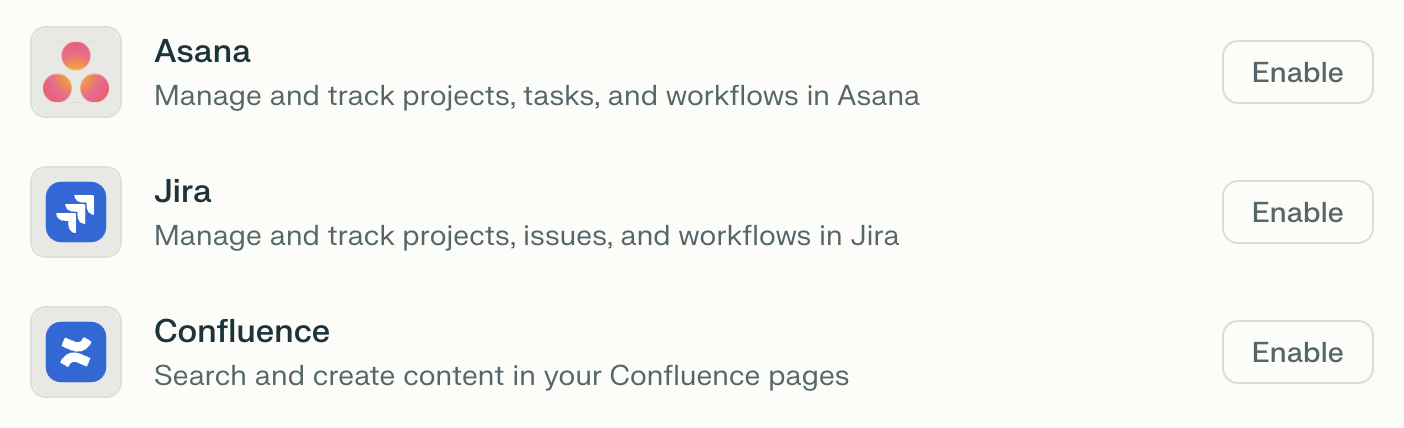
Go to Connectors in Settings and locate the Jira Connector on the list.
-
Click Enable.
-
Enter your Jira site URL.
-
Choose the site you want to connect to Perplexity. If you have more than one site, you can only connect one at this time.
-
You will then be prompted to log in to your Atlassian account and to grant some permissions to the connector. Click Allow to continue.
-
Click Finish setup to start using Perplexity with Jira.
Trying it out
Once you have connected Perplexity to Jira, try running some of these queries to leverage your inbox and calendar information and perform actions in directly from Perplexity:
-
Retrieve all open critical bugs in Project X from Jira and provide a brief summary with relevant documentation from the web
-
List all Jira issues assigned to me that haven't been updated in the last seven days and check for recent solutions or related threads
-
Create a new Jira issue for all top-voted customer-reported problems, assigning them based on workload
-
Summarize the top three blockers across active Jira epics and automatically suggest next steps based on best practices found online