

About the Box connector
The Box connector allows Enterprise Pro and Enterprise Max users to search files on their entire Box drive using Perplexity’s AI search capabilities.
You can use the connector to quickly find information in spreadsheets, presentations, documents, and other supported file types without manually opening each file in Box, streamlining the research, document review, and information retrieval across your entire drive.
How does the Box connector work?
The connector performs two different types of search:
-
Standard Search: Search across your entire drive with standard indexing.
-
High-Precision Search: Deep analysis of a limited number of files for comprehensive answers from your documents. Please note that limits apply.
Supported file types
Perplexity can read and search the following file types from Box:
-
PDF files
-
DOCX files
-
XLSX files
-
PPTX files
-
CSV files
-
Markdown (MD) files
-
JSON files
-
Text (TXT) files
The Box connector does not currently support images, audio, and video files. However, you can still upload these file types directly from your device to a session.
What apps are supported?
To use Box with Perplexity, you will need to use Perplexity with a web browser.
The Box connector is not supported in the Perplexity Windows app, Mac app, or on mobile apps.
Security and data handling
The Box connector requires the following permissions:
-
Read all files and folders stored in Box
-
Read and write all files and folders stored in Box
The Box connector respects user permissions, and will only serve a user content they’re authorized to see.
If you delete a file from Box or remove access to it, that file is immediately removed from Perplexity.
Additionally, if you disconnect your Box account from Perplexity, you can choose whether you'd like to keep or delete your files. If you keep them, they will stay in your account, but they will no longer synchronize if you make changes to them in Box.
Default vs High-Precision Search
The default search behavior of the Box connector uses a direct API integration. This integration uses the auth provided by Box, which means that it will always adhere to the file permissions as set in Box. Perplexity does not index your entire drive, and it only gets access to the files returned by the API.
However, if you choose to upload files for high-precision search, we use the API integration to index only the selected files. Default search will still be available for the files you choose not to upload for high-precision search. Please note that Perplexity still adheres to Box file permissions. For example, if access for a file gets revoked and a user that had access to a file no longer has access to it, they will no longer be able to search the file and its contents using Perplexity.
Enterprise-grade security
In addition to this, Perplexity offers enterprise-grade protections and compliance including SOC 2 Type II certification, end-to-end encryption, strict data privacy measures, and granular user access controls. Your Box files are encrypted in transit and at rest in AWS S3.
Perplexity never uses your connected files to train its AI models. Robust safeguards ensure confidentiality and regulatory compliance.
Connecting Perplexity to your Box account is done at an individual level. This means that no one else in your organization is able to query your drive files. However, if you sync files to a shared project, anyone with access to that Project will be able to search those files.
To maintain control over the data shared with Perplexity, organization admins can enable or disable the connector for all organization users from Organization settings.
How to connect Box to Perplexity
To connect Box to Perplexity, follow these steps:
-
Go to Settings in Perplexity.
-
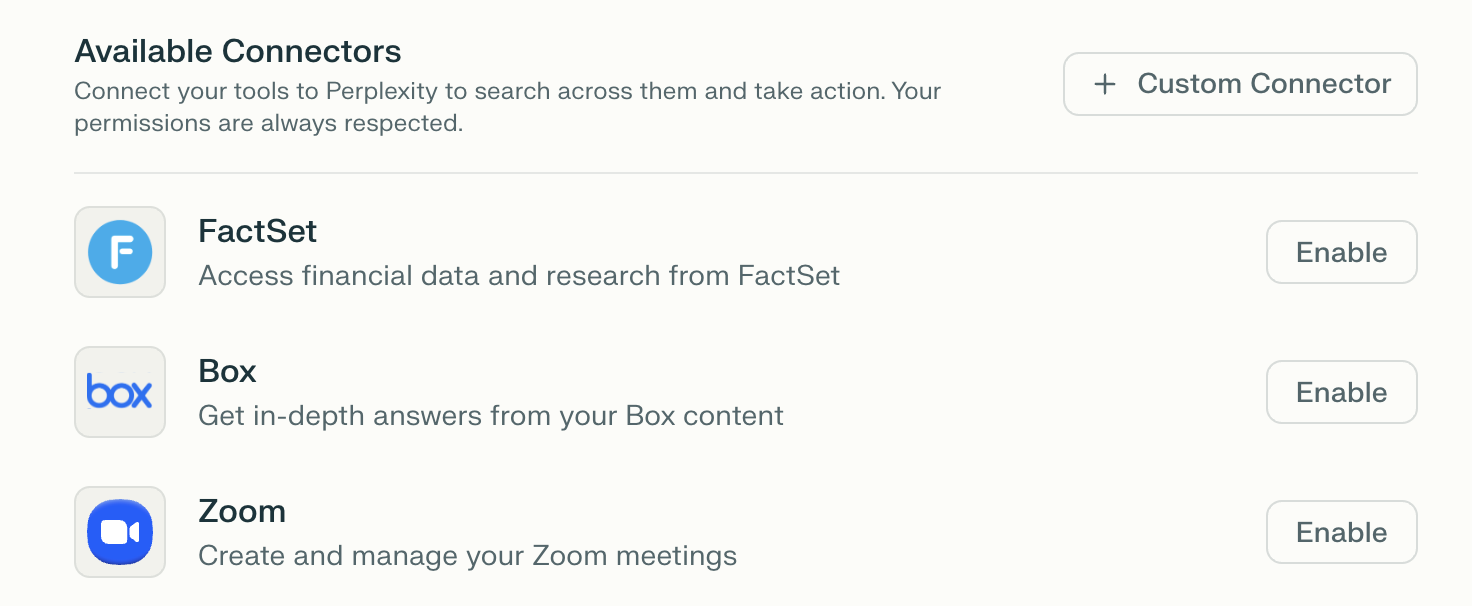
Scroll down to the Connectors section.
-
Find Box and click Enable.
-
Sign in to your Box account and grant the requested permissions.
-
After connecting, you can choose which files and folders Perplexity can access for High-Precision Search by clicking Configure and uploading specific files.
Using Box files in searches
Once you have connected Perplexity to Box, you can use your synced files in two main ways:
As a search sourceBox
When starting a new session, enable Box as a source from Set sources for search. Your synced Drive files will be searched alongside other selected sources (web, academic, other App Connectors, etc.) to provide comprehensive answers.
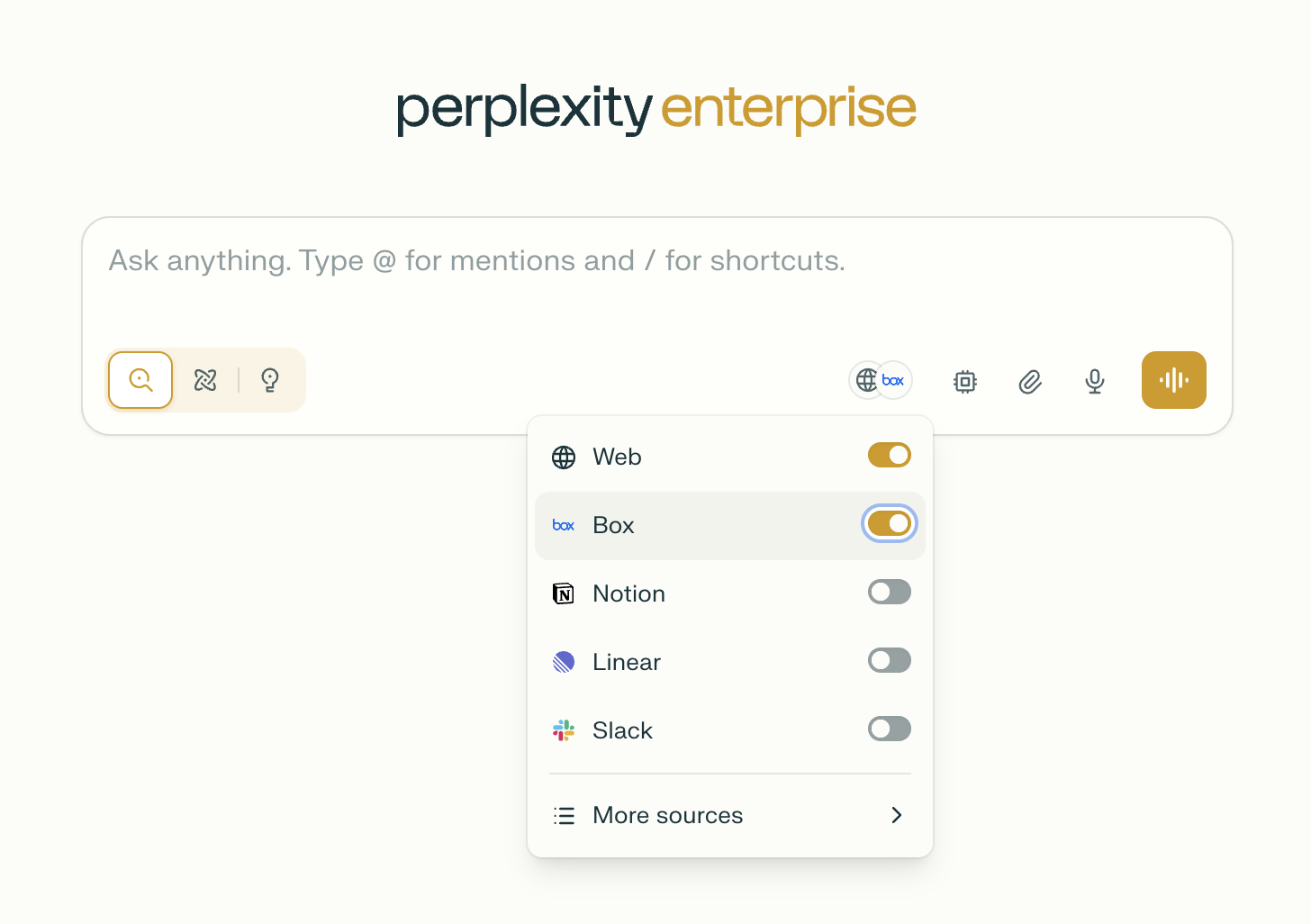
Alternatively, you can mention @Box when starting a new session, and write a search prompt.
As file attachments
In a query, click File Attachments and choose files from your connected Box.
You can also sync files synced from your drive to projects, allowing them to be searched by anyone with access to those Projects. This enables team high-precision collaboration with shared Box content.
Troubleshooting
If you can’t connect or sync Box files, try these steps:
-
Make sure your organization admin has enabled the Box connector in Organization settings > Permissions.
-
Check that you have at least read access to the files and folders you’re trying to sync.
-
Disconnect and reconnect the Box connector in your settings.
-
Try using an incognito/private browser window or a different browser.
-
Ensure the file is under 50 MB and is in a supported format.
If the issue persists, contact us with details and any error messages you see.