

Perplexity’s Microsoft Teams integration brings Computer directly into your team. With Perplexity’s Microsoft Teams app, you can run Computer tasks and search the web and your Teams conversations without leaving Teams.
How It Works
-
Chat with Computer — Start a conversation in a DM or group chat. Ask anything, like you would a teammate.
-
Give Computer tasks — Use natural language prompts. Computer deploys subagents to handle research, writing, data analysis, and more—automatically.
-
Computer works — It browses, researches, creates content, and connects to your tools in the background.
-
Iterate and improve — Keep guiding Computer as it works, or start a new task. It remembers past context across sessions.
What You Can Do
With the Perplexity Microsoft Teams app, you can:
-
Ask any question — Get web-sourced, cited answers directly in Microsoft Teams conversations
-
Search your team — Search messages in your DMs, private channels, and public channels you have access to
-
Run tasks — Run Computer tasks directly from Microsoft Teams, and research information or create content without leaving the app
-
Get cited sources — Every answer includes numbered citations linking back to web sources or Microsoft Teams messages, so you can verify and explore further
-
Work in threads — Responses are posted in threads to keep your channels organized
-
Attach files — Share documents with your questions for richer context (up to 50 MB per file)
What Your Team Can Do
-
End-to-End Workflow Automation Across Apps — Computer orchestrates complete workflows by breaking down complex projects into subtasks and routing them to specialized AI agents. For example, it can take a product spec from Notion, break it down into Linear tickets, and post updates in relevant Microsoft Teams channels. You can ask Computer to do so on a daily basis too.
-
Multi-App Research and Content Creation — Computer conducts deep research using its integration with hundreds of apps including SharePoint, Outlook, OneDrive, GitHub, Notion, Snowflake, and Databricks. It can research, generate visuals, write documentation, build slides, and send emails while working autonomously in the background.
-
Long-Running Project Management — Computer can run scheduled tasks, managing multiple active projects simultaneously with persistent memory. It remembers past work, maintains context across sessions, and can execute scheduled tasks while you're offline.
Who Can Use the Microsoft Teams App?
The Microsoft Teams app is available to any user with access to Perplexity Computer. To use it, you will need to connect Microsoft Teams to Perplexity.
For Admins: Setting Up the Microsoft Teams App
Prerequisites
IT admins may need to grant organization-wide consent to the Perplexity Microsoft Teams app in Microsoft Entra. You can find more information in this article.
To set up the Perplexity Microsoft Teams app, you’ll need the following:
-
A Perplexity plan with Perplexity Computer
-
Permissions to install apps in your team
-
A Microsoft Teams license
Security & Compliance
Computer is built on Perplexity’s secure, SOC 2 Type II-certified infrastructure.
-
End-to-end encryption — All data in transit and at rest is encrypted.
-
No AI training on your data — Your messages and enterprise data are never used for model training.
-
User-level permissions — The Microsoft Teams connector respects Microsoft Teams’ native access controls. Users can only access content they are already authorized to view.
-
Audit Logs — Admins in eligible organizations can view all submitted queries that use the Microsoft Teams connector and see every source used to generate answers within the Audit Logs feature.
Installation Steps
-
Go to the Apps in Microsoft Teams and search for "Perplexity Computer"
-
Click Add
-
Review the permissions the app requires and click Add
-
You'll be redirected to connect your Perplexity account with Microsoft Teams
-
Once you’ve done so, you’ll be able to use Computer within Microsoft Teams
Permissions Granted
When installing, the Perplexity app requests the following Microsoft Teams permissions:
-
Receive messages — Teams sends activity payloads (POST requests) to the app’s messaging endpoint
-
Send messages to conversations — The app responds in the conversation where it was invoked
-
Access user profile information — Teams provides the user's Teams User ID, email, and tenant information as part of the activity payload (this is standard Bot Framework behavior)
Additionally, users will need to grant the following permissions to use the Teams app:
|
Permission |
Description |
|
Information related to you |
Access my profile information such as my name, email address, company name and preferred language. |
|
Information in your chats, channels, and meetings |
Access information from this team or chat such as team or chat name, channel list and roster (including team or chat member's names and email addresses) - and use this to contact them. |
|
Send and receive messages and notifications |
• Receive messages and data that I provide to it.Send me messages and notifications. |
|
• Receive messages and data that team or chat members provide to it in a channel or chat. |
|
|
• Send messages and notifications in a channel or chat. |
|
Note: The bot only accesses messages on behalf of users who have authorized it. It respects Microsoft Team’s native permission model — users can only search content they already have access to.
What Your Users Will Experience
To use Computer in Microsoft Teams, users can send a DM to the Perplexity Computer app. Computer can also be activated by tagging @Perplexity Computer when writing a workflow in Microsoft Teams.
Any workflows triggered in Microsoft Teams will also be available on www.perplexity.ai/computer.
Managing the Integration
Removing the Computer App from Microsoft Teams
Admins can remove or block the Computer Microsoft Teams app from the Teams admin center under Teams apps → Manage apps, then optionally clean it up from app setup/permission policies.
-
Go to https://admin.teams.microsoft.com and sign in with a Teams admin or Global admin account.
-
In the left navigation, select Teams apps → Manage apps.
-
Search for the app name (e.g., a third‑party or custom app).
-
To stop users using it:
-
Select the app, select Actions, then set the status to Blocked (or use Block from the toolbar).
-
-
If it was pinned/auto-installed:
-
Go to Teams apps → Setup policies.
-
Edit the relevant policy (often Global (Org-wide default)).
-
Under Pinned apps and Installed apps, remove that app, then Save.
-
-
If you use app permission policies:
-
Go to Teams apps → Permission policies.
-
Edit the policy and either block the app’s publisher category or explicitly block that app if listed, then Save.
-
This effectively removes the app from users’ view and prevents new installs; existing sessions will usually stop working once the client refreshes or the user restarts Teams.
Controlling access
Teams admins can configure per-user or per-group access to the Computer app:
-
Allow or block the Computer app tenant‑wide in Teams admin center → Teams apps → Manage apps.
-
Use app permission policies to decide which users (or groups) can use the Computer app within Microsoft Teams (e.g., allow for one policy, block for another).
-
Use app setup policies to auto‑install/pin the Computer app only for certain users, while leaving it unavailable or unpinned for others.
Connector settings
Manage the Microsoft Teams connector from your Perplexity Enterprise admin panel under your Organization Settings → Connectors. Admins can enable or disable the connector for the entire organization.
Allowing users to delete Computer messages
By default, Microsoft Teams does not allow anyone — including team owners — to delete messages sent by apps and bots, such as Perplexity Computer. This is a built-in Microsoft Teams policy that applies to all apps, not a Computer-specific limitation, and no changes are required on the Computer side.
A Microsoft Teams administrator can turn on a messaging policy that allows members of a chat or channel to delete messages sent by apps. Once enabled, the setting applies across one-on-one chats, group chats, channels, and meeting chats, and deleted messages are replaced with a This message was deleted placeholder (and can be restored).
There are two ways to enable the setting:
Option 1 — Teams admin center
- Sign in to the Microsoft Teams admin center.
- Go to Messaging policies.
- Open the policy assigned to the relevant users (or your global/default policy).
- Turn on the option that allows users to delete messages sent by apps.
- Save your changes.
Option 2 — PowerShell
Administrators comfortable with PowerShell can enable the same setting with a single command. Microsoft documents the exact command and policy name in their official guidance: Allow users to delete messages sent by bots in Microsoft Teams.
After the policy is enabled, allow a short time for the change to take effect across your organization. If users still can't delete Computer messages once the setting is on, please reach out to support.
For Members: Using the Microsoft Teams App
Once your admin has installed the Perplexity app in your team, you can connect your Perplexity account to teams:
-
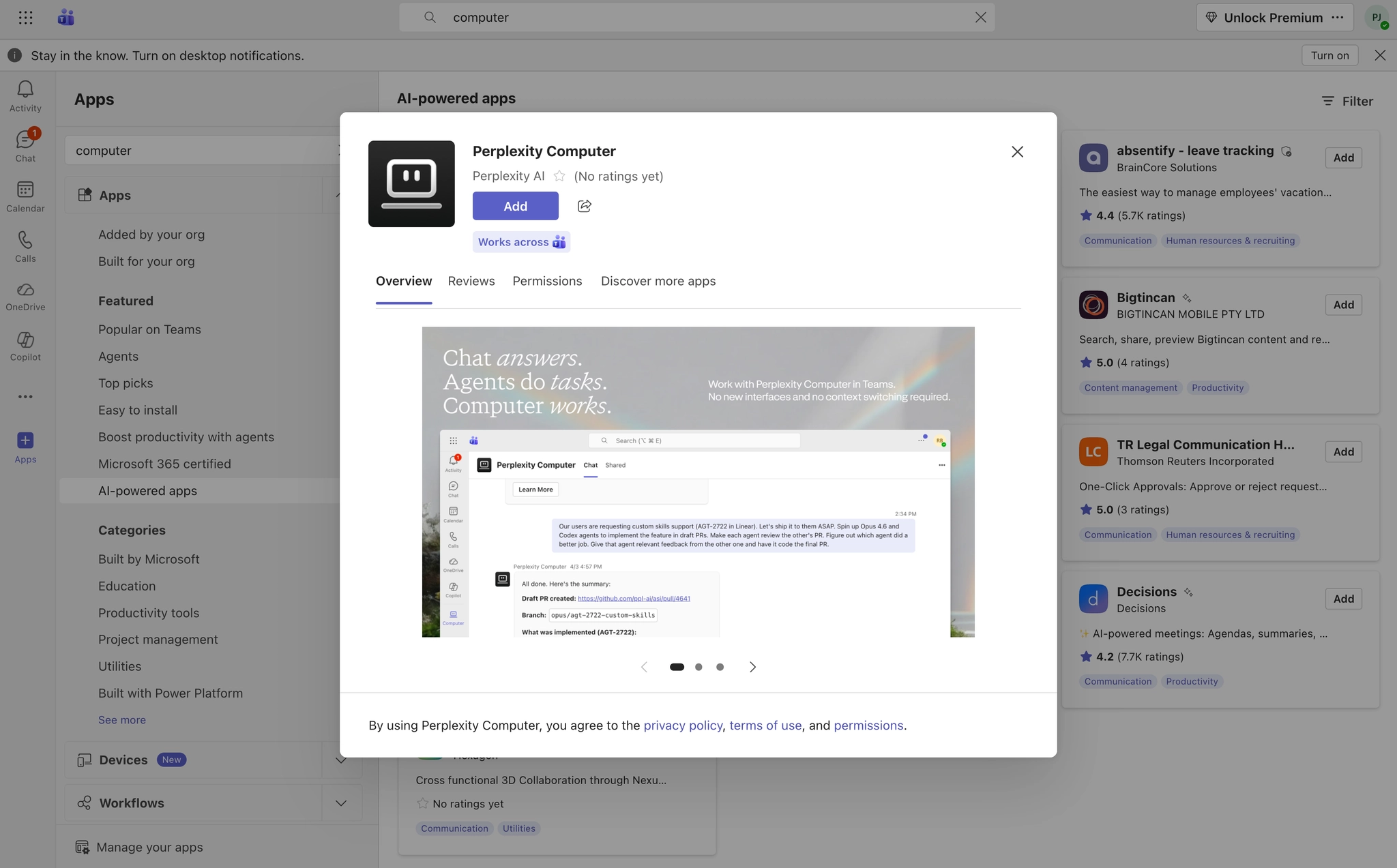
In Microsoft Teams, go to Apps, and search for Perplexity Computer (by Perplexity AI)
-
Click Add
-
Read the permissions and click Add
-
Optionally, you can choose the channels where to start using the Perplexity Computer app and click Open
-
You will be prompted to connect your Perplexity account to Microsoft teams – click Allow to do so
-
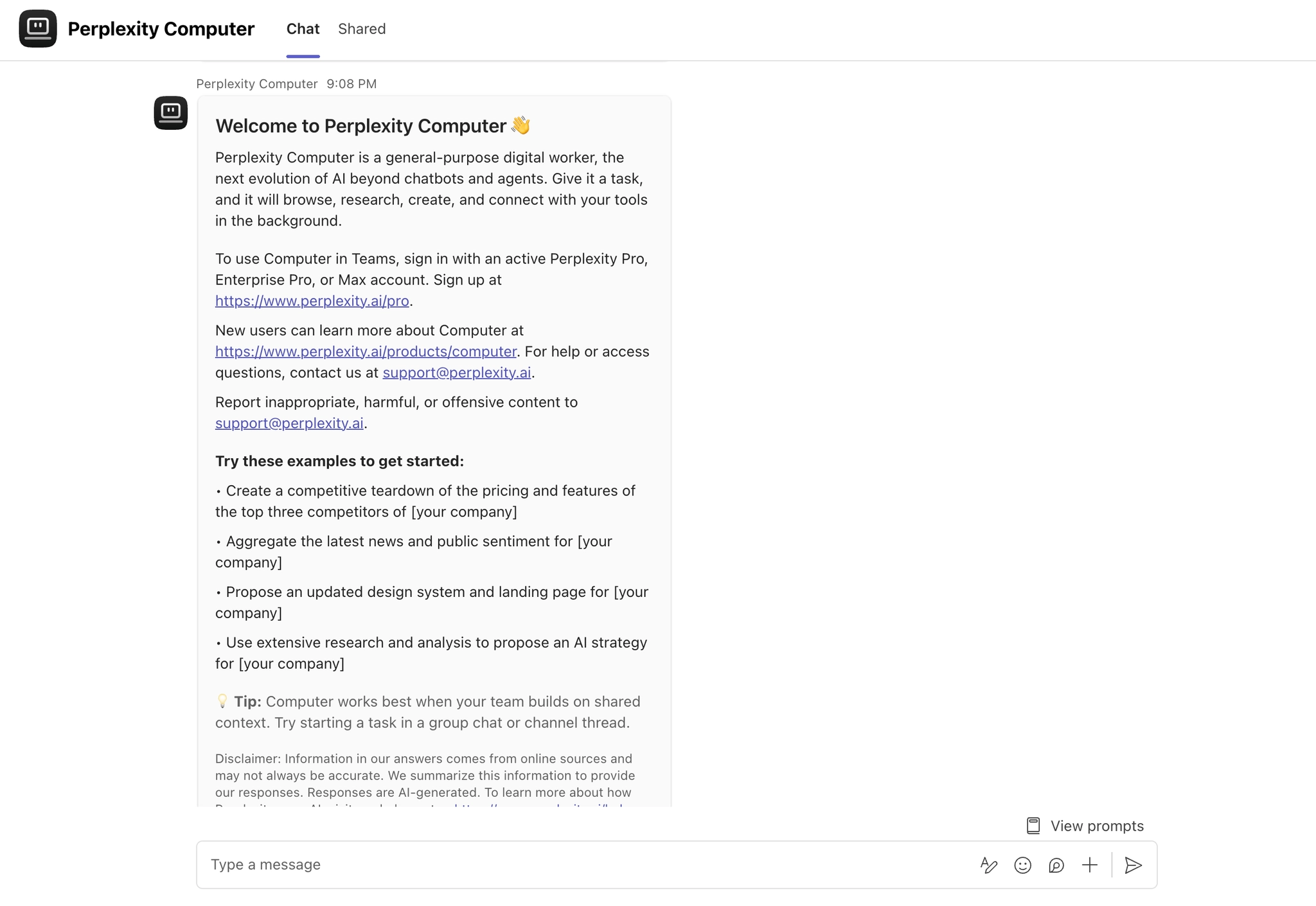
Once you’ve connected Microsoft Teams to Perplexity, you can open a DM with Computer — Find "Perplexity Computer" and start typing
-
You can send a “help” message to the Computer app to get some suggestions of things it can do for you
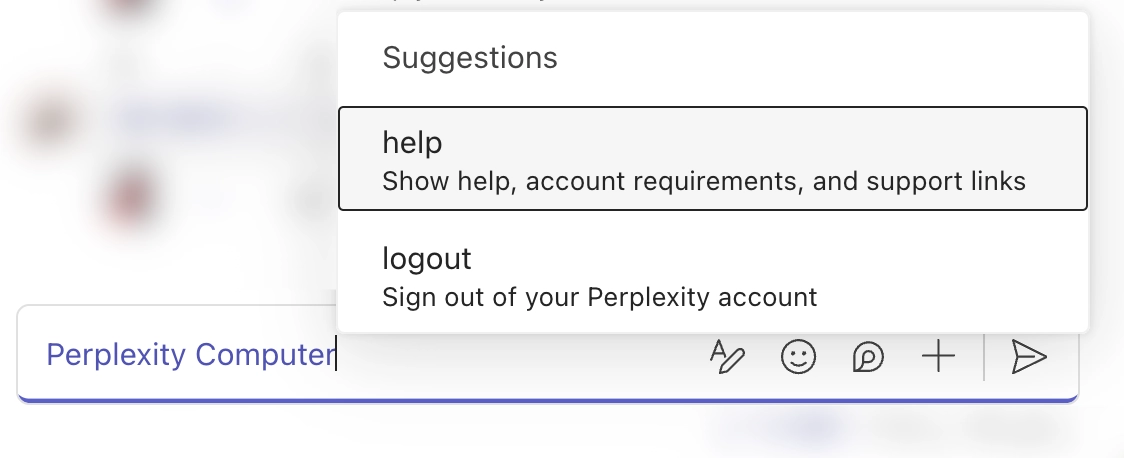
You can also add Perplexity Computer to a channel to start tasks and ask questions.
Asking Questions & Running Tasks
To use Computer in Microsoft Teams, send a message as you would to anyone else. Perplexity will reply in the same conversation.
Examples:
-
"Pull the transcript from last Friday's leadership sync, extract every action item and owner, and post a summary to the Project Updates channel." (Searches Teams meeting transcripts + sends a Teams channel message)
-
"Search all Teams channels for discussions about the migration timeline over the past two weeks and cross-reference with the latest Jira tickets to flag any misalignments." (Combines Microsoft Teams + Jira connectors)
-
"Look through my unread DMs and channel mentions from today, prioritise anything urgent, and give me a morning briefing." (Uses Teams message search across DMs and channels)
-
"Find a 30-minute slot this week where the entire product team is free, schedule a Teams meeting called 'Sprint Review', and post the agenda to the Engineering General channel." (Checks availability + creates a meeting + sends a channel message)
-
"Research the latest GDPR enforcement actions from this quarter, draft a one-page summary, and post it to the Legal team's Compliance channel with a note tagging the team lead." (Searches the web + generates content + sends a Teams channel message with mentions)
-
"Review all open P1 bugs in Linear, check if any were discussed in the Engineering team's channels this week, and reply to those threads with the current status and ETA from Linear." (Reads Linear issues + searches Teams messages + replies to Teams threads)
For Best Results
-
Be specific — The more context you provide, the better the answer.
-
Use threads — Computer remembers context across threads and sessions.
-
Attach files — You can attach documents for the bot to reference (up to 50 MB per file).
-
Ask about your workspace — Perplexity searches both the web and accessible Microsoft Teams messages, which helps you find past conversations and decisions.
Good to Know
-
Privacy — Perplexity only accesses Microsoft Teams channels and messages you have access to. It respects Teams' existing permission model.
-
Response length — Long answers are automatically split into multiple messages in the thread for readability.
-
Status indicator — You'll see an ellipsis (…) animation while Perplexity processes your question.
Frequently Asked Questions
Does Perplexity store my Microsoft Teams messages?
Perplexity accesses Microsoft Teams messages in real time to answer questions, but it does not permanently store your Teams data. Context is deleted after each query is processed.
Can the Computer app access private channels?
The Computer App for Microsoft Teams can only search messages in channels and DMs that the requesting user has access to. It follows Teams’ native permission model.
Is there a limit to how many questions I can ask?
Computer App for Microsoft Teams usage counts toward each user's Computer limits on their Perplexity plan. You will need credits to use the Computer App.
Can I use the Microsoft Teams App and the Microsoft Teams Connector at the same time?
Yes! The Computer App lets you ask questions inside Microsoft Teams, while the Microsoft Teams Connector lets you search Teams content from Perplexity's web app. They complement each other.
Can I delete messages Computer posts in Microsoft Teams?
Not by default. Microsoft Teams blocks deletion of app and bot messages out of the box, so your Microsoft Teams administrator needs to turn on the policy that allows users to delete messages sent by apps. Once that policy is enabled, anyone in the chat or channel can delete Computer's messages, and the change applies to all apps and bots — not just Computer. See Allowing users to delete Computer messages above for the admin steps.
Can Computer automatically clear an entire Teams chat history?
No. Microsoft Teams retains conversation history by design and doesn't offer a way to clear an entire chat at once. The messaging policy described above covers deletion of individual messages, not bulk history removal.